Hole View
The device shows the current hole you are playing.
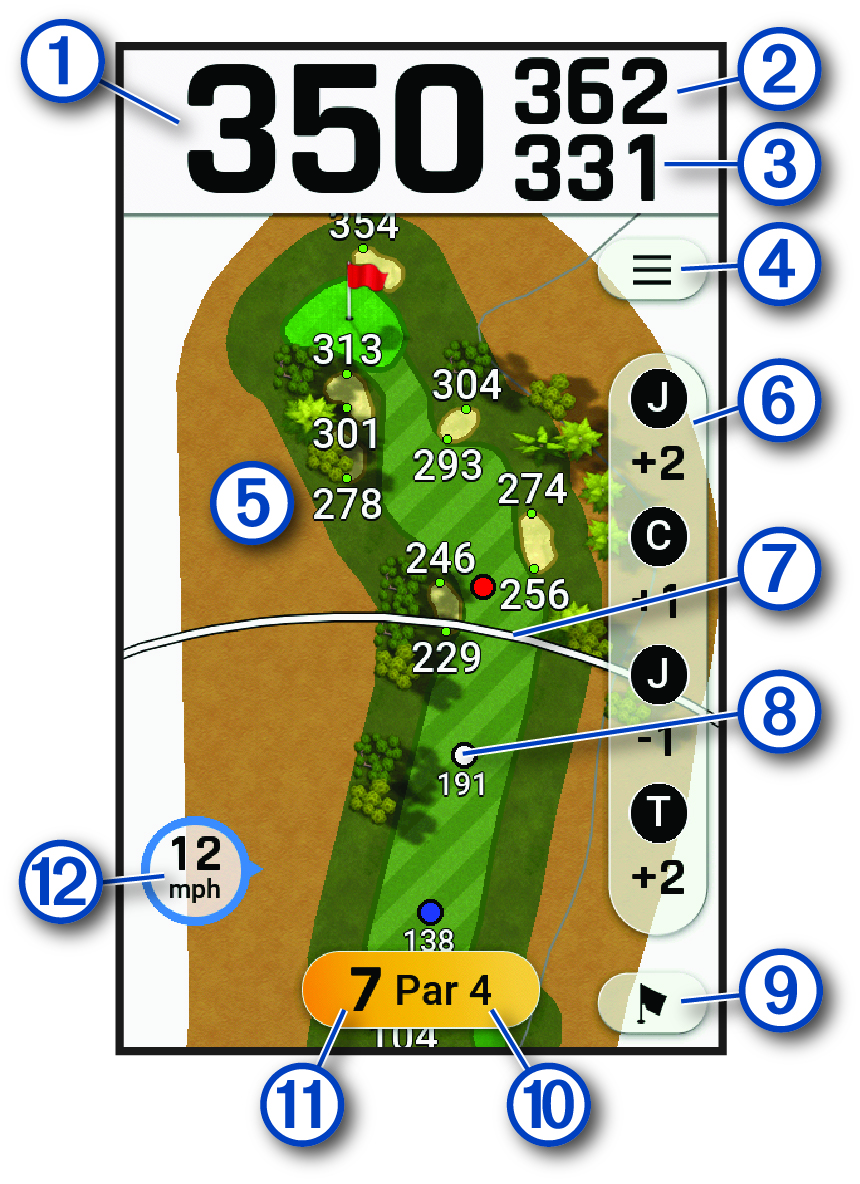
|
|
Displays the distance to the middle of the green or selected pin position. Tap a distance to the green to view the PlaysLike distance (Viewing PlaysLike Distance). |
|---|---|
|
|
Displays the distance to the back of the green. |
|
|
Displays the distance to the front of the green. |
|
|
Select to view and update golf options and settings (Golf Menu). |
|
|
Displays a map of the hole. Tap the map to measure distance with touch targeting (Measuring Distance with Touch Targeting). |
|
|
Select to view and update the scorecard (Keeping Score). |
|
|
Displays your driver distance from the tee box ( Settings). |
|
|
Displays layup distances to the pin. The colors indicate distance in meters or yards: red is 100, white is 150, blue is 200, and yellow is 250. |
|
|
Select to display a close view of the green for adjusting the pin location (Viewing the Green). |
|
|
Displays the par for the current hole. |
|
|
Displays the current hole number. Select to change the hole number (Changing Holes). |
|
|
Displays the wind speed and direction (Viewing the Wind Speed and Direction). |