Remote Control
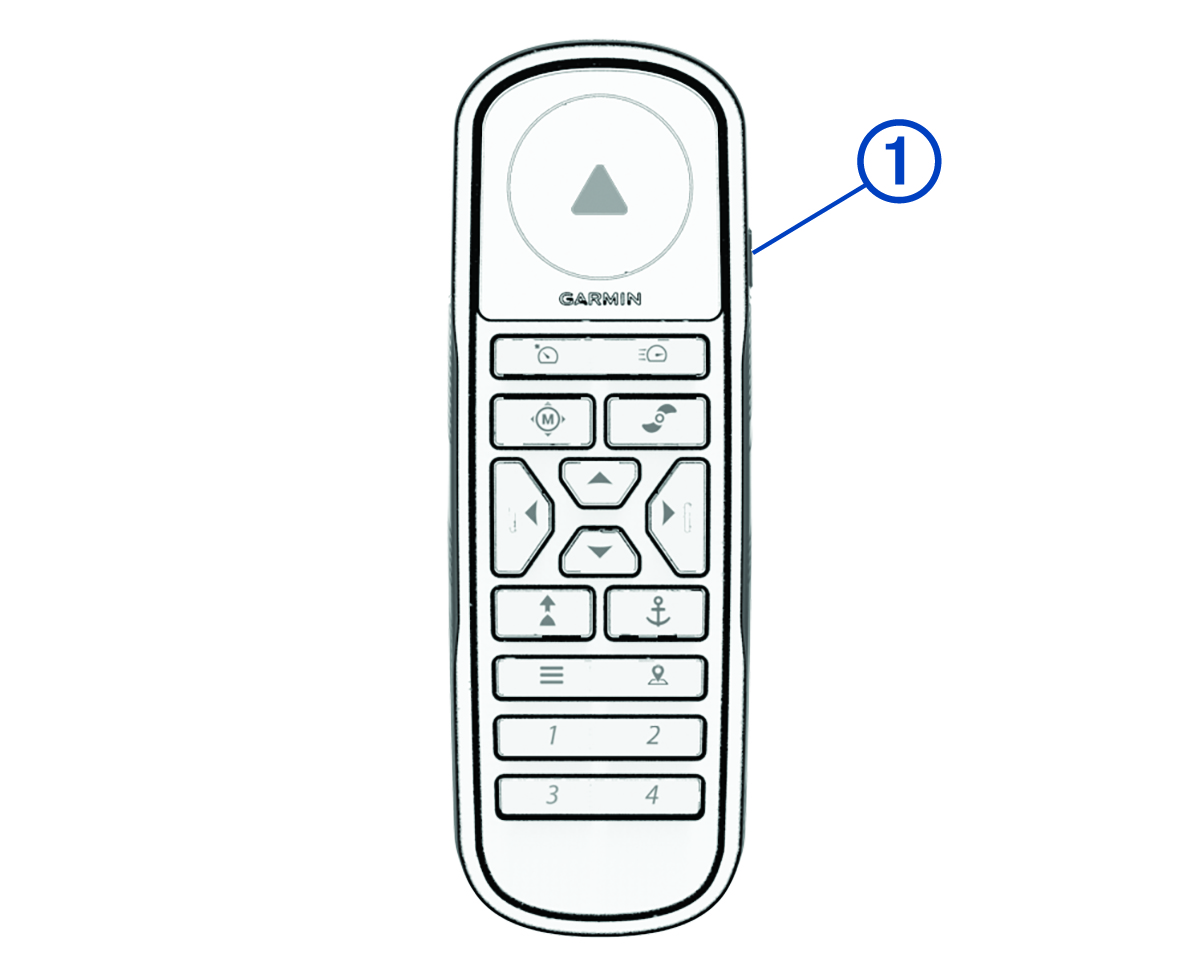
|
Button |
Description |
|---|---|
|
|
Hold to turn the remote control on and off. |
|
|
Press to turn on and set Cruise Control at the current speed over ground (SOG) (Maintaining Your Speed). Press again to disable Cruise Control and return to manual speed control. |
|
|
Press twice to turn on the propeller and set it to full speed. Press again to return to the previous speed and propeller state. |
|
|
Press for manual control (Steering the Trolling Motor Manually). Hold and point with the remote to steer (Using Gesture Controls to Steer). |
|
|
Press once to turn the propeller on or off (Turning the Propeller On and Off). Press twice to turn off any autopilot function (if enabled), stop the propeller, and shift between forward and reverse thrust (Reverse Thrust). |
|
|
Press to navigate the menu (Navigating the Menu). When in the menu, press When in Anchor Mode, press to jog your held position forward, backward, left, or right in 1.5 m (5 ft.) increments. When in Heading Hold or manual control, press Press
When your speed is set to zero, press
|
|
|
Press to turn on Heading Hold. Heading Hold uses the trolling motor to maintain your current heading (Maintaining Your Heading). Press again to turn off Heading Hold, stop the propeller, and resume manual control. When in Heading Hold, hold and point with the remote to adjust your heading (Gesture Controls). |
|
|
Press to turn on Anchor Mode (Holding Your Position). Press again to turn off Anchor Mode and return to the previous steering mode. Hold and point with the remote to jog your held position (Using Gesture Controls to Adjust Your Held Position ). |
|
|
Press to open the menu. Press to exit the menu. |
|
|
Press to mark a waypoint. |
|
1 through 4 |
Programmable keys. Hold a key to make it a shortcut to the current chartplotter screen. Press a key to switch to the saved chartplotter screen (Assigning a Chartplotter Shortcut to a Programmable Key).1 TIP:
You can also create a shortcut to Bow Lock or Anchor Lock (Assigning an Anchor Mode to a Programmable Key).
|