Device Overview
|
|
|
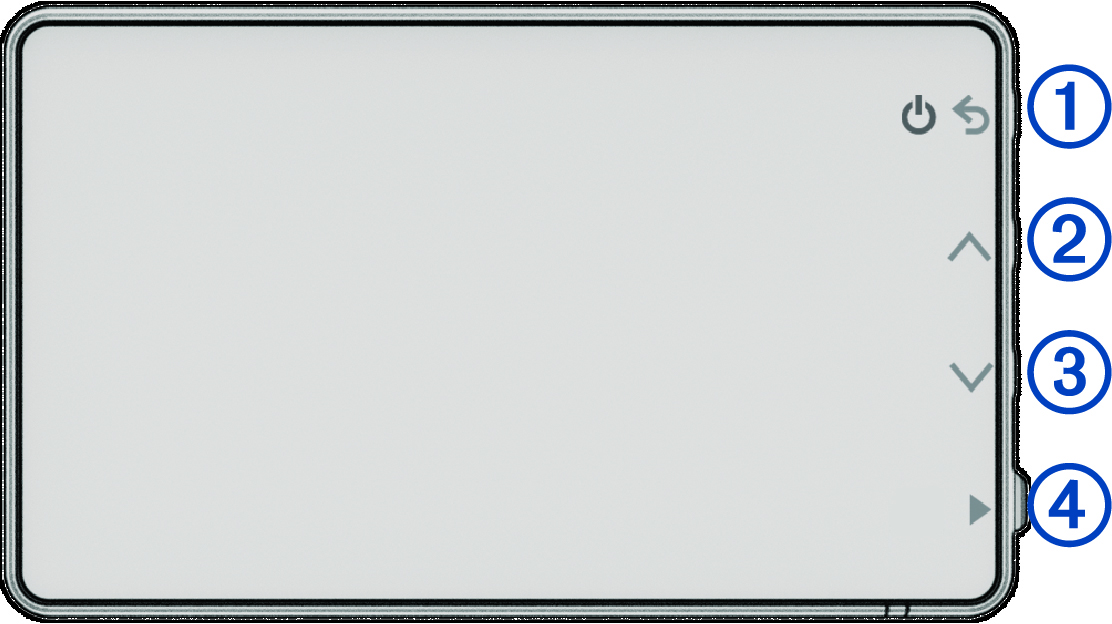
Press to turn the device on. Hold for 3 seconds to turn the device off. Press to return to the previous page. |
|---|---|---|
|
|
|
Press to scroll through menus or pages. |
|
|
|
Press to scroll through menus or pages. |
|
|
|
Press to choose an option in a menu. |


Using the Touchscreen
- Tap the screen to select an item.
- Drag or swipe your finger across the screen to pan or scroll.
Home Screen
|
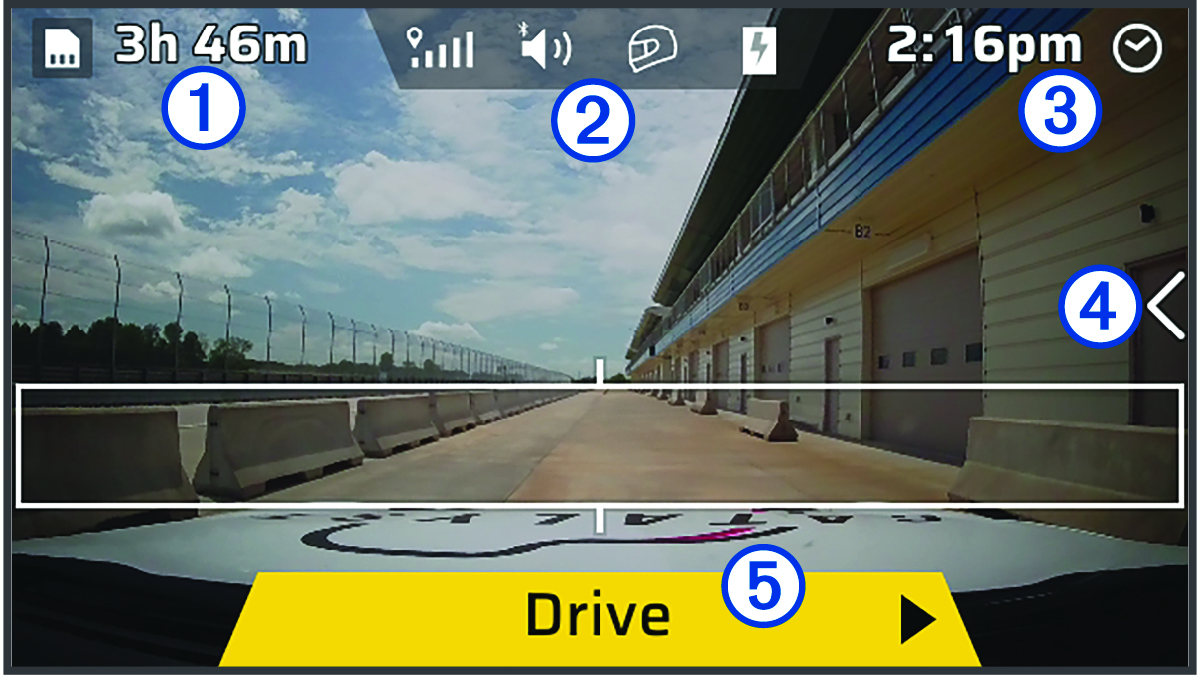
Video footage remaining |
Displays the video footage remaining on the installed memory card. |
|---|---|
|
Status bar |
Select an icon to view more information (Status Bar Icons). |
|
Time |
Displays the current time. |
|
|
Swipe the screen left to open the device menu. |
|
|
Select to start a drive session (Starting a Drive Session). |
Status Bar Icons
The status bar is located at the top of the home screen. The status bar icons display information about features on the device. You can select some icons to change settings or view additional information.
|
|
GPS signal status. Select to view location accuracy and acquired satellite information. |
|---|---|
|
|
Bluetooth® audio connection status. Select to view the Bluetooth audio settings. |
|
|
Driver profile. Select to switch driver profiles or vehicles. |
|
|
Battery charge level. |