Starting a Drive Session
Before you can start a drive session, your device must acquire satellite signals. You can select
 in the status bar to check the current signal strength and accuracy.
-
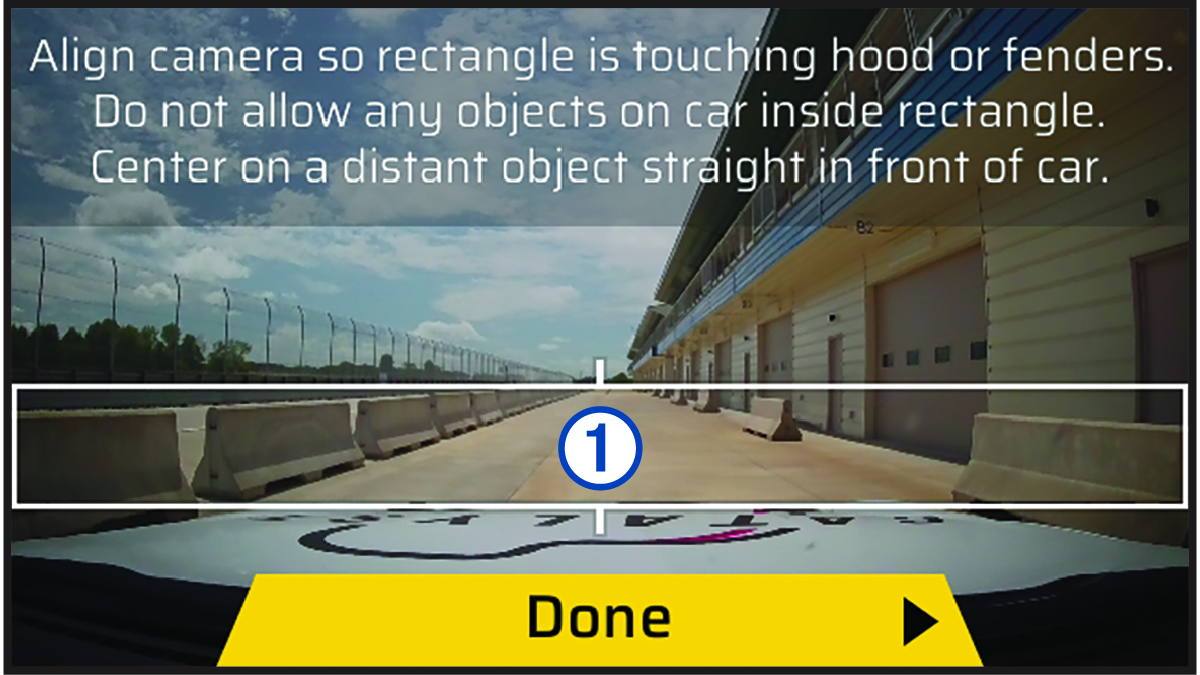
Align the camera so the bottom
of the rectangle
is aligned with the front of your vehicle's hood or fenders, and the camera is
centered on a distant object straight in front of your vehicle, and select
Done.
-
Select an option:
-
To change your driver profile, select
 > Switch Profiles.
 -
To change your vehicle profile, select
> Vehicle. -
To configure lap timer settings, select
, and select Delta Timer or Lap Timer Display. -
To change your track conditions, select Session Settings, and select
 ,
,  , or
, or  .
. -
To change your audio configuration, select Session Settings, and select your audio connection.
-
To enable or disable audio recording, select .
-
Race Timer
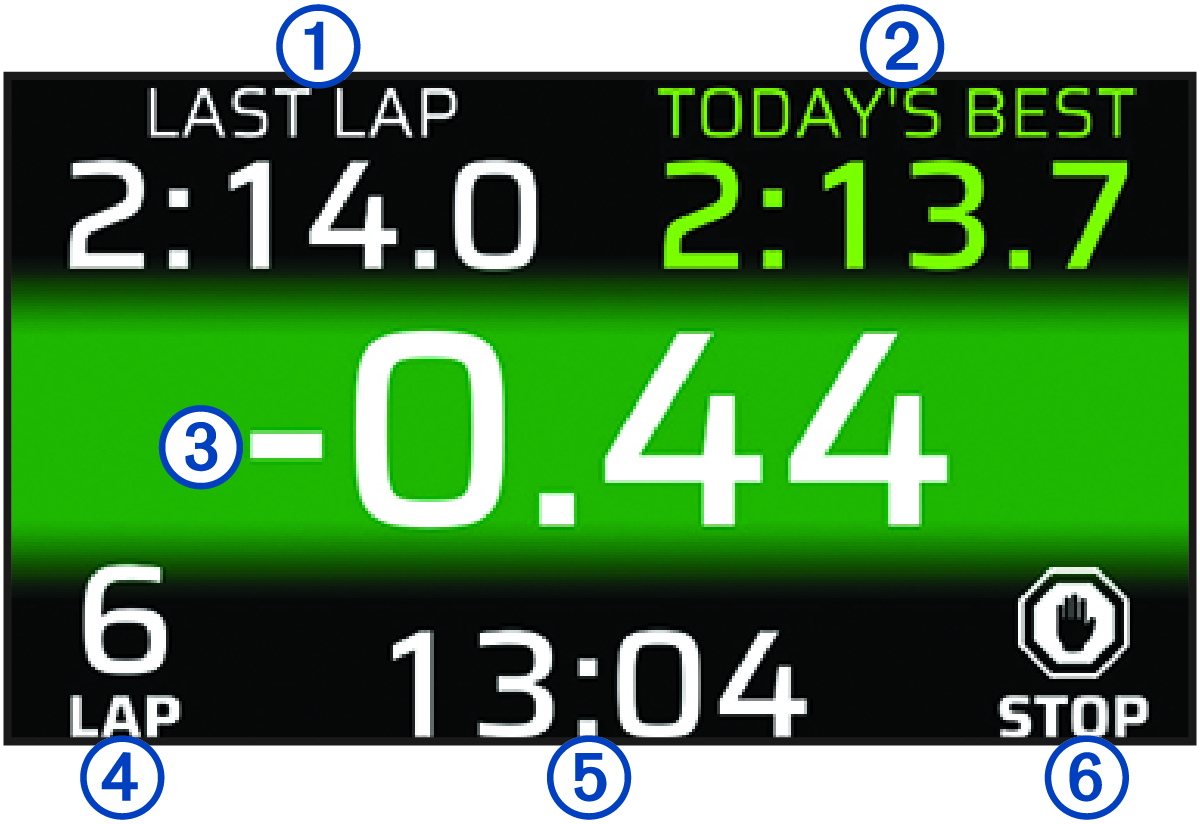
As you drive, the device keeps track of your progress and gives you audible coaching tips over your paired headset or stereo (Pairing a Wireless Headset or Car Stereo). The race timer keeps track of your lap number and shows your best lap times.
|
LAST LAP |
Displays the most recent lap time during the current session. |
|---|---|
|
TODAY'S BEST |
Displays the best lap time for the current day. TIP:
You can change the Delta Timer setting in the driver profile menu to
change this field.
|
|
Delta timer |
Displays the time difference between the current lap and the best lap during the current session. |
|
LAP |
Displays the current lap number. |
|
Session timer |
Displays the total time of all laps in the current session. |
|
STOP |
Select to end the current session. |
Pausing a Drive Session
You can pause a drive session that is already in progress. When you pause a drive session, the device stops recording audio and video and stops recording some race data. This is useful if your vehicle breaks down on the track, or if you make a long pit stop.
When you come to a stop, the device automatically pauses the drive session. If you make a long pit stop, the lap will not be factored in to the overall session statistics.
- Stop the vehicle, or select STOP.
-
Select an option:
-
To stop the drive session and save session data, select Save.
-
To continue the drive session, select Resume.
-
The session automatically resumes when you begin driving again.
Adding a Track
You can add a track that is not already loaded on your device. The device uses your GPS location and your vehicle's movements to create a map of the track.
You can adjust the starting position using the Garmin Catalyst™ app after you synchronize your drive session (Transferring Drive Sessions to the Garmin Catalyst App).
Adding a Track Configuration
You can add additional configurations for tracks that are stored on your device.
You can adjust the starting position using the Garmin Catalyst app after you synchronize your drive session (Transferring Drive Sessions to the Garmin Catalyst App).
Selecting a Vehicle or Driver Profile
- From the home screen, swipe the screen left to open the menu.
-
Select an option:
-
To change your driver profile, select
> Switch Profiles. -
To change your vehicle profile, select
> Vehicle.
-
- Select a vehicle or driver profile.