Garmin Catalyst App
The Garmin Catalyst™ app is required to view videos and performance data recorded from your Garmin Catalyst 2 device. You can review lap times, session summaries, opportunities, and annual driving activity metrics. You can download the Garmin Catalyst app from the app store on your phone or tablet, or go to garmin.com/catalystapp for more information.
Pairing Your Device with the Garmin Catalyst App
The first time you turn on your Garmin Catalyst 2 device, it presents you with a QR code to pair it with the Garmin Catalyst app on your phone or tablet. If you skip this step during initial setup, you can start the pairing process at a later time.
- From the home screen on your Garmin Catalyst 2 device, swipe to the left to open the menu.
- Select .
- Scan the QR code with your phone or tablet to download and install the Garmin Catalyst app and start the pairing process.
Garmin Catalyst App Overview
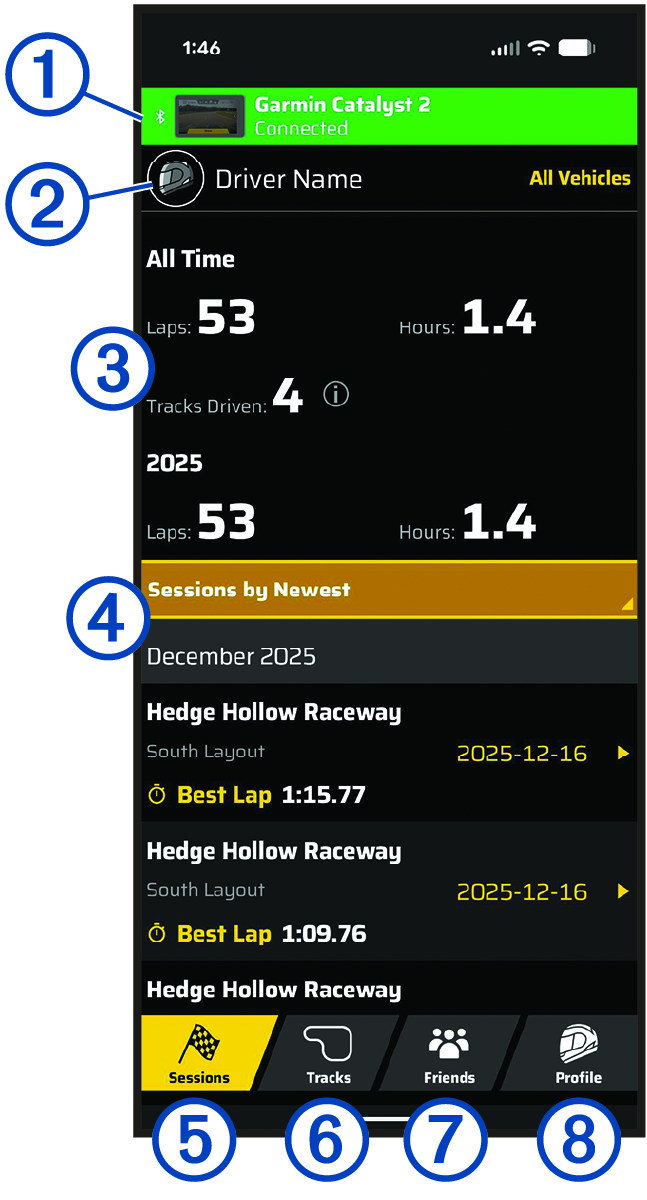
|
Device connection status |
Displays the connection status and session data transfer progress of your paired Garmin Catalyst 2 device. NOTE:
The device connection status does not appear unless the app is
actively connected to the device.
|
|---|---|
|
Driver profile |
Displays the current driver profile. |
|
Driver profile metrics |
Displays the recorded driving metrics for the current driver profile. |
|
Recorded drive sessions list |
Displays the list of available drive sessions that have been transferred to the app. You can select a drive session to view detailed information and videos from the drive session. |
|
Sessions |
Select to review drive sessions stored in the app. NOTE:
This tab is selected by default when you open the Garmin Catalyst app.
|
|
Tracks |
Select to view and search for available tracks and track configurations in the Garmin Catalyst app. |
|
Friends |
Select to view metrics from friends and leaderboard positions. |
|
Profile |
Select to view and edit your driver profile and vehicle profile. |
Transferring Drive Sessions to the Garmin Catalyst App
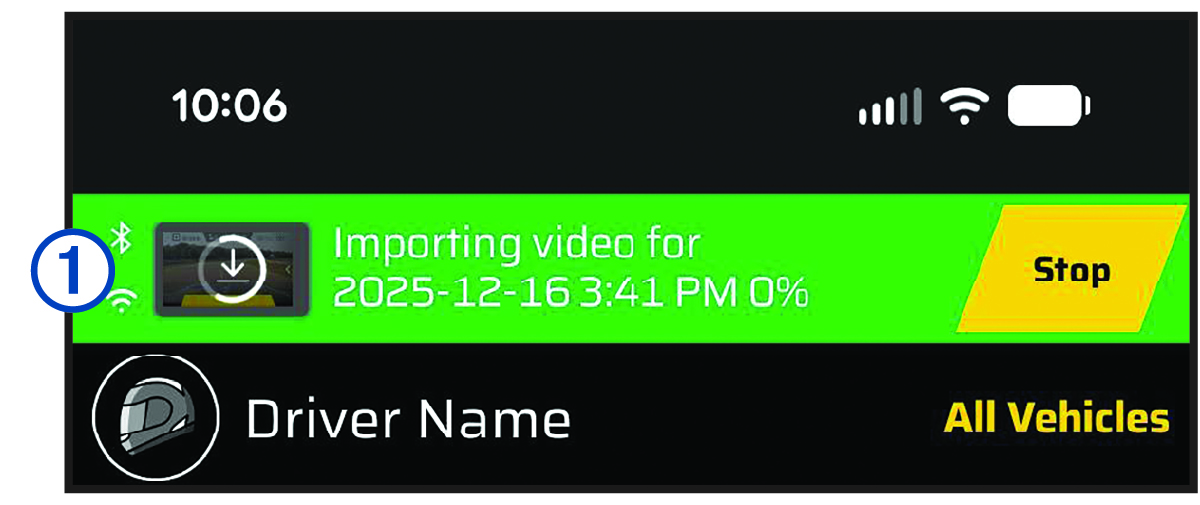
After you pair your Garmin Catalyst 2 device with the Garmin Catalyst app, the device sends session information to the app automatically using Bluetooth® technology. You can open the app and transfer videos from the device to the app using a direct Wi‑Fi® connection.
The session transfer progress appears at the top of the Garmin Catalyst app screen.
Reviewing Drive Sessions in the Garmin Catalyst App
Do not review any drive sessions while driving. Failure to pay attention to your surroundings and road conditions can result in serious personal injury or death.
Before you can review drive sessions in the Garmin Catalyst app, you must import session information from your Garmin Catalyst 2 device (Transferring Drive Sessions to the Garmin Catalyst App).
The device records detailed information about each drive session. You can view the results of each drive session individually or compare data with another session.
- From the Garmin Catalyst app, select the Sessions tab.
- Select a drive session.
Session Summary
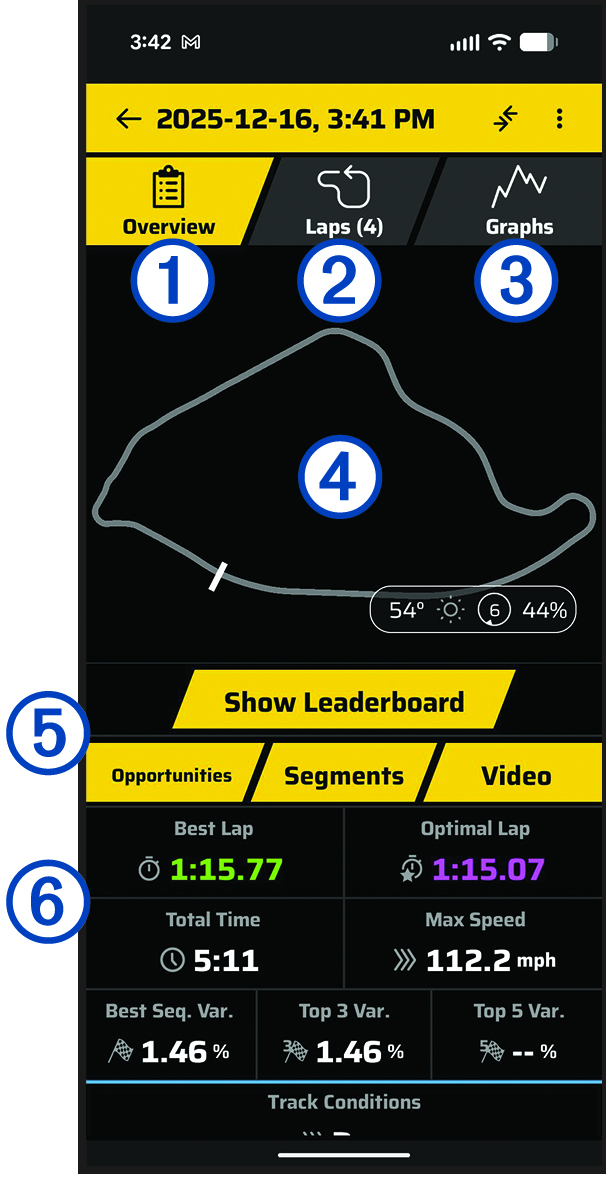
|
Overview |
Displays a summary of the data recorded during the selected session. |
|---|---|
|
Laps |
Select to view detailed lap information for the selected session. |
|
Graphs |
Select to view graphs of data recorded during the selected session. |
|
Track map |
Displays a map of the track used in the selected session. |
|
Session information options |
Select an option to view additional details about the selected session. |
|
Session summary information |
Displays a summary of data recorded during the selected drive session. |
Viewing Session Videos in the Garmin Catalyst App
- From the Garmin Catalyst app, select the Sessions tab.
- Select a drive session.
- Select Video.
Session Videos
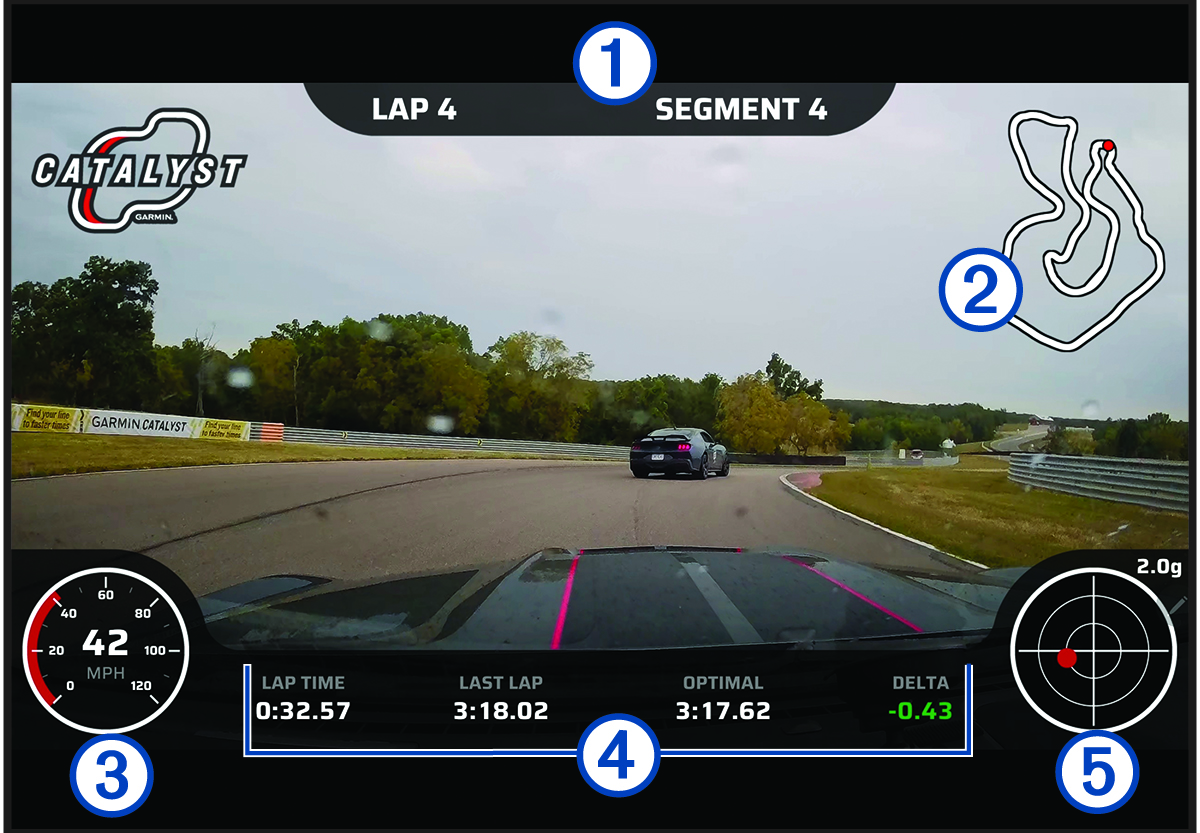
|
|
Lap and segment numbers. |
|---|---|
|
|
A map of the track. The position of your vehicle is marked with a dot. |
|
|
The speed of the vehicle. |
|
|
Lap timer information. |
|
|
A traction circle. The dot moves to indicate the direction and strength of G-force. |
Comparing Sessions
Session comparison allows drivers to compare sessions between different vehicles and is intended for use by experienced high-speed drivers only. Modifying driving behavior based on the performance of a different vehicle could result in an accident involving property damage, personal injury, or death.
You can compare the results of two drive sessions. This can help you to see areas of improvement between two sessions or compare the results between different vehicles on the same track.
- From the Garmin Catalyst app, select the Sessions tab.
- Select a drive session.
-
Select
 > Compare With My Other
Sessions.
> Compare With My Other
Sessions.
- Select a session.
Saving a Session Video
You can save your session videos to your mobile device's storage to make them accessible to other applications.
- From the Garmin Catalyst app, select the Sessions tab.
- Select a drive session.
- Select Video.
- If necessary, select a lap or lap segment.
- Select Save Video.
- Follow the on-screen instructions to select a save location.
Deleting Sessions
You can delete drive sessions to clear space on your phone or tablet. You cannot recover deleted drive sessions.
- From the Garmin Catalyst app, select the Sessions tab.
- Select a drive session.
-
Select
 > Delete
Session.
> Delete
Session.
Deleting Session Videos
You can delete drive session videos to clear space on your phone or tablet. Deleting videos does not delete other session information.
-
From the Garmin Catalyst app, select Profile >
 > Video
Storage.
> Video
Storage.
- Select one or more video files.
- Select Delete.
Reviewing and Comparing Laps in the Garmin Catalyst App
The Laps page lets you review and compare data recorded for each lap. You can compare any two laps from the same session.
Viewing Opportunities
During a drive session, the device analyzes your performance and records opportunities for improvement. Opportunities are coaching tips that help you decrease your lap time. The opportunity page enables you to review opportunities and offers tips for improvement.
- From the Garmin Catalyst app, select the Sessions tab.
- Select a drive session.
- Select Opportunities.
-
Select an option:
-
To cycle through opportunities, select
 or
or  .
. -
To view additional details about opportunities, select Braking, Apex, or Speed.
-
To view available opportunities by track segment, select Segment.
-
Viewing Track Information
You can view information and statistics about all race tracks that are available in the Garmin Catalyst app.
Adding or Editing a Driver Profile Name
The first time you use the Garmin Catalyst app, the app walks you through creating a driver profile. You can edit your driver profile at any time.
- From the Garmin Catalyst app, select Profile.
-
Select
 , and enter a new name.
Adding or Editing a Vehicle Profile
- From the Garmin Catalyst app, select .
-
Select an option:
-
To add a vehicle profile, select Add a Vehicle.
-
To edit a vehicle profile, select a vehicle.
-
- Select a field to enter information about your vehicle.
- If necessary, select Add Tires, and add information about your tires.
- Select Done.
Adding Friends to the Garmin Catalyst App
You can add friends to the Garmin Catalyst app and share lap times and session information. Friends can send you their contact information using a QR code on their phone or a link in an email or text (Sharing Your Card with the Garmin Catalyst App).
-
To add a contact from a link generated by the Garmin Catalyst app, select the link sent to you from your friend's Garmin Catalyst account.
-
To add a contact from a shared QR code, open the Garmin Catalyst app and select , and scan your friend's driver code.
Sharing Your Card with the Garmin Catalyst App
- From the Garmin Catalyst app, select .
-
Select an option:
-
To share your card using a QR code, allow your friend or contact to scan the QR code on your screen.
-
To send your friend a contact request, select Share, and select an app or contact to share the request.
-
To send a direct link, select Copy Link, and paste the link into a message to your friend or contact.
-
Changing the Units of Measure in the Garmin Catalyst App
You can customize the units of measure displayed in the Garmin Catalyst app.
-
From the Garmin Catalyst app, select Profile > > Units.
- Select the units of measure for each category.