Tips and Shortcuts
-
Press
 to turn on the chartplotter.
-
Press to open additional options, such as adjusting the backlight and locking the touchscreen.
-
Press , and select
, or hold until the
Turn Off System bar fills to turn off the chartplotter.
-
Press , and select
to set the chartplotter to standby mode.
-
On some menu buttons, press the button
 to enable the option.
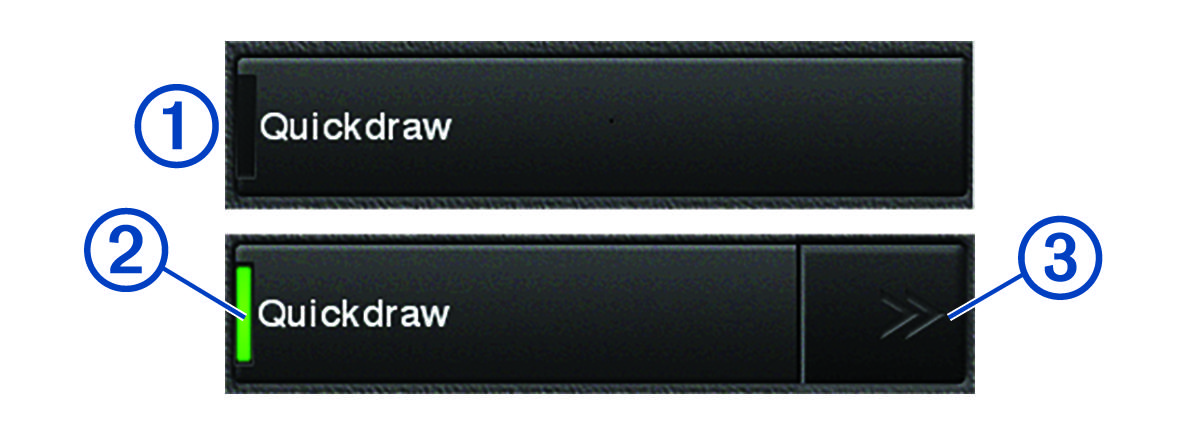
A green light on an option indicates the option is enabled
 .
.
-
When available, press the arrows
 to open the menu.
On some buttons, when an option is selected
, the menu arrows appear.