Touchscreen Tips

  • Drag up or down to scroll through lists and menus slowly.
  • Tap to select an item.
  • Tap to wake the watch.
  • From the watch face, swipe up to scroll through the glances on the watch.
  • From the watch face, swipe left to view the apps and activities menu, including watch settings.
  • From the watch face, swipe down to view the notification center.
  • Swipe right to return to the previous screen.
  • Tap and hold an item on the watch face to bring up contextual information, such as glances or menus, if available.
  • From the glances or apps menu, hold the watch face to reorder or delete the options.
  • During an activity, swipe up or down to view the next data screen.
  • During an activity, swipe right to view the watch menu, watch face, and glances.
  • During an activity, swipe left to view the music player.
  • Cover the screen with your palm to return to the watch face and turn down the screen brightness.
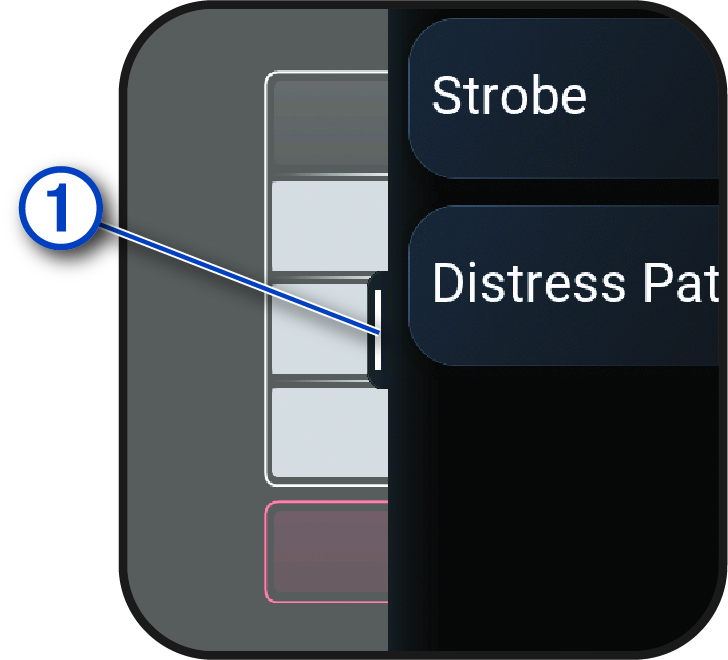
  • When available, select Menu symbol or swipe 1 to view menu options.
    Swipe to see menu options
  • Perform each menu selection as a separate action.

Locking and Unlocking the Device

You can lock the device to prevent inadvertent screen touches and button presses.

NOTE: You can customize the controls menu (Customizing the Controls Menu).
  1. Hold Line drawing of the watch with a top button callout to view the controls menu.
  2. Select Lock symbol.

    The device does not respond to touches or button presses until you unlock it.

  3. Hold any button to unlock the device.
GUID-C144B465-A0C8-4FE9-AFE6-41A3FE3F1D9A v2
November 2025