Device Overview
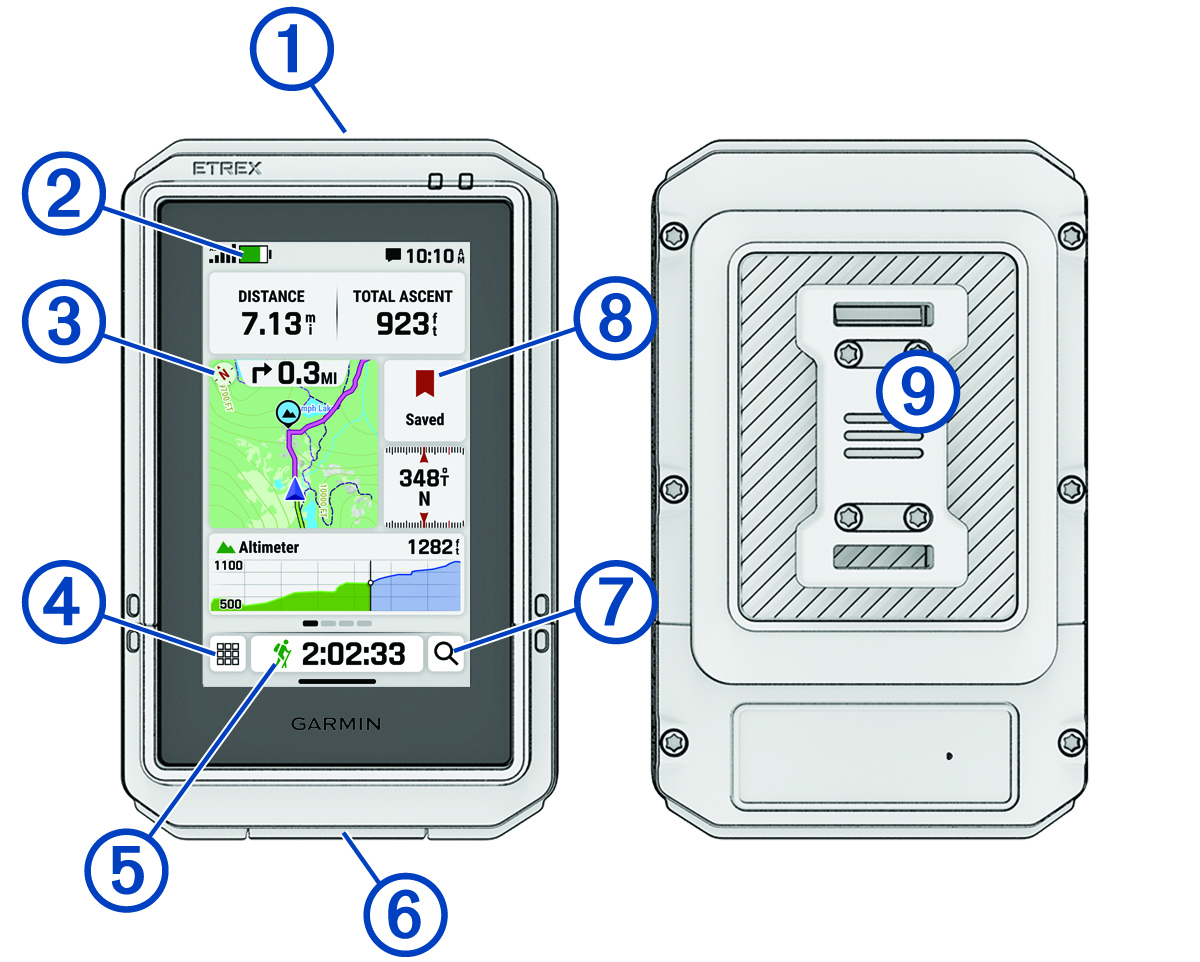
-

-
Press to enter sleep mode or wake the device.
Hold to view the notification center and controls, and turn the device on and off (Notification Center and Controls).
- Status bar
-
Swipe down from the top of the page to view the notification center and controls.
- Home Page
-
Displays an overview of your current activity, and includes dynamic areas such as a map and data fields based on your current activity type. Select each dynamic area to view additional information.
Swipe left on the home page to view additional tools, glances, and data fields. You can customize the home page and glances, as well as add and remove pages (Customizing the Home Page and Glances).NOTE: Some glances require a Bluetooth® connection to a compatible phone (Pairing Your Phone).Swipe right to return to the previous page.
-

-
Select to open the apps list (Apps).
-

-
Select to start, stop, save or discard, and view information about the current activity (Starting an Activity).
- USB Port
-
Lift the weather cap to charge the device or connect it to a computer (Charging the eTrex Touch Device).
-

-
Select to search for a location (Searching for a Destination), apps (Searching for Apps), or settings (Searching for Settings).
- Saved
-
Select to open the Saved menu and navigate to saved waypoints, courses, or activities (Saved Data).
- Spine mount
-
Mount the device on an optional accessory.
NOTE: Go to garmin.com to purchase spine mount 2 optional accessories.