Starting a GroupTrack Session
Before you can start a GroupTrack session, you must have a phone with the Garmin Connect™ app paired to your device (Pairing Your Phone).
NOTE:
This feature is required for group rides with the
Edge® 530, and earlier bike computers.
For Edge 1040, 840, 540 and later bike computers, use the GroupRide feature (Starting a GroupRide Session).
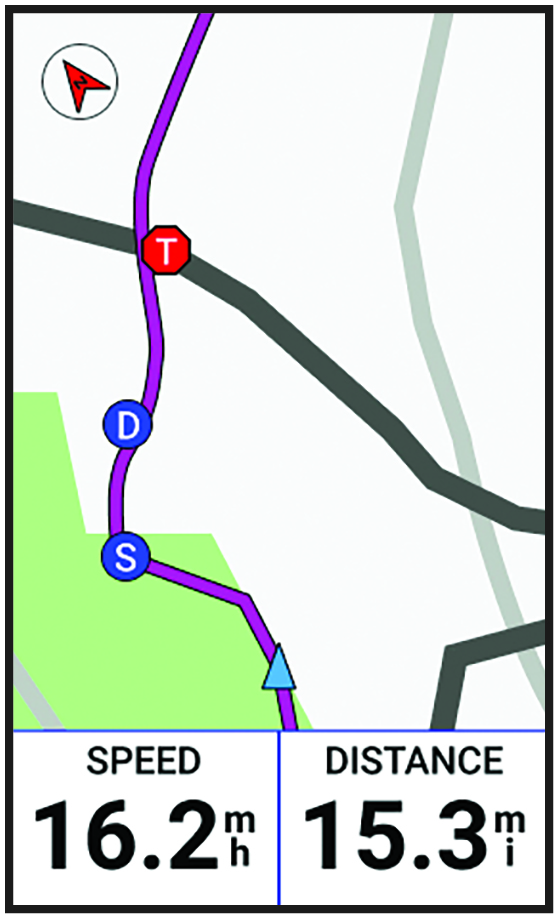
During a ride, you can see the riders in your GroupTrack session on the map.
-
On the
Edge
bike computer, select
 > Safety & Tracking > LiveTrack > GroupTrack to enable viewing connections on the map screen and message notifications.
-
From the Garmin Connect app, select
 > Safety & Tracking > LiveTrack > Sharing
Settings > GroupTrack > All Connections.
> Safety & Tracking > LiveTrack > Sharing
Settings > GroupTrack > All Connections.
-
On the
Edge
bike computer, press
 , and go for a ride.
-
Scroll to the map to view your connections.