Mapping Your Bag
You can use the bag mapping feature to measure the average carry or total distance for each club in your bag (Radar Training Settings).
-
Select
 > Bag Mapping > Start.
The radar turns on.
-
Select
 > Start.
NOTE: You have the option to warm up with swing metrics before starting your session.
> Start.
NOTE: You have the option to warm up with swing metrics before starting your session. -
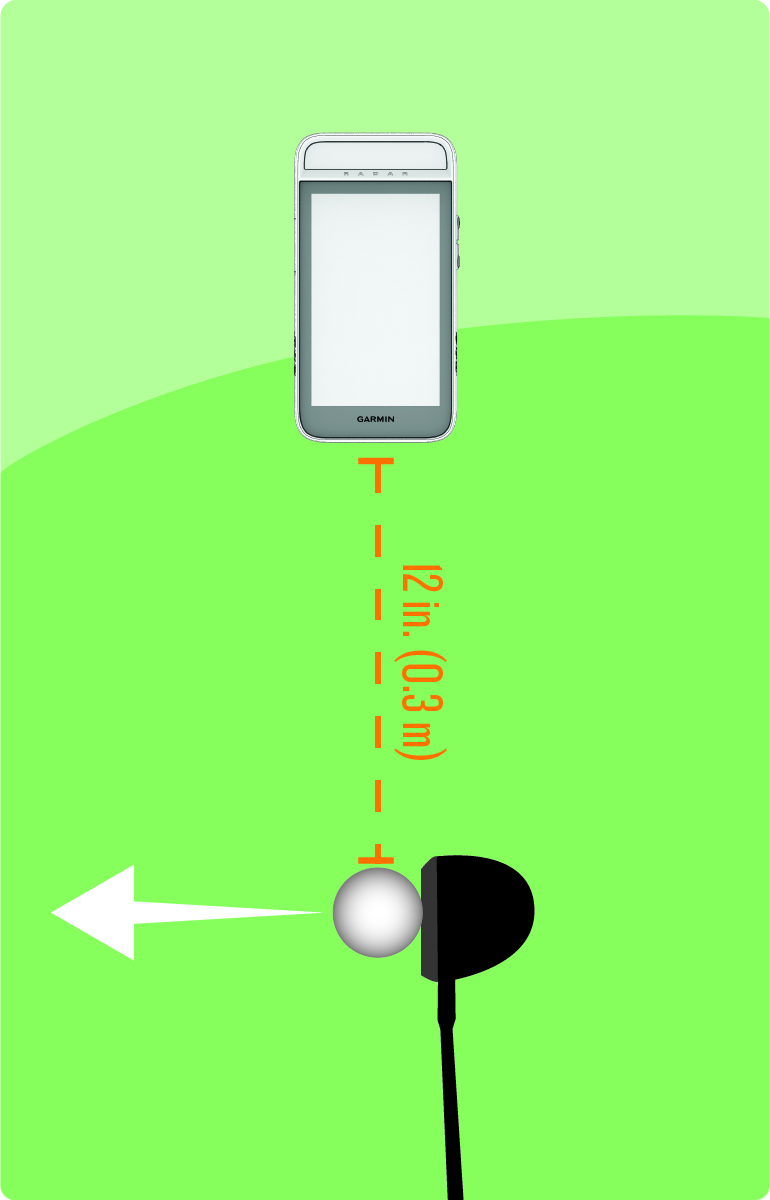
Prop the device on a golf ball
using the divot on the back of the magnetic clip.
-
Hit a shot.
-
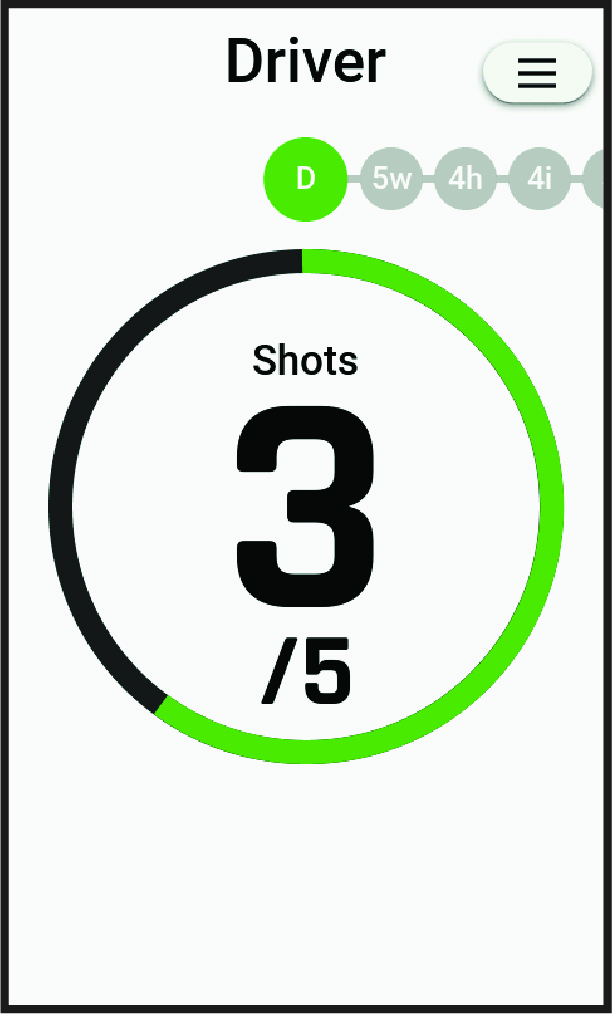
Continue hitting shots until you
complete five shots with the selected club.
After five shots, a summary appears with the distance for each swing.
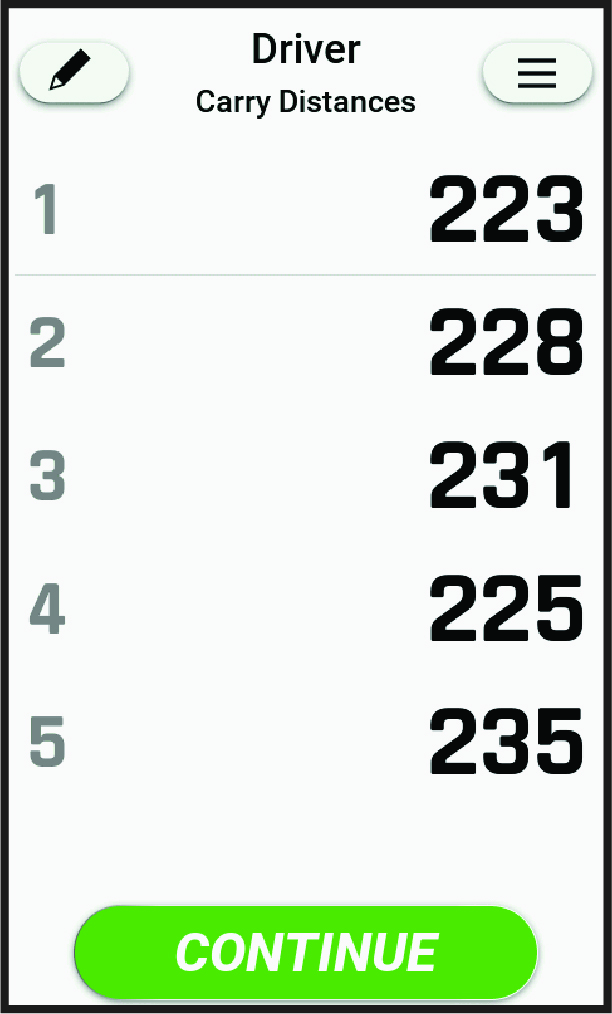 NOTE: You can delete a shot if necessary. Select
 , select the shot or shots, select , and hit again until there are five shots for that
club.
, select the shot or shots, select , and hit again until there are five shots for that
club.
-
Repeat steps 7-9 for each
selected club.
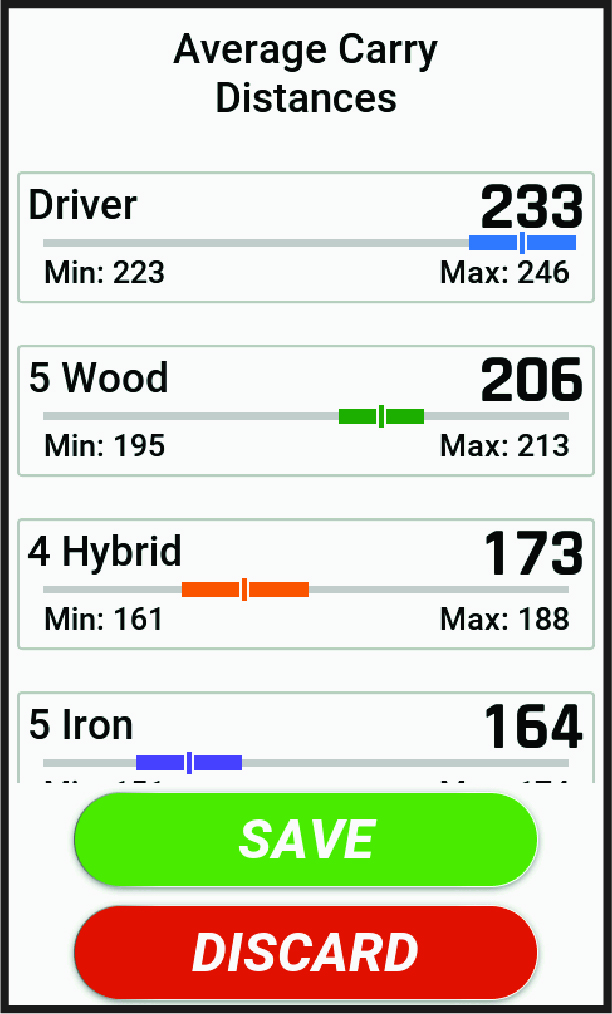
When you complete all shots for the bag mapping session, a summary appears with the average distance for each club.