Updating Software with Garmin Express
You can use the Garmin Express™ application to download and install the latest software updates for your device.
- Open the
 Garmin Express application.
 - Connect your device to your computer using a micro-USB cable.
The small end of the cable connects to the micro-USB port
 on your Garmin Catalyst™ device and the large end connects to an available USB port on your computer.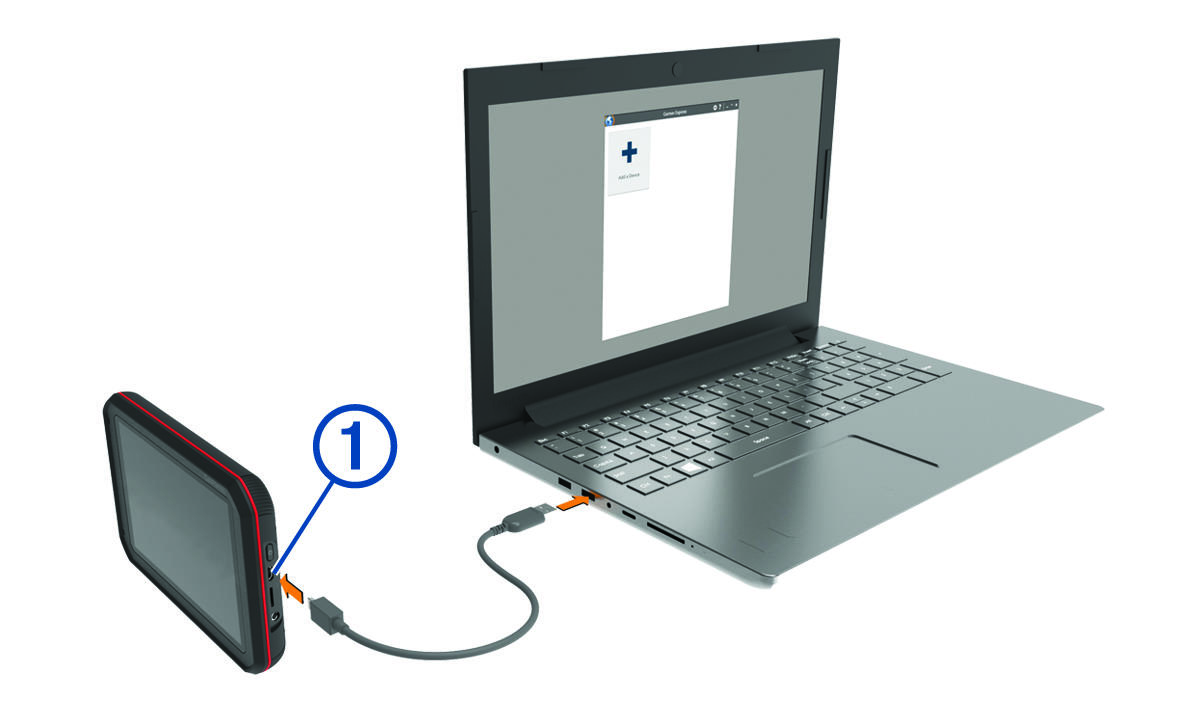
- Click Add Device and follow the on-screen instructions to add your device to the Garmin Express application.
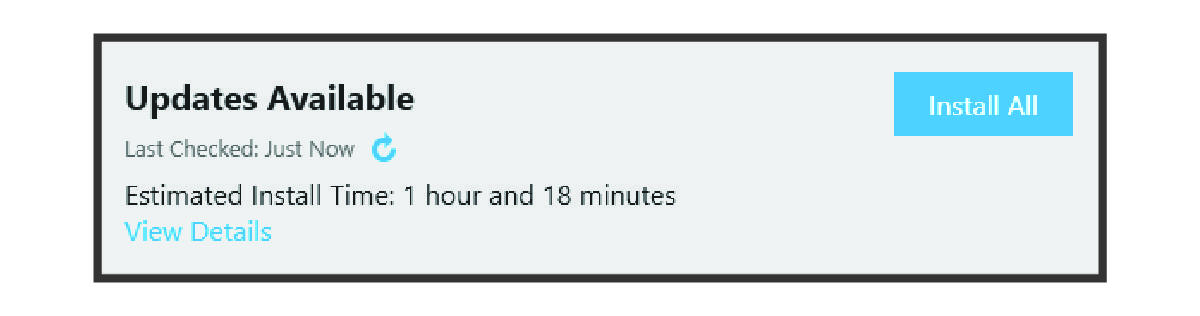
When setup is complete, the Garmin Express application displays the updates available for your device.