Golfing
NOTE: If you found a golf course with data that’s inaccurate or outdated, please send us a report at Garmin.com/forms/golfcourses/.
Before you play a course for the first time, you must download it from the Garmin Connect app (). Courses downloaded from the Garmin Connect app are updated automatically.
Before you play golf, you should charge the device ().
- From the watch face, press GPS.
- Select Golf.
- Go outside, and wait while the device locates satellites.
- Select a course from the list of available courses.
- Select
 to keep score.
 - Select a tee box.
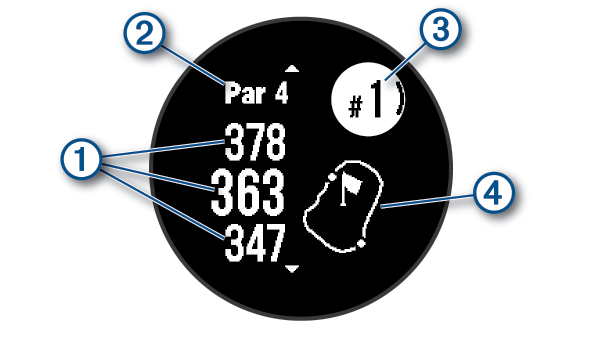
The hole information screen appears.
|
|
Distance to the front, middle, and back of the green |
|
|
Par for the hole |
|
|
Current hole number |
|
|
Map of the green |
NOTE: Because pin locations change, the watch calculates the distance to the front, middle, and back of the green, but not the actual pin location.
- Select an option:
During a round, you can press GPS to open additional features in the golf menu.
End Round: Ends the current round.
Pause Round: Pauses the current round. You can resume the round at any time by starting a Golf activity.
Change Hole: Allows you to manually change the hole.
Move Flag: Allows you to move the pin location to get a more precise distance measurement ().
Measure Shot: Shows the distance of your previous shot recorded with the Garmin AutoShot™ feature (). You can also manually record a shot ().
Scorecard: Opens the scorecard for the round ().
Odometer: Shows the recorded time, distance, and steps traveled. The odometer automatically starts and stops when you start or end a round. You can reset the odometer during a round.
Club Stats: Shows your statistics with each golf club, such as distance and accuracy information. Appears when you pair Approach® CT10 sensors.
Settings: Allows you to customize the golf activity settings ().
You can view distances to hazards along the fairway for par 4 and 5 holes. Hazards that affect shot selection are displayed individually or in groups to help you determine the distance to layup or carry.
- From the hole information screen, press UP or DOWN to view hazard information.
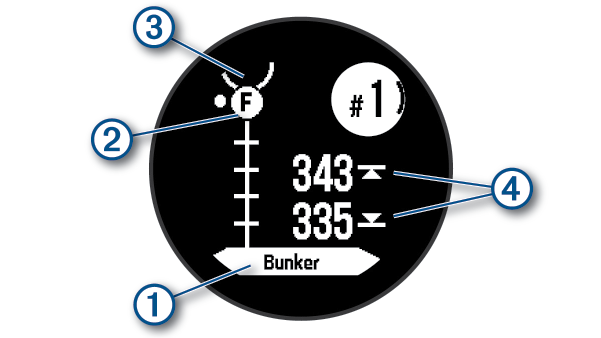
- The hazard type
 is listed on the screen.
 - Hazards
 are indicated by a letter signifying the order of the hazards on the hole, and are shown below the green in approximate locations relative to the fairway.
 - The green is represented as a half circle
 at the top of the screen.
 - The distances to the front and back
 of the nearest hazard appear on the screen.
- Press UP or DOWN to view other hazards for the current hole.
You can take a closer look at the green and move the pin location.
- From the hole information screen, press GPS.
- Select Move Flag.
- Press UP or DOWN to move the pin location.
- Press GPS.
The distances on the hole information screen are updated to show the new pin location. The pin location is saved for only the current round.
You can change holes manually from the hole view screen.
- While playing golf, press GPS.
- Select Change Hole.
- Select a hole.
Before the device can automatically detect and measure shots, you must enable scoring.
Your device features automatic shot detection and recording. Each time you take a shot along the fairway, the device records your shot distance so you can view it later.
TIP: Automatic shot detection works best when you wear the device on your leading wrist and make good contact with the ball. Putts are not detected.
- While playing golf, press GPS.
- Select Measure Shot.
Your last shot distance appears.
NOTE: The distance automatically resets when you hit the ball again, putt on the green, or move to the next hole.
- Press DOWN.
- Select Previous Shots to view all recorded shot distances.
You can manually add a shot if the watch doesn’t detect it. You must add the shot from the location of the missed shot.
- Take a shot and watch where your ball lands.
- From the hole information screen, press GPS.
- Select Measure Shot.
- Press DOWN.
- Select Add Shot > .
- If necessary, enter the club you used for the shot.
- Walk or drive to your ball.
The next time you take a shot, the watch automatically records your last shot distance. If necessary, you can manually add another shot.
- From the hole information screen, press GPS.
- Select Scorecard.
The scorecard appears when you are on the green.
- Press UP or DOWN to scroll through the holes.
- Press GPS to select a hole.
- Press UP or DOWN to set the score.
Your total score is updated.
Enabling Statistics Tracking
The Stat Tracking feature enables detailed statistics tracking while playing golf.
- From the hole information screen, hold MENU.
- Select the activity settings.
- Select Stat Tracking.
Before you can record statistics, you must enable statistics tracking ().
- From the scorecard, select a hole.
- Enter the total number of strokes taken, including putts, and press GPS.
- Set the number of putts taken, and press GPS.
NOTE: The number of putts taken is used for statistics tracking only and does not increase your score.
- If necessary, select an option:
NOTE: If you are on a par 3 hole, fairway information does not appear.
- If your ball hit the fairway, select In Fairway.
- If your ball missed the fairway, select Missed Right or Missed Left.
- If necessary, enter the number of penalty strokes.