Golfing
NOTE: If you found a golf course with data that’s inaccurate or outdated, please send us a report at Report a Golf Course Issue.
Before you play a course for the first time, you must download it from the Garmin Connect app (Garmin Connect).
Before you play golf, you should charge the watch (Charging the Watch).
- From the watch face, press
 .
. - Select Activities > Outdoor > Golf.
The device locates satellites, calculates your location, and selects a course if there is only one course nearby.
- If the course list appears, select a course from the list.
Courses are updated automatically.
- Select
 to keep score.
 - Select a tee box.
The hole information screen appears.
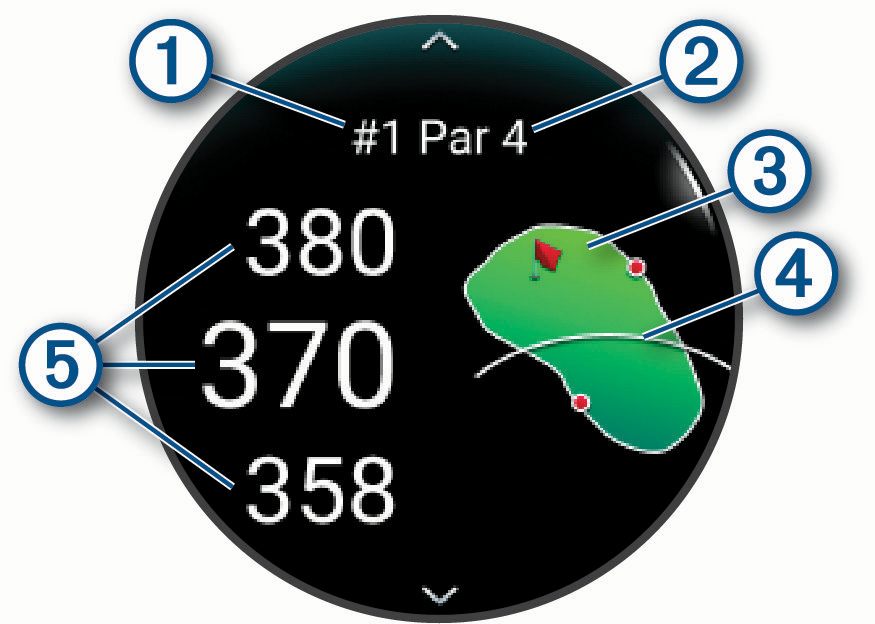
|
|
Current hole number |
|
|
Par for the hole |
|
|
Map of the hole |
|
|
Driver distance from the tee box |
|
|
Distances to the front, middle, and back of the green |
NOTE: Because pin locations change, the watch calculates the distance to the front, middle, and back of the green, but not the actual pin location.
- Select an option:
- Tap the map to view more detail or change the flag location (Moving the Flag).
- Swipe up or down to scroll through the holes.
- Press to open the golf menu (Golf Menu).
- Hold
 to open the golf settings (Golf Settings).
When you move to the next hole, the watch automatically transitions to display the new hole information.
During a round, you can press to access additional features in the golf menu.
View Green: Allows you to move the pin location to get a more precise distance measurement (Moving the Flag).
Scorecard: Opens the scorecard for the round (Keeping Score).
Hazards: Allows you to view distances to hazards along the fairway for par 4 and 5 holes (Viewing Hazards).
Layups: Allows you to view a list of layup and dogleg distances for par 4 and 5 holes (Viewing Layup and Dogleg Distances).
PinPointer: The PinPointer feature is a compass that points to the pin location when you are unable to see the green. This feature can help you line up a shot even if you are in the woods or in a deep sand trap.
NOTE: Do not use the PinPointer feature while in a golf cart. Interference from the golf cart can affect the accuracy of the compass.
Round Info: Shows the recorded time, distance, and steps traveled during the current round. This automatically starts and stops when you start or end a round.
Measure Shot: Shows the distance of your previous shot recorded with the Garmin AutoShot™ feature (Viewing Measured Shots). You can also manually record a shot (Manually Measuring a Shot).
Custom Targets: Allows you to save a location, such as an object or obstacle, for the current hole (Saving Custom Targets).
Club Stats: Shows your statistics with each golf club, such as distance and accuracy information. Appears when you pair compatible Approach® club tracking sensors or enable the Club Prompt setting.
Sunrise & Sunset: Shows the sunrise, sunset, and twilight times for the current day.
Settings: Allows you to customize the golf activity settings (Golf Settings).
End Round: Ends the current round.
During a round, you can press , and select Settings to customize the golf settings.
Scoring: Allows you to set the scoring options (Scoring Settings).
Driver Distance: Sets the average distance the ball travels from the tee box on your drive. The driver distance appears as an arc on the map.
Tournament Mode: Disables the PinPointer feature. This feature is not allowed during sanctioned tournaments or handicap calculation rounds.
Golf Distance: Sets the unit of measure for distance while playing golf.
Club Prompt: Prompts you to enter which golf club you used after each detected shot to record your club statistics (Recording Statistics).
Satellites: Sets the satellite system to use for the activity (Satellite Settings).
Record Activity: Enables activity FIT file recording. FIT files record fitness information that is tailored for the Garmin Connect website and app.
Touch: Enables the touchscreen during the golf activity.
Club Sensors: Allows you to set up your compatible Approach club tracking sensors (Pairing Your Wireless Sensors).
You can take a closer look at the green and move the pin location.
- From the hole information screen, press .
- Select View Green.
- Press or
 to move the pin position.
 - Press .
The distances on the hole information screen are updated to show the new pin location. The pin location is saved for only the current round.
Your device features automatic shot detection and recording. Each time you take a shot along the fairway, the device records your shot distance so you can view it later.
TIP: Automatic shot detection works best when you wear the device on your leading wrist and make good contact with the ball. Putts are not detected.
- While playing golf, press .
- Select Measure Shot.
Your last shot distance appears.
NOTE: The distance automatically resets when you hit the ball again, putt on the green, or move to the next hole.
- Press and select Previous Shots to view all recorded shot distances.
NOTE: The distance from the most recent shot also displays at the top of the hole information screen.
You can manually add a shot if the watch doesn’t detect it. You must add the shot from the location of themissed shot.
- Take a shot and watch where your ball lands.
- From the hole information screen, press .
- Select Measure Shot.
- Press .
- Select Add Shot > .
- If necessary, enter the club you used for the shot.
- Walk or drive to your ball.
The next time you take a shot, the watch automatically records your last shot distance. If necessary, you can manually add another shot.
- From the hole information screen, press .
- Select Scorecard.
The scorecard appears when you are on the green.
- Press or to scroll through the holes.
- Press to select a hole.
- Press or to set the score.
Your total score is updated.
Before you can record statistics, you must enable statistics tracking (Scoring Settings).
- From the scorecard, select a hole.
- Enter the total number of strokes taken, including putts, and press .
- Set the number of putts taken, and press .
NOTE: The number of putts taken is used for statistics tracking only and does not increase your score.
- If necessary, select an option:
NOTE: If you are on a par 3 hole, fairway information does not appear.
- If your ball hit the fairway, select In Fairway.
- If your ball missed the fairway, select Missed Right or Missed Left.
- If necessary, enter the number of penalty strokes.
During a round, press , and select Settings > Scoring.
Scoring Method: Changes the method the device uses to keep score.
Handicap Scoring: Enables handicap scoring.
Set Handicap: Sets your handicap when handicap scoring is enabled.
Show Score: Displays your total score for the round at the top of the scorecard (Keeping Score).
Stat Tracking: Enables statistics tracking for the number of putts, greens in regulation, and fairways hit while playing golf.
Penalties: Enables penalty stroke tracking while playing golf (Recording Statistics).
Prompt: Enables the prompt at the start of a round asking if you want to keep score.
About Stableford Scoring
When you select the Stableford scoring method (Activity Settings), points are awarded based on the number of strokes taken relative to par. At the end of a round, the highest score wins. The device awards points as specified by the United States Golf Association.
The scorecard for a Stableford scored game shows points instead of strokes.
|
Points |
Strokes Taken Relative to Par |
|---|---|
|
0 |
2 or more over |
|
1 |
1 over |
|
2 |
Par |
|
3 |
1 under |
|
4 |
2 under |
|
5 |
3 under |
Viewing the Direction to the Pin
The PinPointer feature is a compass that provides directional assistance when you are unable to see the green.
This feature can help you line up a shot even if you are in the woods or in a deep sand trap.
NOTE: Do not use the PinPointer feature while in a golf cart. Interference from the golf cart can affect the accuracy of the compass.
- From the hole information screen, press .
- Select PinPointer.
The arrow points to the pin location.
While playing a round, you can save up to five custom targets for each hole. Saving a target is useful for recording objects or obstacles that are not shown on the map. You can view the distances to these targets from the layup and dogleg screen (Viewing Layup and Dogleg Distances).
- Stand near the target you want to save.
NOTE: You cannot save a target that is far from the currently selected hole.
- From the hole information screen, press .
- Select Custom Targets.
- Select a target type.
You can view distances to hazards along the fairway for par 4 and 5 holes. Hazards that affect shot selection are displayed individually or in groups to help you determine the distance to layup or carry.
- Press .
- Select Hazards.
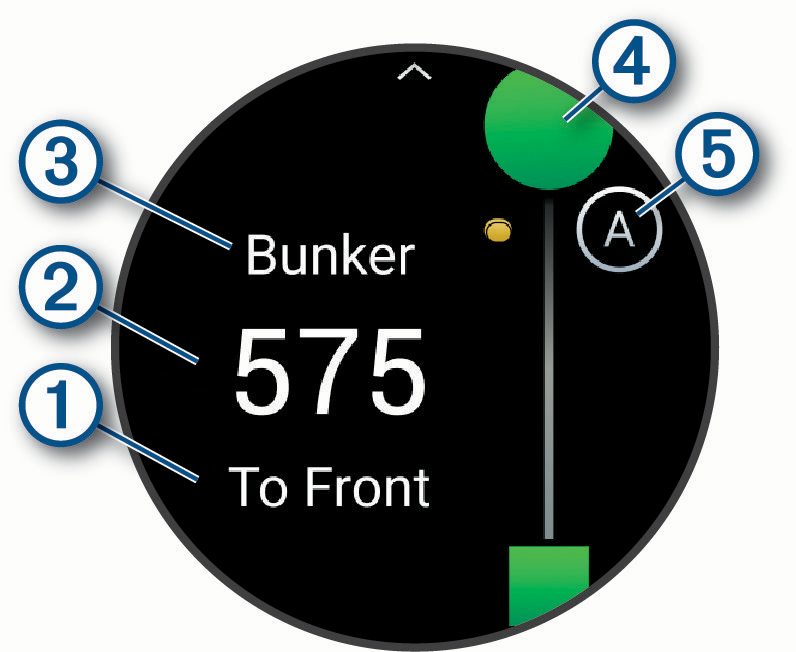
- The direction
 and
and  distance to the front or back of the nearest hazard appear on the screen.
 - The hazard type
 is listed at the top of the screen.
 - The green is represented as a half circle
 at the top of the screen. The line below the green represents the center of the fairway.
 - Hazards
 are indicated by a letter signifying the order of the hazards on the hole, and are shown below the green in approximate locations relative to the fairway.
Viewing Layup and Dogleg Distances
You can view a list of layup and dogleg distances for par 4 and 5 holes.
- Press .
- Select Layups.
NOTE: Distances and locations are removed from the list as you pass them.
Recording a Bouldering Activity
You can record routes during a bouldering activity. A route is a climbing path along a boulder or small rock formation.
- From the watch face, press .
- Select Activities > Outdoor > Bouldering.
- Select a grading system.
NOTE: The next time you start a bouldering activity, the watch uses this grading system. You can hold , select the activity settings, and select Grading System to change the system.
- Select the difficulty level for the route.
- Press to start the route timer.
- Start your first route.
- Press
 to finish the route.
 - Select an option:
- To save a successful route, select Completed.
- To save an unsuccessful route, select Attempted.
- To delete the route, select Discard.
- When you are done resting, press to start your next route.
- Repeat this process for each route until your activity is complete.
- After your last route, press to stop the route timer.
- Select Save.
- From the watch face, press .
- Select Activities > Outdoor > Fish.
- Press .
- Press , and select an option:
- To add the catch to your fish count and save the location, select Log Catch.
- To save your current location, select Save Location.
- To set an interval timer, end time, or end time reminder for the activity, select Fish Timers.
- To navigate back to the starting point of your activity, select Back to Start, and select an option.
- To view your saved locations, select Saved Locations.
- To navigate to a destination, select Navigation, and select an option.
- To edit the activity settings, select Settings, and select an option (Activity Settings).
- After you complete your activity, press , and select End Fish.
You can save locations relevant to your hunt and view a map of saved locations. During a hunting activity, the device uses a GNSS mode that conserves battery life.
- From the watch face, press .
- Select Activities > Outdoor > Hunt.
- Press , and select Start Hunt.
- Press , and select an option:
- To navigate back to the starting point of your activity, select Back to Start, and select an option.
- To save your current location, select Save Location.
- To view locations saved during this hunt activity, select Hunt Locations.
- To view all previously saved locations, select Saved Locations.
- To navigate to a destination, select Navigation, and select an option.
- After you complete your hunt, press , and select End Hunt.