Connecting to the Stereo Using an Auxiliary Audio Cable
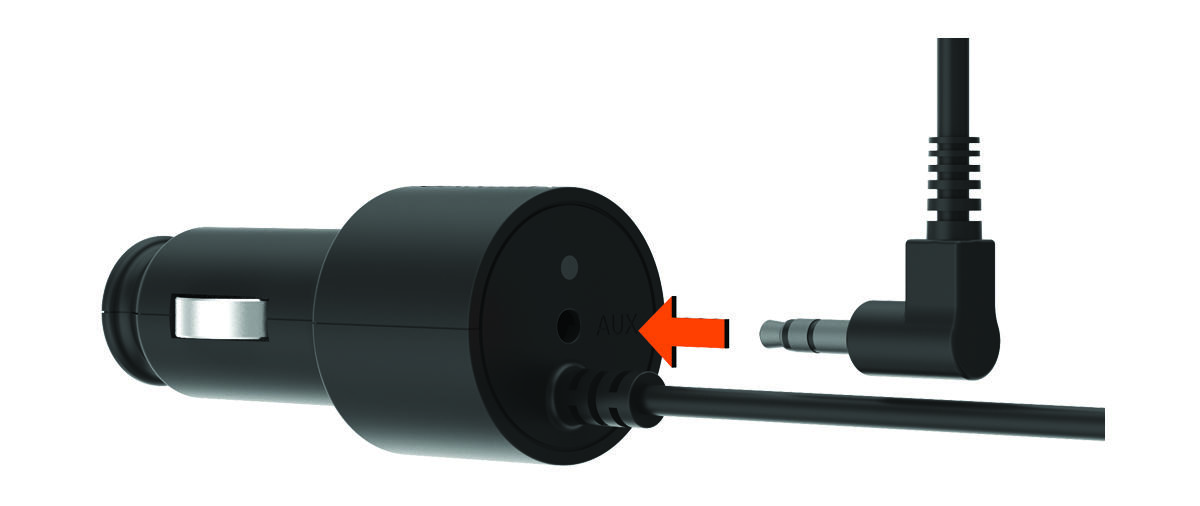
If your Garmin Speak™ Plus is not connected to the vehicle stereo using a Bluetooth® connection, you can send the Garmin Speak Plus audio to the vehicle stereo using a 3.5 mm stereo auxiliary audio cable (not included).
NOTE:
For the best audio quality, a
Bluetooth connection to the stereo is recommended, when available (Connecting to the Stereo Using a
Bluetooth Connection).
-
Connect one end of the cable to the 3.5 mm audio output jack on the
Garmin Speak Plus power cable plug.
-
From the
Garmin Drive™ app, select an option:
-
During the initial device setup, select No when the app asks whether you currently use Bluetooth technology to connect your smartphone to your vehicle.
-
After the initial device setup, select
 > Garmin Speak Plus > Audio, and verify
Garmin Device is selected for each audio type.
> Garmin Speak Plus > Audio, and verify
Garmin Device is selected for each audio type.
-