LTE and Satellite Connected Features for fēnix 8 Pro
Satellite coverage for this device is only available in the continental United States, select parts of Canada, and most of Europe. In areas of the globe above 65 degrees north, the satellite network will orbit below the horizon and be unable to provide a clear connection.
LTE coverage is available in select countries that have LTE mobile service. LTE coverage in specific areas within each of the countries is dependent on the network coverage and network conditions of each respective carrier.
The LTE and satellite connected features, including SOS, require an active inReach® service plan, and are only available for the fēnix® 8 Pro watch.
Your fēnix 8 Pro watch with an active inReach service plan can connect to geostationary communication satellites and LTE-M cellular networks to provide on- and off-grid communication, so that you can stay connected while leaving your phone at home. By default, when your phone is within Bluetooth® range, your watch uses your phone's LTE connection.
When your phone is not within Bluetooth range, your watch can connect to the LTE-M cellular networks from certain roaming providers. This coverage is not available worldwide.
If an LTE-M network is not available, some features are available through geostationary communication satellites. Geostationary communication satellites sit in a fixed position in the sky, and are much farther away than the GNSS satellites in low Earth orbit that are used for navigation.
|
Feature |
Available Using Phone Connection |
Available Using fēnix 8 Pro LTE Connection |
Available Using fēnix 8 Pro Communication Satellite Connection |
|---|---|---|---|
|
Messenger app check-ins and text messages (Using the Messenger App) |
Yes |
Yes |
Yes |
|
Messenger app photo messages |
Yes |
Yes |
No |
|
Messenger app voice messages (Using the Messenger App) |
Yes |
Yes |
No |
|
Messenger Calls voice calls (Calling from the Messenger Calls App) |
Yes |
Yes |
No |
|
Safety and tracking features, such as assistance, incident detection, and LiveTrack (Safety and Tracking Features) |
Yes |
Yes |
No |
|
SOS (SOS for fēnix 8 Pro) |
Yes |
Yes |
Yes |
|
Weather |
Yes |
Yes |
Yes, only on the Garmin Messenger™ app on your phone |
Connecting to Communication Satellites
Satellite coverage for this device is only available in the continental United States, select parts of Canada, and most of Europe. In areas of the globe above 65 degrees north, the satellite network will orbit below the horizon and be unable to provide a clear connection.
When using a geostationary communication satellite connection, you must ensure that you have a clear view of the sky and that you stop moving, use the pointing interface to orient your device toward the satellite, and tilt the device at the correct elevation angle. Connecting to the satellites may take 30 seconds or more of good satellite signal strength.
On a fēnix 8 Pro watch with an active inReach service plan, you can connect to a two-way geostationary communication satellite when you are outside of an LTE coverage area.
Communication satellites travel in a geostationary orbit, meaning their position in the sky is fixed, and are much farther away than the GNSS satellites in low Earth orbit that are used for navigation. In order to connect to a geostationary communication satellite, you must use the pointing interface of your watch to point your watch in the direction of the satellite and tilt the watch at the correct elevation angle. If you are unable to make a connection due to obstructions, then you must move to a new location where you have a clear view of the satellite.
-
Hold the watch up, and turn until you
are facing the satellite with the highlighted region on the compass covering the
 icon.
icon.
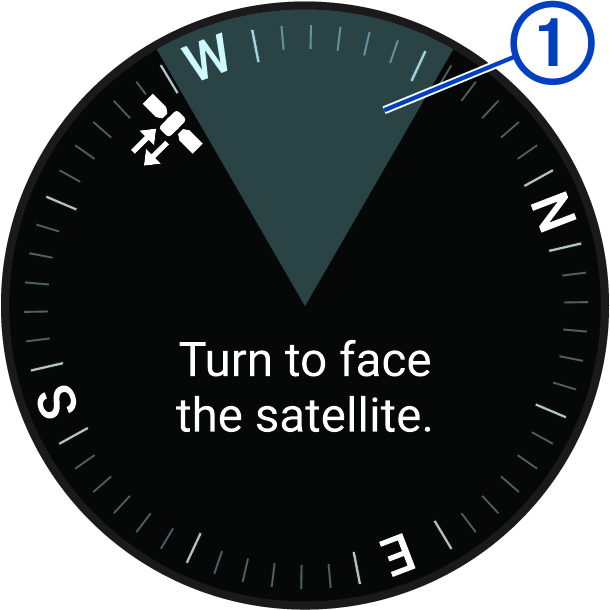
-
Rotate the watch until the icon is enclosed in the circle .
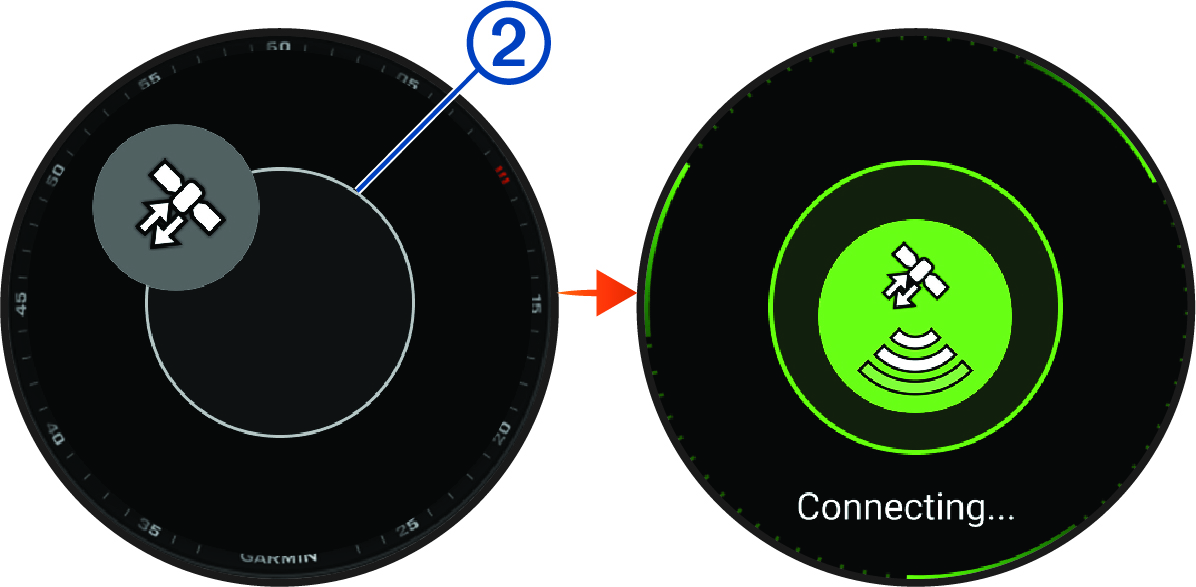
Sending a Test Message
You should send a test message outdoors before using the watch on a trip to ensure your service plan is active.
-
Select an option:
-
Hold
 , and select Messenger.
 -
From the watch face, press
 , and select Messenger.
-
-
Select
 .
.
Sending a Check-In Message
Check-in messages are messages with predefined text and recipients.
-
Select an option:
-
Hold
, and select Messenger Check-in. -
Hold
, and select Messenger >  .
. -
From the watch face, press
, and select Messenger > .
-
- Select a message.
- If you are outside of an LTE coverage area, connect to a communication satellite (Connecting to Communication Satellites).
Checking for Messages
Your watch continuously checks for new messages in Always On LTE mode (LTE and Satellite Settings). In Auto LTE mode, when you use an LTE feature, such as the Messenger or Messenger Calls app, your watch temporarily turns on LTE connectivity and checks for new messages.
When you are not connected to an LTE network, the watch does not automatically check for messages, but you can manually check for messages. During a manual check, your watch connects to the LTE or satellite network and receives messages waiting to be sent to your watch.
-
Select an option:
-
Hold
, and select Messenger >  .
. -
From the watch face, press
, and select Messenger > .
-
- If you are outside of an LTE coverage area, connect to a communication satellite (Connecting to Communication Satellites).
LTE and Satellite Settings
From the watch face, hold 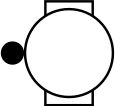 , and select .
- Status
-
Enables LTE and communication satellite connectivity. You can enable one, both, or neither connectivity type.
- LTE Mode
-
Sets the LTE connectivity mode. The Auto option temporarily turns on LTE connectivity when you use an LTE feature, such as the Messenger or Messenger Calls apps.
Viewing inReach Plan Details and Usage
You can view inReach service plan details and data use on the fēnix 8 Pro watch. Data use includes the number of satellite messages and check-in messages sent during the billing cycle. The data use counters reset automatically at the beginning of each billing cycle.
-
From the watch face, hold
.
- Select .
- If you have made changes to your service plan in the Garmin Messenger app, select Refresh.