Starting a Flight
When you pair your watch with the Garmin Pilot™ app, you can connect to compatible Connext® devices that you have paired with the Garmin Pilot app (Connecting to the Garmin Pilot App). With Connext connectivity, you can view avionics data during the flight (Connext Avionics Connectivity).
-
From the watch face, press
 .
.
-
If necessary, open the Garmin Pilot app and wait while your Connext devices connect.
 appears on the watch screen, and some data fields show
the avionics and sensor data. NOTE: Your mobile device running the Garmin Pilot app must keep the app active throughout the flight. You should enable the setting in the Garmin Pilot app that prevents the device from locking.
appears on the watch screen, and some data fields show
the avionics and sensor data. NOTE: Your mobile device running the Garmin Pilot app must keep the app active throughout the flight. You should enable the setting in the Garmin Pilot app that prevents the device from locking. -
Press to start the activity timer.
TIP: You can enable the Auto Fly option to start a Fly activity automatically (Activity Settings).
-
Hold
 , and select Flight Timer to start a flight timer that is separate from the activity
timer (optional).
The flight timer data screen appears in the data screen loop.
, and select Flight Timer to start a flight timer that is separate from the activity
timer (optional).
The flight timer data screen appears in the data screen loop. -
If necessary, press , select Nearest Airports, and select a location to view the weather, map, or
navigate to the location.
-
After you complete your
activity, press , and select .
Setting Aviation Alerts
-
From the watch face, press
.
Setting the Barometric Pressure Manually
You can set the current barometric pressure manually to help improve the accuracy of the pressure altitude reading.
-
From the watch face, press
.
- Select .
- Select the activity settings.
- Select .
-
Select an option:
-
To set the barometric pressure manually, select Set Baro, and enter a value.
-
To use the standard barometric pressure at sea level, select Set to STD.
-
To use the barometric pressure at your current elevation, select Sync to Elevation.
-
To use the current local barometric pressure from your watch, select Sync to Device.
-
To set the units of measure, select Pressure.
-
Horizontal Situation Indicator
This watch is not intended to provide primary flight information and is to be used for supplemental purposes only.
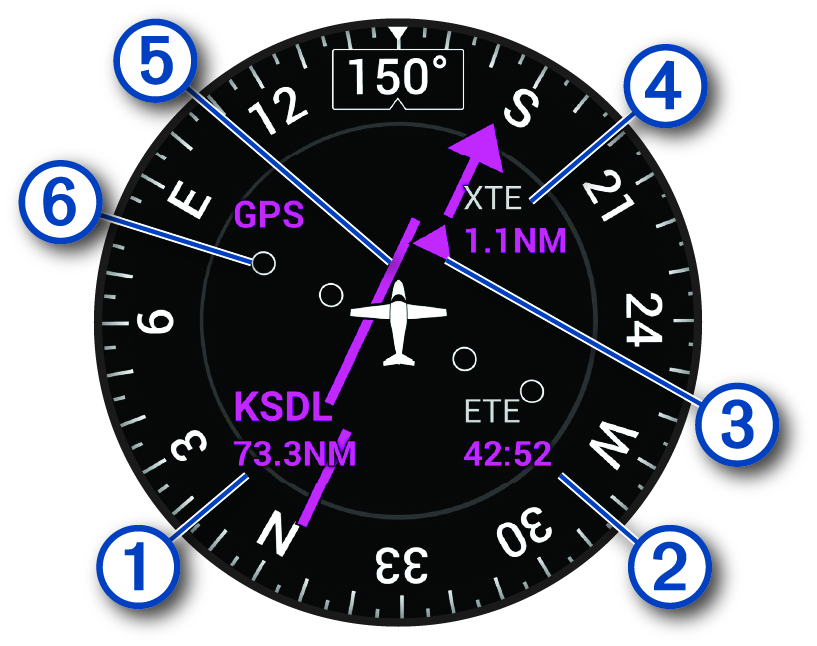
|
|
Destination airport identifier and distance. |
|---|---|
|
|
Estimated time en route (ETE). |
|
|
To-and-from indicator. Indicates whether you are headed toward or away from the waypoint. |
|
|
Cross-track distance. |
|
|
Course deviation indicator (CDI). Indicates the location of the desired course line in relation to your location. |
|
|
Course deviation distance. The dots indicate your distance off course. The maximum of two dots equals 2.5 nautical miles. |
Viewing Your SpO2 Readings in Flight
The SpO2 readings are intended for supplemental information only. Always defer to applicable flight instruments for primary awareness.
The watch has a wrist-based pulse oximeter to gauge the saturation of oxygen in your blood (SpO2). Knowing your oxygen saturation can help you determine how your body is adjusting to high altitudes. As your altitude increases, the level of oxygen in your blood can decrease. During a flight, the watch automatically takes pulse oximeter readings more frequently, so you can monitor your SpO2 percentage.
Viewing the NEXRAD Weather Radar Map
When you pair your watch with your phone, you can view the NEXRAD weather radar map and nearest aviation waypoints for your current location.
-
Hold
and  .
. -
From watch face, press
to view the weather glance, select the glance,
and scroll to the map.