Pairing the Rally 110/210 Pedals
You must pair the pedals with the Garmin Connect™ app to get the latest software updates and to pair the pedals securely with other devices.
Getting Started with the Garmin Connect App
-
Scan the QR code with your phone to download and install the Garmin Connect app.

For more information about the Garmin Connect app, go to garmin.com/garminconnect_help.
Pairing with the Garmin Connect App
-
Select an option:
-
If the left pedal status LED flashes
 , they are in secure pairing mode. Go to step
3.
, they are in secure pairing mode. Go to step
3. -
If the left pedal status LED flashes
 or
or  , enable secure pairing mode (Pairing the Rally 110/210 Pedals Securely Without the Garmin Connect App).
-
-
Select an option to start
pairing the Rally™ 110/210 pedals with the Garmin Connect app:
-
Scan the QR code with your phone.

-
In the Garmin Connect app, select
 > Garmin Devices > Add Device.
-
Pairing the Rally 110/210 Pedals Securely Without the Garmin Connect App
If you have already paired the Rally 110/210 pedals with the Garmin Connect app but you have lost access to your mobile device or are unable to use the Garmin Connect app on it, you can follow the steps to enable secure pairing mode.
-
Move and rotate the pedal to activate it.
The status LED flashes
or .TIP: If the pedal status LED does not start flashing, you can connect the pedal to a power supply for a moment to activate it. You must disconnect the pedal before proceeding to step 3. -
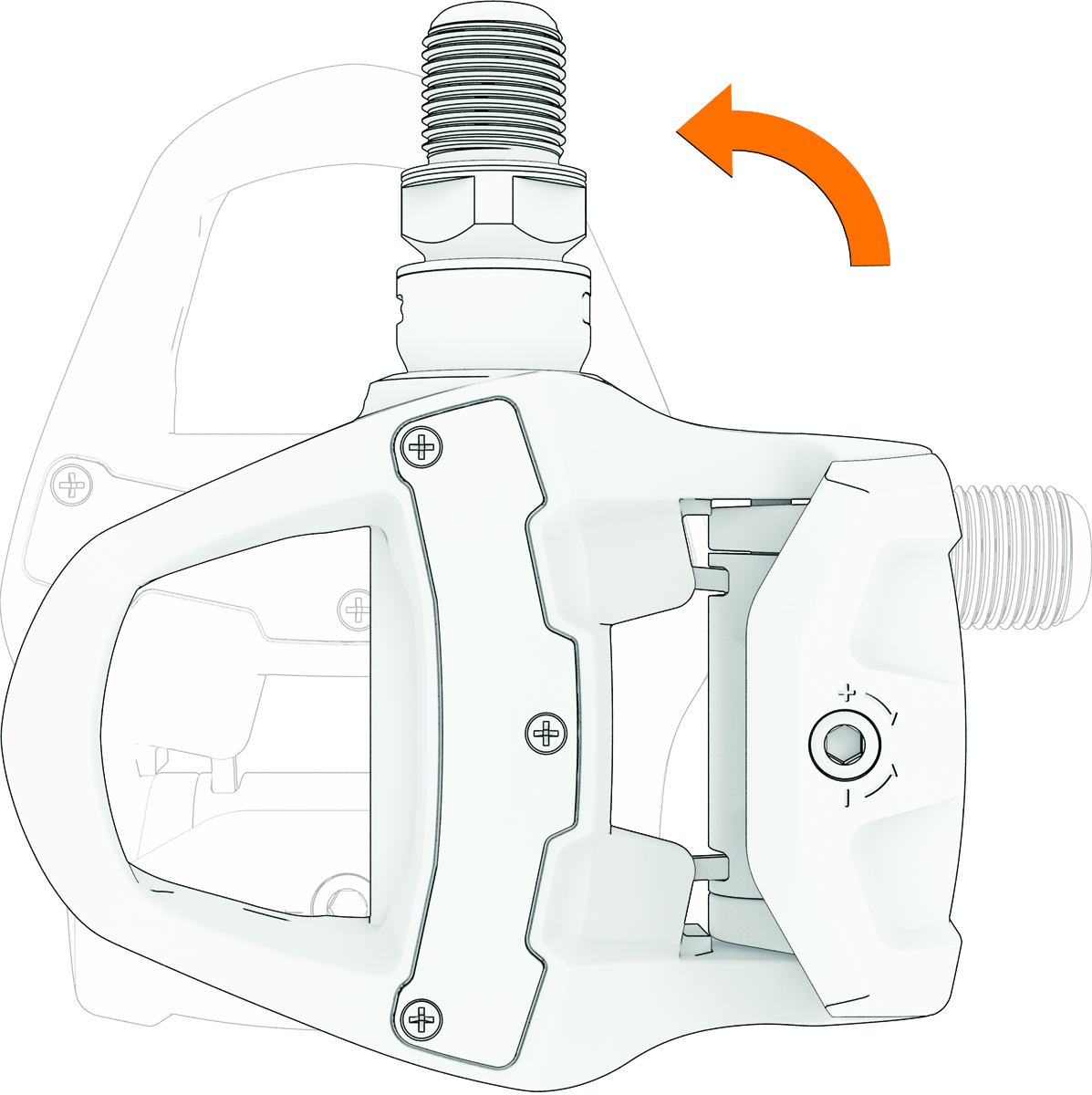
Turn the pedal 90 degrees, and hold it
with the threaded end up for 2 seconds.
-
Turn the pedal 90 degrees, and hold it
with the threaded end to the side for 2 seconds.
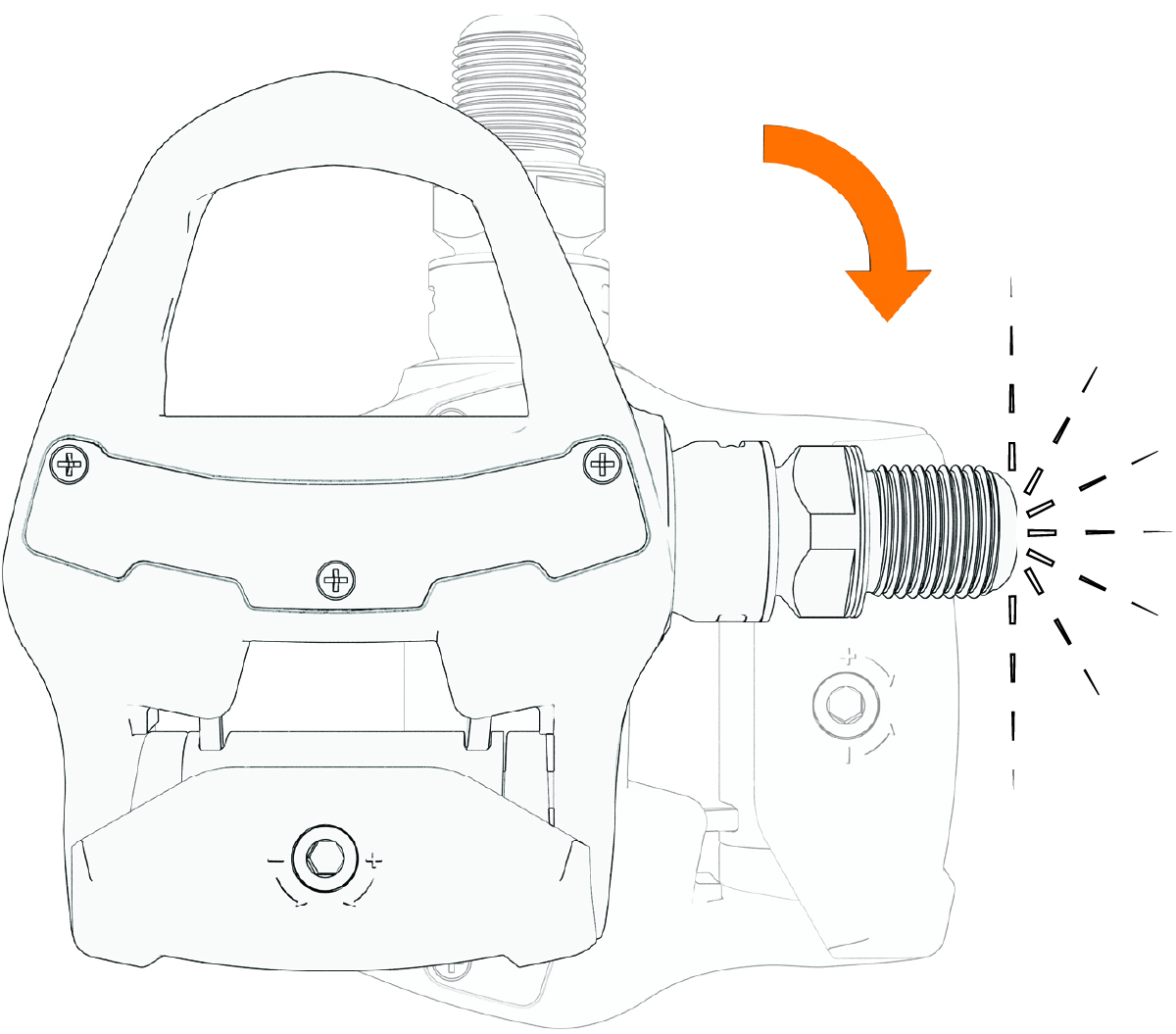
The status LED flashes white. -
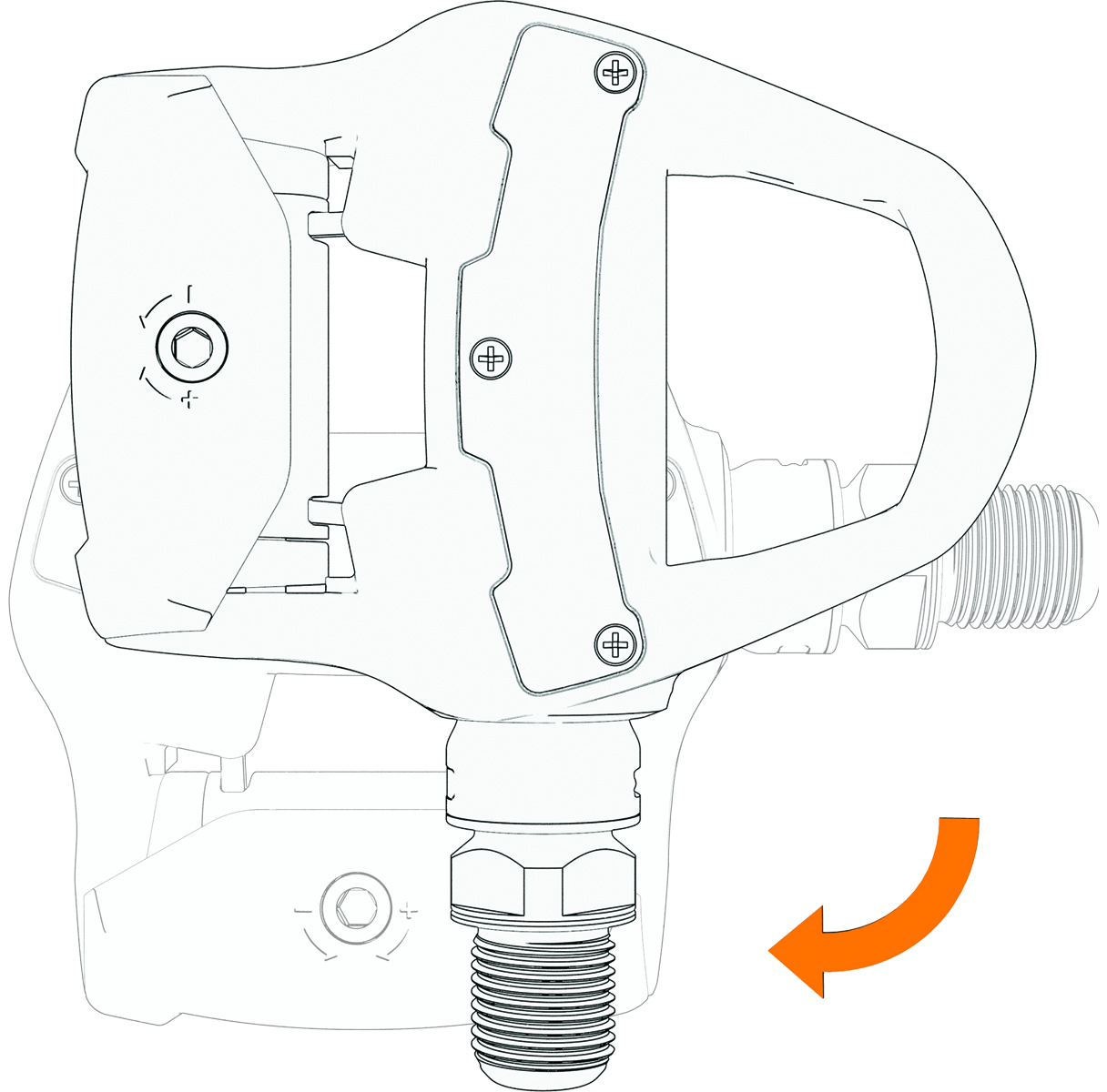
Turn the pedal 90 degrees, and hold it
with the threaded end down for 2 seconds.
-
Turn the pedal back 90 degrees, with the
threaded end to the side again.
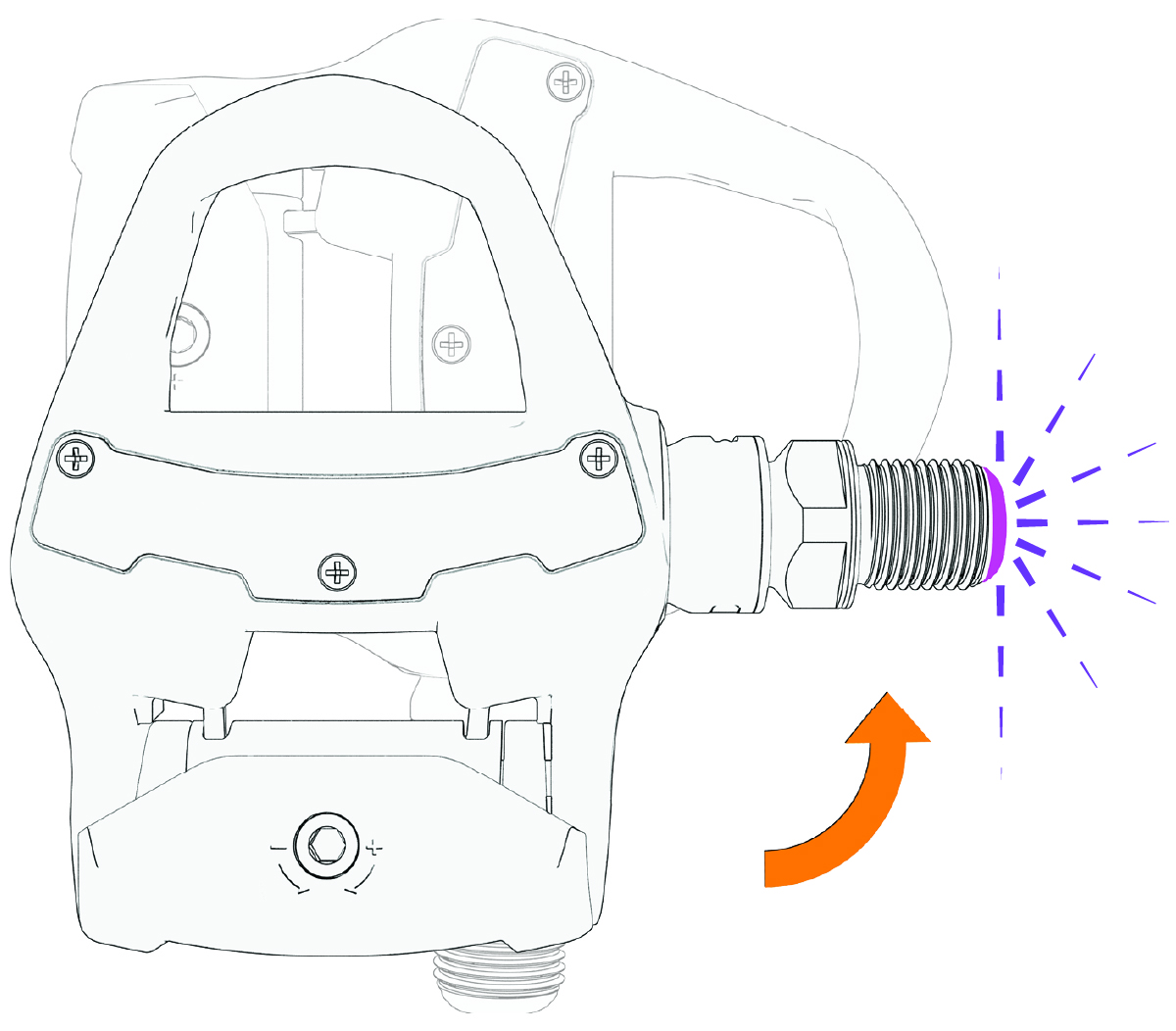
The status LED flashes
, indicating that it is in secure pairing mode. -
Select an option to start pairing the
Rally 110/210 pedals with the Garmin Connect app:
-
Scan the QR code with your phone.
-
In the Garmin Connect app, select
> Garmin Devices > Add Device.
-
Pairing with a Watch or Cycling Computer
Before you can pair the Rally 110/210 pedals with a watch or a cycling computer, you must pair the pedals with the Garmin Connect app (Pairing with the Garmin Connect App).
You can follow these steps to pair your Rally 110/210 pedals with a device that supports secure pairing. To access an up-to-date list of Garmin devices that support secure connections, and learn more about open and secure connections, go to garmin.com/connectiontypes.
To pair with a device that does not support secure pairing, you must first set your pedals to allow open connections (Allowing Open Connections).
-
Rotate the cranks to wake up the
pedals.
The status LED flashes
. -
In the Garmin Connect app, select > Garmin Devices > Rally
110/210.
-
Select .
The status LED flashes
.
After you have paired the pedals with a compatible watch or cycling computer, you should set the correct crank length, to ensure accurate power measurements (Entering the Crank Length).
Allowing Open Connections
The Rally 110/210 pedals support secure Bluetooth® connections with compatible devices. To pair the Rally 110/210 pedals with older devices that do not support secure pairing, you must configure the pedals to allow open connections.
-
In the Garmin Connect app, select > Garmin Devices > Rally
110/210.
The status LED on the Rally 110/210 pedal flashes three times when it is idle and allowing open connections.
You can pair your device by adding the Rally 110/210 pedals as a new sensor.
Entering the Crank Length
You must enter the correct crank length to ensure accurate power calculations. If you do not enter a crank length, the Rally 110/210 pedals use a default crank length of 172.5 mm (6.79 in.).
Entering the Crank Length Using the Garmin Connect App
-
In the Garmin Connect app, select > Garmin Devices > Rally
110/210.