Activity Tracking
The activity tracking feature records your daily step count, distance traveled, intensity minutes, calories burned, and sleep statistics for each recorded day. Your calories burned includes your base metabolism plus activity calories.
The number of steps taken during the day appears in your Garmin Connect™ account. The step count is updated periodically.
When wheelchair mode is enabled, the device records different metrics, such as pushes instead of steps (Wheelchair Mode).
For more information about activity tracking and fitness metric accuracy, go to garmin.com/ataccuracy.
Activities
From the Garmin Connect app, select  > Garmin Devices, select your device, and select .
Some activities may require a Garmin Connect+ subscription.
|
Category |
Activities |
|---|---|
|
Gym |
Boxing, Cardio, Climb Indoor, Elliptical, Floor Climb, HIIT, Jump Rope, Mixed Martial Arts, Mobility, Pilates, Row Indoor, Stair Stepper, Strength, Walk Indoor, Yoga |
|
Outdoor |
Archery, Bouldering, Disc Golf, Golf, Hike, Horseback, Inline Skating, Mountaineering, Walk |
|
Running |
Indoor Track, Run, Track Run, Trail Run, Treadmill, Obstacle Racing |
|
Cycling |
Bike, Bike Commute, Bike Indoor, Bike Tour, BMX, eBike, eMTB, Gravel Bike, Handcycle, Handcycle Indoor, MTB, Road Bike |
|
Swimming |
Swim |
|
Racket Sports |
Badminton, Padel, Pickleball, Racquetball, Squash, Table Tennis, Tennis |
|
Team Sports |
American Football, Baseball, Basketball, Cricket, Field Hockey, Gaming, Ice Hockey, Lacrosse, Rugby, Soccer/Football, Softball, Volleyball, Ultimate Disc |
|
Winter Sports |
Ice Skating, Ski, Snowboard, Snowshoe, XC Classic Ski, XC Skate Ski |
|
Water Sports |
Boat, Fish, Kayak, Row, Snorkel, SUP |
|
Other |
Breathwork, Meditation, Dance Fitness, Other |
Recording an Activity from the CIRQA Smart Band
You can select a favorite activity in the Garmin Connect app (Adding or Removing a Favorite Activity).
-
Press the button on the CIRQA™ smart band.
The LED flashes
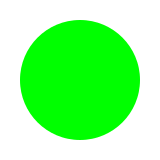 (green) and the CIRQA™ smart band vibrates when it begins recording your activity.
 -
After you finish the activity, press the
button on the CIRQA™ smart band again.
The LED flashes
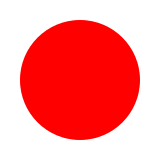 (red) and the CIRQA™ smart band vibrates. The activity appears in the Garmin Connect app after the device syncs.
Recording an Activity from Garmin Connect
You can start and stop an activity from the Garmin Connect app. You can also start and stop one activity from the CIRQA™ smart band (Adding or Removing a Favorite Activity).
-
From the Garmin Connect app, select
 > Record Activity.
-
Select Start Recording.
Your CIRQA™ smart band vibrates and the LED flashes (green).
Adding or Removing a Favorite Activity
You can set a favorite activity to start and stop from the CIRQA™ smart band.
-
From the Garmin Connect app, select > Garmin Devices.
- Select your device.
- Select .
- Select an activity.
Auto-Detected Activities
Your device uses recorded motion and exertion data, along with historical data from your account, to automatically identify your activities. This may include GPS location data from your connected phone. When an activity is detected and recorded, it is automatically uploaded to your Garmin Connect account, where you can edit or discard it. You must consent to your location data being used for this feature. For more information on auto-detected activities, go to garmin.com/autoactivitydetection.
Turning Auto-Detected Activities On and Off
-
From the Garmin Connect app, select > Garmin Devices.
- Select your device.
- Select .
Starting a Workout
-
From the Garmin Connect app, select
> Garmin Devices.
- Select your device.
- Select Workouts.
- If necessary, select Find Workout.
- Select a workout.
- Select .
After you begin a workout, your phone displays each step of the workout, step notes (optional), and the current workout data.
Activity Settings
These settings allow you to customize each preloaded activity based on your needs. Not all settings are available for all activity types.
From the Garmin Connect app, select > Garmin Devices, select your device, select Activity Options, and select an activity.
- Alerts
- Sets the training alerts for the activity.
- Laps
- Sets the options for the Auto Lap feature to automatically mark laps. The Auto Distance option marks laps at a specific distance.
- Phone GPS
- Turns phone GPS on or off for the activity.
- Band Position
- Sets the band position to your arm or wrist.NOTE: The default position is the side you selected in your user profile (Changing the Wear Location).
- Rep Counting
-
Enables rep counting during a workout. The Workouts Only option enables rep counting during guided workouts only (Starting a Workout).