Customizing the Widgets
You can add new widgets, remove widgets, and change the order of widgets in the widget shortcut bar.
-
Swipe left or right on the
widget shortcut bar , and select
 .
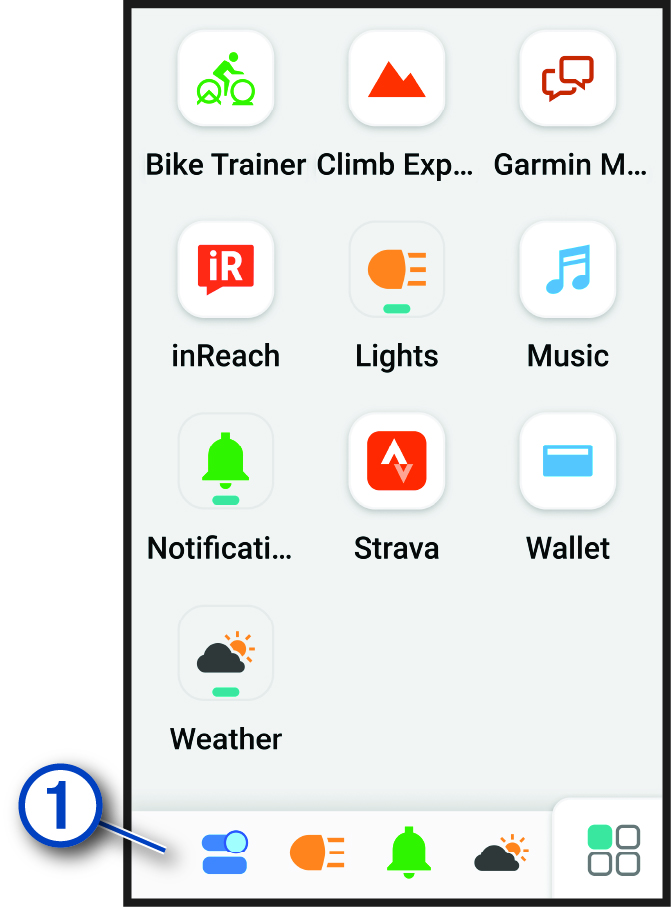
The widget launcher screen appears with available widgets in alphabetical order.
-
Select an option:
-
Select a widget to add it to the shortcut bar.
TIP: The widget appears in the shortcut bar. A green underscore appears on the widget icon to indicate the widget is active. -
Swipe down on a widget, and select
 to remove the widget from the widget shortcut
bar.
-
Hold and drag the widget icon left or right to change its location in the widget shortcut bar.
-