HDMI Video Considerations
To prevent corrosion due to moisture, you must use Garmin® GPSMAP® accessory cables when connecting the chartplotter to the video source or display. Do not connect a media player stick directly into the back of the chartplotter. Using different cables or connecting a media player stick into the back of the chartplotter voids your warranty.
These chartplotter models allow video input from HDMI® video sources, such as a Chromecast™ device or a Blu-Ray™ player.
You can view HDCP content on an external monitor that supports industry HDCP standards.
HDMI video is shared across the Garmin BlueNet™ network and across the Garmin Marine Network, but it is not shared across the NMEA 2000® network. HDCP content cannot be shared across the Garmin network to GPSMAP 8000 series or older chartplotters. HDCP content can be shared by a GPSMAP 9000 series chartplotter only to other GPSMAP 9000 series chartplotters connected to the Garmin BlueNet network.
The Garmin GPSMAP HDMI accessory cable is 4.5 m (15 ft) long. If you need a longer cable, you should use an active HDMI cable only. You need an HDMI coupler to connect the two HDMI cables.
You can use an adapter cable to power a media player stick using a USB port on the chartplotter. The USB DRD port can supply up to 2.5 W to power a media player stick. The USB port can supply up to 4.5 W to power a media player stick
You must make all cable connections in a dry environment.
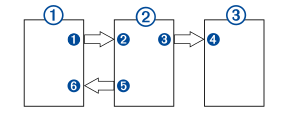
Devices
|
Item |
Device |
|---|---|
|
|
HDMI source, such as a Chromecast device |
|
|
GPSMAP chartplotter |
|
|
Monitor, such as a computer or television |
Connections
|
From |
To |
Cable |
|---|---|---|
|
HDMI source's HDMI OUT port |
Chartplotter's HDMI IN port |
Garmin HDMI Cable |
|
Chartplotter's HDMI OUT port |
Monitor's HDMI IN port |
Garmin HDMI Cable |
|
Chartplotter's USB DRD or USB port 1 |
HDMI source's USB port |
Adapter cable to power the HDMI source, if possible (2.5 W or 4.5 W maximum depending on chartplotter model and USB port) |