Touchscreen Controls for a Connected Computer (GPSMAP 9500 Black Box)
To prevent corrosion due to moisture, you must use Garmin® GPSMAP® accessory cables when connecting the chartplotter to the computer. Using different cables voids your warranty.
You can connect the chartplotter to a computer to see the computer screen and to control the computer using a touchscreen. To see the computer screen, you must connect the computer to the HDMI IN port and connect the touchscreen to the HDMI OUT port. To control the computer using the chartplotter touchscreen, you must connect the computer to the USB DRD port and connect the touchscreen to the USB port.
The HDMI® Cable (010-12390-20) is 4.5 m (15 ft) long. If you need a longer cable, you should use an active HDMI cable only. You need an HDMI coupler to connect the two HDMI cables.
To avoid potential communication errors, you should use the correct USB cable for your chartplotter. You should not use an adapter to change the USB connector type on an older cable.
You must make all cable connections in a dry environment.
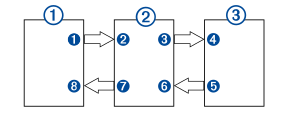
Devices
|
Item |
Device |
|---|---|
|
|
Computer |
|
|
GPSMAP chartplotter |
|
|
Touchscreen monitor |
Connections
|
From |
To |
Cable |
|---|---|---|
|
Computer's HDMI OUT port |
Chartplotter's HDMI IN port |
Garmin HDMI Cable (010-12390-20) |
|
Chartplotter's HDMI OUT port |
Monitor's HDMI IN port |
Garmin HDMI Cable (010-12390-20) |
|
Monitor's USB port |
Chartplotter's USB port |
Garmin USB-C to USB-A Cable (010-12390-12) |
|
Chartplotter's USB DRD port |
Computer's USB port |
Garmin USB-C to USB-A Cable (010-12390-14) |