Video Remote Control
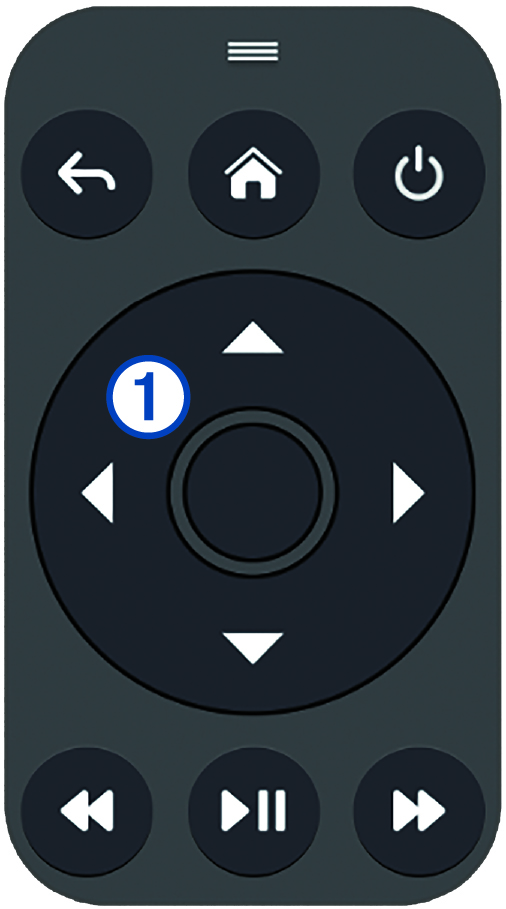
When you connect a compatible HDMI® device such as a media stick or a Blu-Ray™ player, an on-screen remote control appears that allows you to control the HDMI device. The video remote control appears automatically when you first view the video source, disappears after a few moments of inactivity, and appears again when you touch the screen.
 |
Drag to reposition the video remote control |
|---|---|
 |
Goes back or returns |
 |
Goes to the homescreen on the connected media device |
 |
Turns off the connected media device. This does not turn off the chartplotter. |
|
Navigates the menus and selects an item |
|
 |
Skips back or rewinds |
 |
Plays or pauses |
 |
Skips forward or fast forwards |
Turning off the Video Remote Control
By default, the video remote control is enabled when the system detects a compatible device connected to the HDMI IN port. If you prefer not to use the video remote control, you can turn it off.