Enabling Phone Notifications
You can customize how notifications from your paired phone sound and appear on your watch during normal use.
-
From the watch face, hold
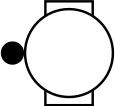 .
.
- Select .
-
Select an option:
-
To enable phone notifications, select .
-
To enable notifications for phone calls, select Calls, and select status and alert options.
-
To enable notifications for text messages, select Texts, and select status and alert options.
-
To enable notifications for phone apps, select Apps, and select status and alert options.
-
To view app notification permissions, select Apps, and scroll to view the list of apps.
NOTE: Using your phone, you can manage which app notifications appear on your watch.On iOS® phones, when your phone and watch receive a notification from an app, the app appears in the Connected Apps list on your watch. In the Garmin Connect™ app, you can select
 > Settings > Connected Apps, select an app, and select what data to share. You
can also select Disconnect to disconnect the app from your
watch.
> Settings > Connected Apps, select an app, and select what data to share. You
can also select Disconnect to disconnect the app from your
watch.On Android™ phones, in the Garmin Connect app, you can select
> Settings > Notifications > App Notifications, and select which app notifications to enable. On
your watch, the Blocked Apps list shows apps that do not send notifications
to your watch. -
To hide notification details until you perform an action, select Privacy, and select an option.
-
To change how long the watch displays notifications, select Timeout.
-
To add a signature to your text message replies from your watch, select Signature.
NOTE: This feature is available only for compatible Android phones.
-