Garmin Performance App
Use of this device in a track session, drag race session, or any other kind of racing session is intended only for recreational use on a racetrack. Never use this device on public roadways. Failure to follow this warning may result in an accident causing property damage, serious personal injury, or death. You are responsible for using this device in a safe and prudent manner.
Do not review any track sessions or drag race sessions while riding. Failure to pay attention to your surroundings and road conditions can result in serious personal injury or death.
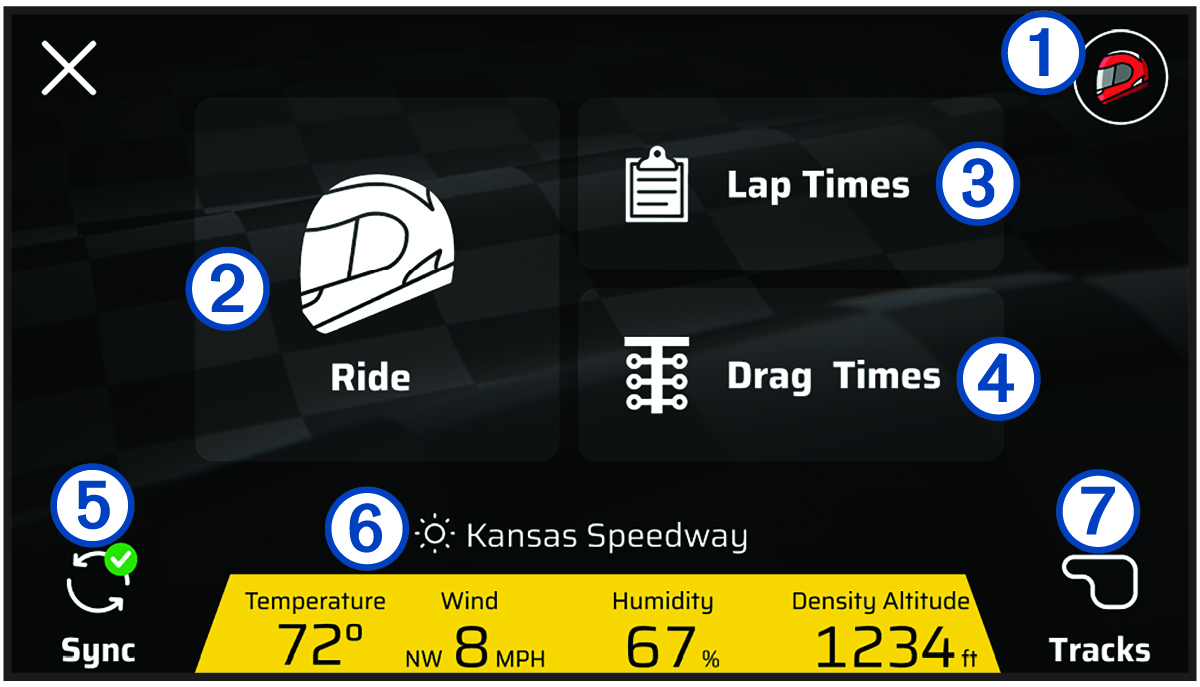
The Garmin Performance app allows you to start a track session or drag race session from your zūmo® device, and view performance data from your sessions, such as lap times and race summaries. You can also view current weather conditions before a race and past weather conditions for every session.
|
|
Select to view your race profile |
|---|---|
|
Ride |
Select to start a track or drag race session |
|
Lap Times |
Select to view a summary of previous track sessions |
|
Drag Times |
Select to view a summary of previous drag race sessions |
|
Sync |
Select to sync your ride sessions |
|
|
Displays environmental conditions |
|
Tracks |
Select to view the track database |
Subscribing to a Garmin Performance Package
You can purchase a Garmin Performance Package subscription to access racing features on your zūmo device.
-
From the home screen, select
 > Garmin Performance.
- Scan the QR code, and follow the on-screen instructions to complete the subscription process.
Garmin Catalyst App
Starting a Track Session
Before you can start a track session, your device must acquire satellite signals. You can
select  in the status bar to check the current signal strength and
accuracy.
in the status bar to check the current signal strength and
accuracy.
-
Select an option:
-
To change your driver profile, select
 and select a different profile.
 -
To change your vehicle profile, select
 and select a different profile.
 -
To configure lap timer settings, select
 , and select Delta Timer or Lap Timer Display.
 -
To change your track conditions, select
 ,
,  , or
, or  .
.
-
To calibrate lean angles, select
 , and follow the on-screen instructions.
-
Track Session Timer
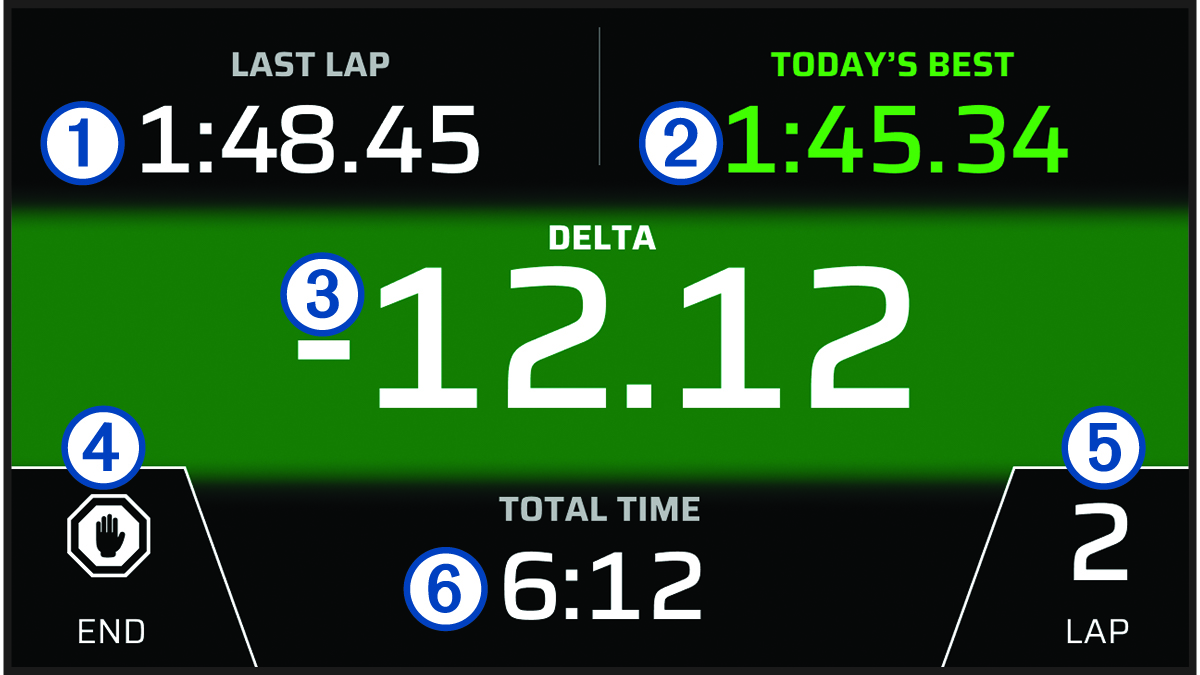
As you ride, the device keeps track of your progress. The session timer keeps track of your lap number and shows your best lap times.
|
LAST LAP |
Displays the last lap time during the current session. |
|---|---|
|
BEST LAP |
Displays the best lap time for the current session. This timer is customizable when starting a ride (Starting a Track Session). |
|
DELTA |
Displays the time difference between the current lap and the best lap during the current session. |
|
END |
Select to pause the timer or end the current session. |
|
LAP |
Displays the current lap number. |
|
TOTAL TIME |
Displays the total lap time. |
Adding a Track in the Garmin Performance App
You can add a track that is not already loaded on your device. The device uses your GPS location and your vehicle's movements to create a map of the track.
-
Select
 or
or  to position the starting line on the map.
Starting a Drag Race Session
Before you can start a drag race session, your device must acquire satellite signals. You can
select in the status bar to check the current signal strength and
accuracy.
-
Select an option:
-
To change the distance or speed of your drag race session, select
 .
. -
To change your vehicle profile, select
and select
a different profile. -
To change your track conditions, select
 .
. -
To add front and rear tire pressure values, select
 .
. -
To add a launch control RPM value, select
 .
.
-
Drag Race Session Timer
During your drag race session, the device keeps track of your speed and progress. The session timer keeps track of your total time and shows your time splits.
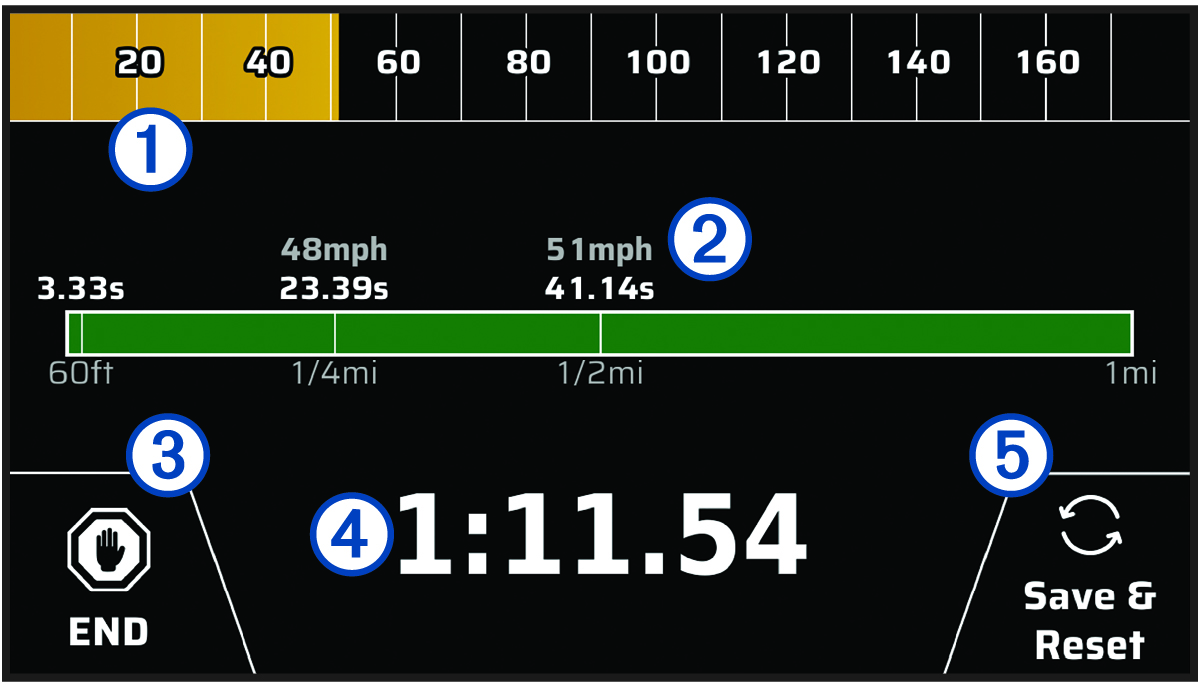
|
|
Displays your riding speed during your session. When stopped, displays your maximum speed during the session. |
|---|---|
|
|
Displays the time splits for the current session. |
|
END |
Select to end the current session. |
|
|
Displays the total time of the current session. |
|
Save & Reset |
Select to save the current session and reset the session timer. |