Using ClimbPro
The ClimbPro feature helps you manage your effort for upcoming climbs. You can view details about the climbs, including when they occur, average gradient, and total ascent. The climb scores, based on length and gradient, are indicated by color.
-
Go for a ride.
At the start of a climb, the ClimbPro screen appears automatically.
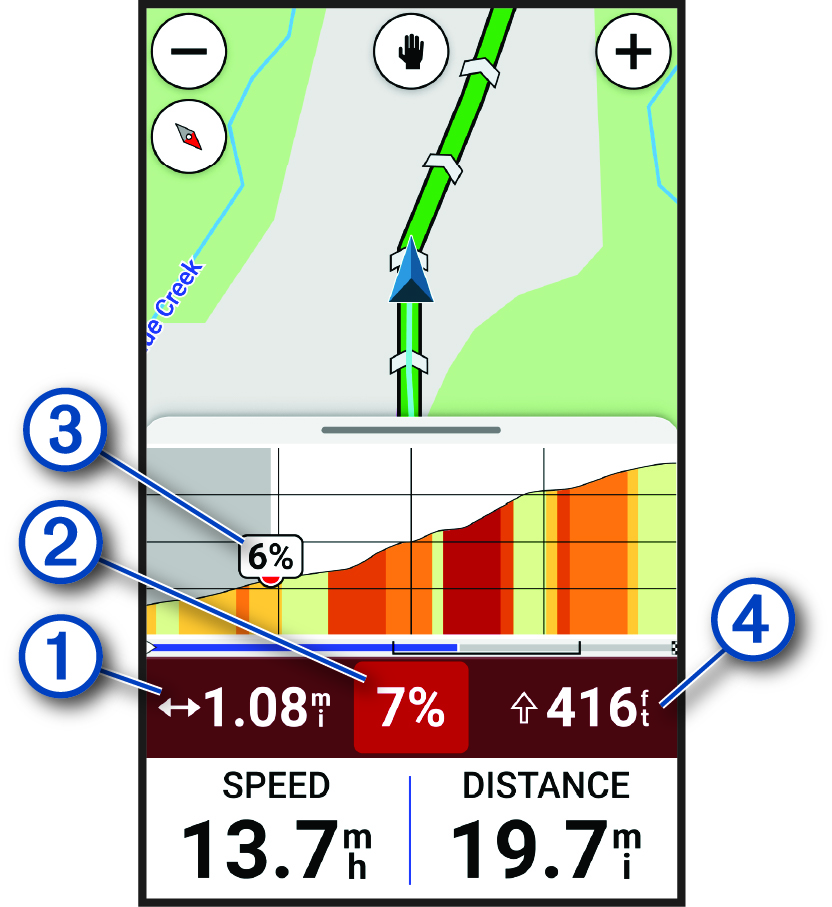
Distance remaining in the current climb
Average gradient remaining in the current climb
Current gradient
Ascent remaining in the current climb
After you save the ride, you can view the climb splits in your ride history.
Climb Categories
Climb categories are determined by climb score, which is calculated using the grade multiplied by the length of the climb. A climb must have a length of at least 500 meters and an average grade of at least 3 percent to be considered a climb.
|
Category |
Climb Score |
Color |
|---|---|---|
|
Hors Category (HC) |
Greater than 80,000 |

|
|
Category 1 |
Greater than 64,000 |

|
|
Category 2 |
Greater than 32,000 |

|
|
Category 3 |
Greater than 16,000 |

|
|
Category 4 |
Greater than 8,000 |

|
|
Uncategorized |
Greater than 1,500 |
|