Using ClimbPro

The ClimbPro feature helps you manage your effort for upcoming climbs. You can view details about the climbs, including when they occur, average gradient, and total ascent. The climb scores, based on length and gradient, are indicated by color.

TIP: Climbs also appear in the course details (Viewing Course Details).
  1. From the main menu, enable the ClimbPro feature for the activity profile (Training Settings).
  2. Select Climb Detection.
  3. Select the climb categories to include, based on difficulty (Climb Categories).
  4. Select Mode.
  5. Select an option:
    • Select When Navigating to use ClimbPro only when you are following a course (Courses) or navigating to a destination (Navigating to a Location).

    • Select Always to use ClimbPro with all rides.

  6. Select Terrain Type, and select an option.
  7. Go for a ride.

    At the start of a climb, the ClimbPro screen appears automatically.
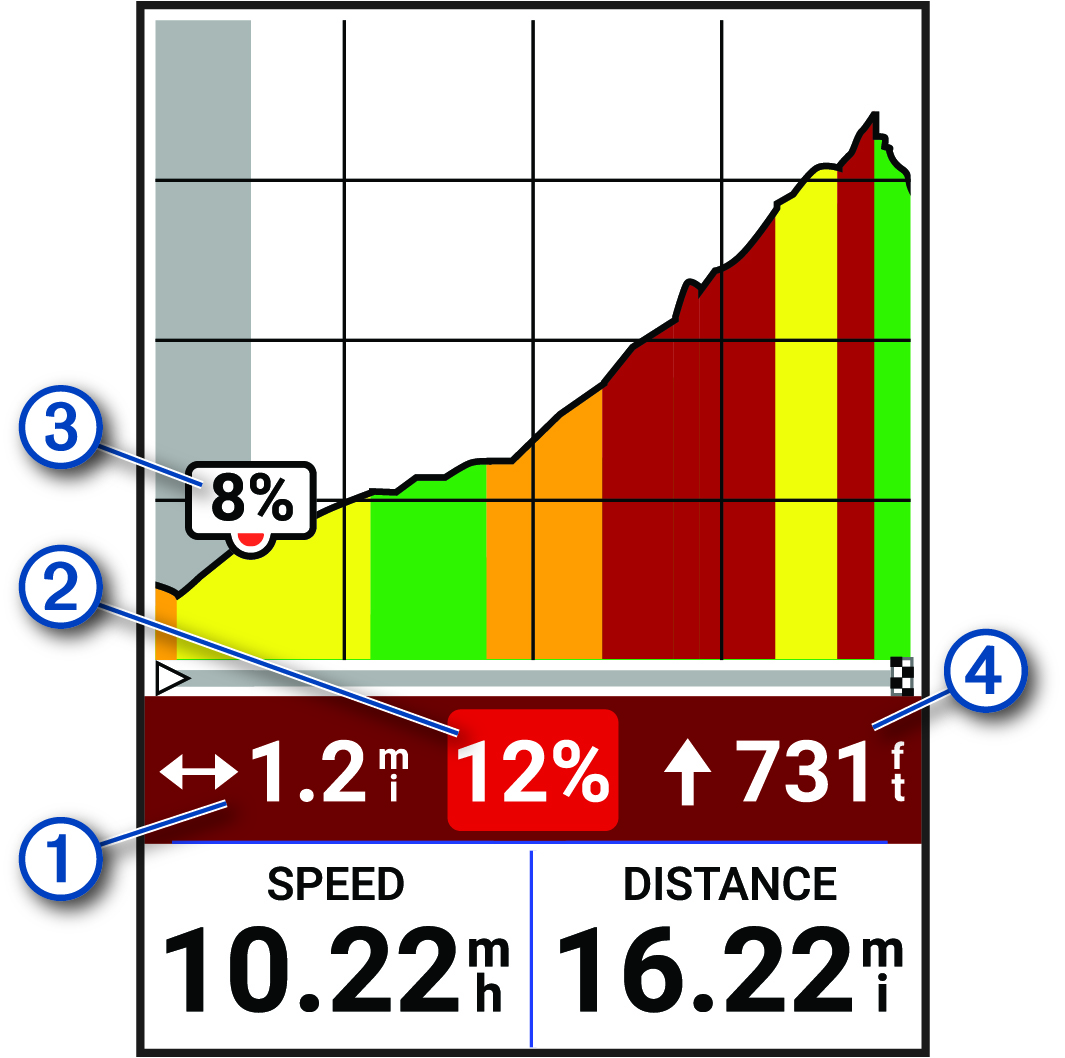

    ClimbPro data with callouts

    1

    Distance remaining in the current climb

    2

    Average gradient remaining in the current climb

    3

    Current gradient

    4

    Ascent remaining in the current climb

After you save the ride, you can view the climb splits in your ride history.

GUID-28E0106C-B05A-44E9-BF7C-9CB36A596B82 v2
November 2025