Garmin eLog App Overview
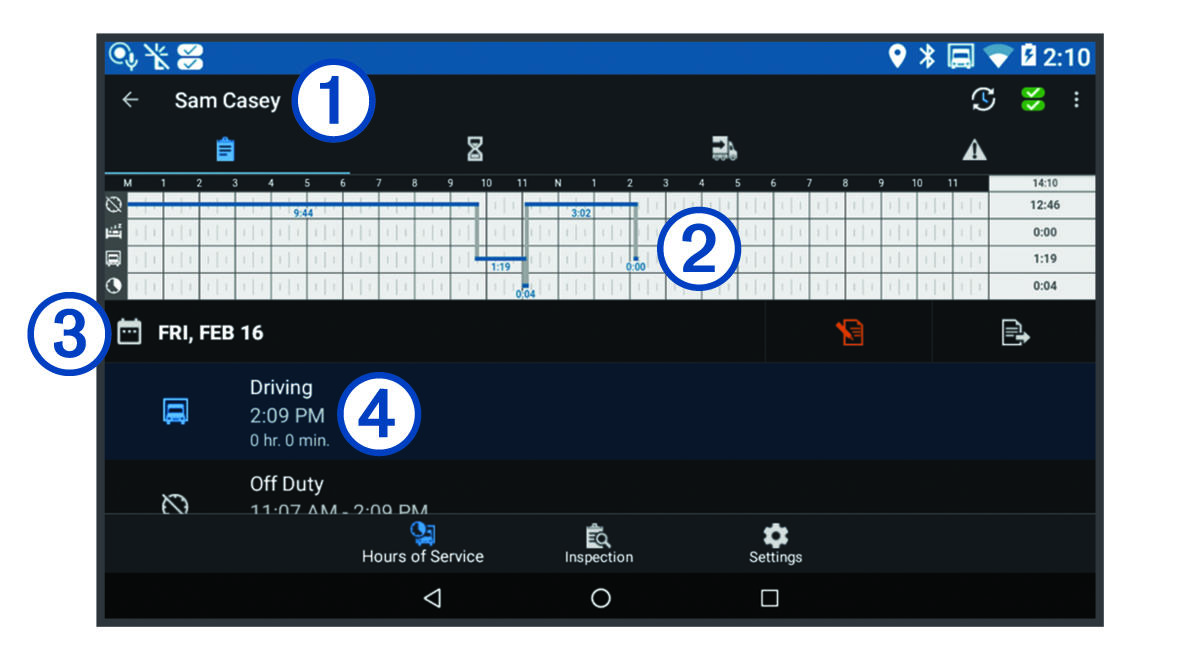
|
|
The name of the active driver. |
|---|---|
|
|
Select to change duty status. |
|
|
Diagnostic and malfunction indicator. Select to view detailed information about diagnostic or malfunction alerts (Viewing Diagnostics and Malfunctions). NOTE:
The diagnostic and malfunction indicator also appears in the status bar or near the top of every screen on your
dēzl™ device.
|
|
|
Select to record adverse conditions, create a Records of Duty Status (RODS) report, or log out. |
|
|
Select to view a chart of your hours of service information. |
|
|
Select to view a summary of currently available on-duty hours. |
|
|
Select to review log information. |
|
|
Select to view a full-screen chart of your service hours. |
|
|
Select to review logs for a different day. |
|
|
Select to certify your logs for the selected day. |
|
|
Select to submit a 24-hour log to your motor carrier. |
|
|
A record of your status for the recorded time period. Select to edit status information and adjust the time. |
|
|
Select to view hours of service information. |
|
|
Select to manage trailer and shipment information or to create a driver vehicle inspection report. |
|
|
Select to view inspection reports and transfer reports to a roadside inspector. |
|
|
Select to view additional system settings. |


