Power Guide
You can create and use a power strategy to plan your effort on a course. Your Forerunner® device uses your FTP, the course elevation, and the projected time it will take you to complete the course to create a customized power guide.
One of the most important steps in planning a successful power guide strategy is choosing your effort level. Putting a harder effort into the course will increase the power recommendations, while choosing an easier effort will reduce them (Creating and Using a Power Guide). The primary goal of a power guide is to help you complete the course based on what is known about your ability, not to achieve a specific target time. You can adjust the effort level during your ride.
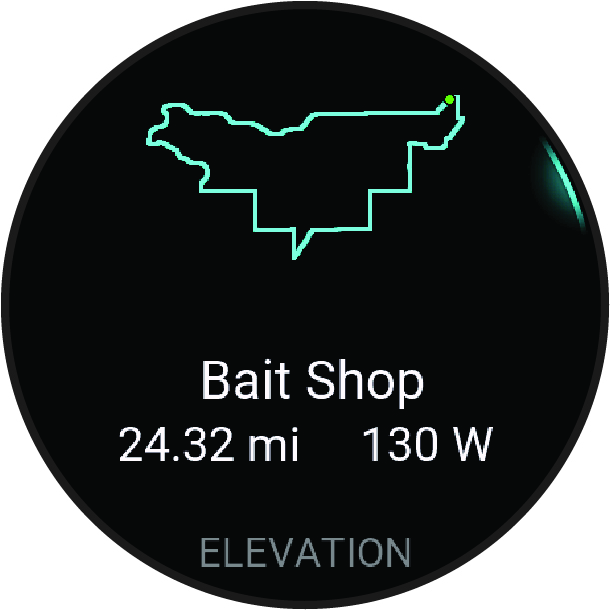
Creating and Using a Power Guide
Before you can create a power guide, you must pair a power meter with your watch (Pairing Your Wireless Sensors). You must also have a course loaded to your Garmin Connect account (Creating a Course on Garmin Connect ).
-
From the
Garmin Connect app, select
 .
.
-
Select
 .
.
-
From the watch face, press
 .
.
-
Press
, and select
Use Plan.
TIP: You can preview the map, elevation plot, effort, settings, and splits. You can also adjust the effort, terrain, riding position, and gear weight before you start riding.