PacePro Training
Many runners like to wear a pace band during a race to help achieve their race goal. The PacePro™ feature allows you to create a custom pace band based on distance and pace or distance and time. You can also create a pace band for a known course to optimize your pace effort based on elevation changes.
You can create a PacePro plan using the Garmin Connect™ app. You can preview the splits and elevation plot before you run the course.
Downloading a PacePro Plan from Garmin Connect
Before you can download a PacePro plan from Garmin Connect, you must have a Garmin Connect account (Garmin Connect).
-
Select an option:
-
Open the Garmin Connect app, and select
 .
.
-
Go to connect.garmin.com.
-
- Select .
- Follow the on-screen instructions to create and save a PacePro plan.
-
Select
 or
Send to Device.
or
Send to Device.
Creating a PacePro Plan on Your Watch
Before you can create a PacePro plan on your watch, you must create a course (Creating a Course on Garmin Connect ).
-
From the watch face, press
 .
.
-
Press
.
Starting a PacePro Plan
Before you can start a PacePro plan, you must download a plan from your Garmin Connect account, or create a PacePro plan on your watch (Creating a PacePro Plan on Your Watch).
-
From the watch face, press
.
-
Press
.
-
If necessary, select
 to enable course navigation.
-
Press
to start the activity timer.
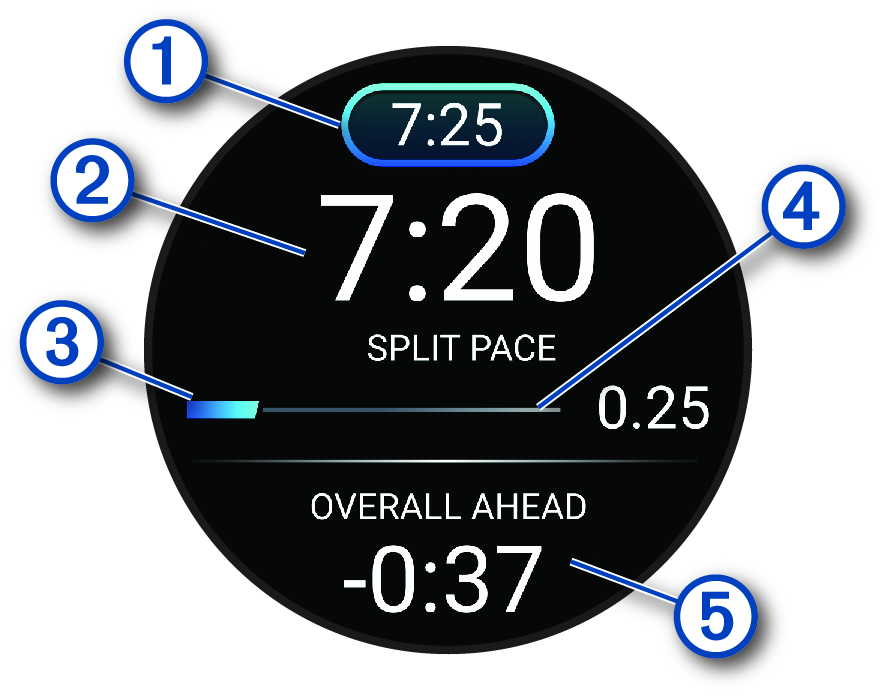
Target split pace
Current split pace
Completion progress for the split
Distance remaining in the split
Overall time ahead of or behind your target time
TIP: You can hold , and select
Stop PacePro > to stop the
PacePro plan. The activity timer continues running.
, and select
Stop PacePro > to stop the
PacePro plan. The activity timer continues running.