Updating Software with Garmin Express
You can use the Garmin Express application to download and install the latest software updates for your chronograph.
- If you do not have the Garmin Express application installed on your computer, go to garmin.com/express and follow the on-screen instructions to install it (Installing Garmin Express).
- Open the
 Garmin Express application.
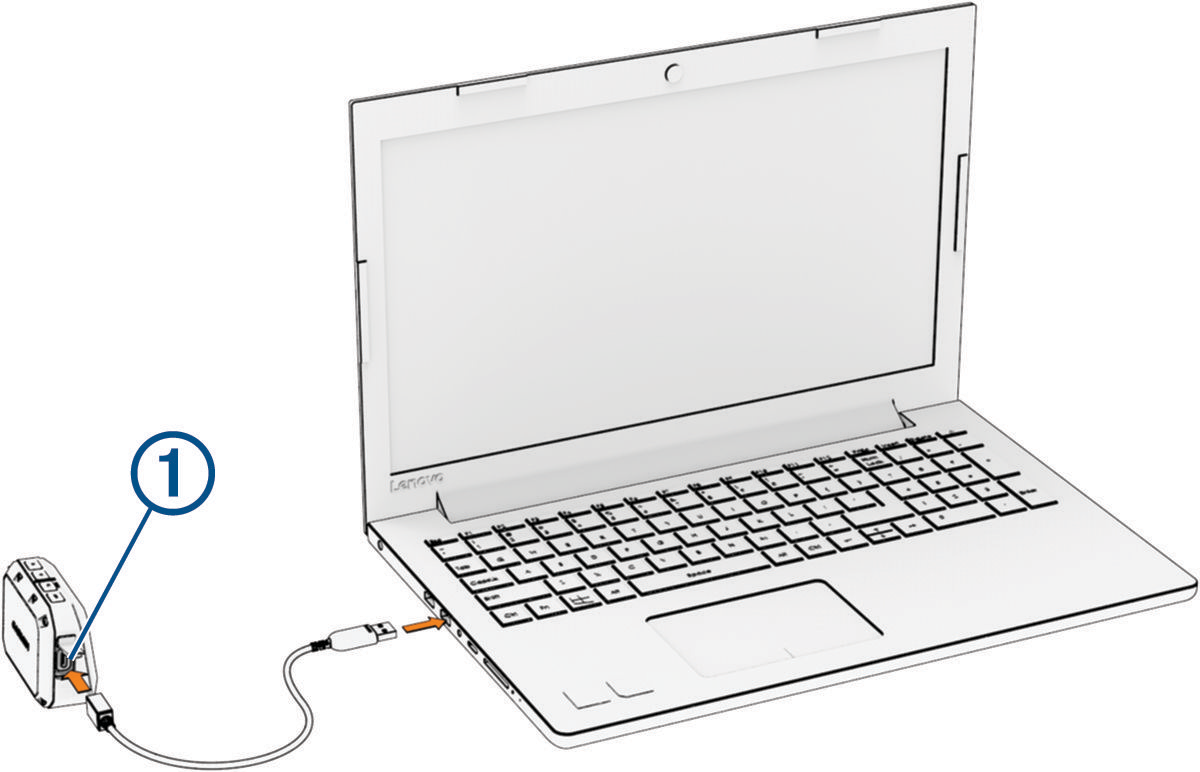
 - Connect your chronograph to your computer using a USB-C cable.
The small end of the cable connects to the USB-C port  on your Xero C1 chronograph, and the large end connects to an available USB port on your computer.
- In the Garmin Express application, click Add a Device.
The Garmin Express application searches for your device and displays the device name and serial number.
- Click Add Device, and follow the on-screen instructions to add your device to the Garmin Express application.
When setup is complete, the Garmin Express application displays the updates available for your device.
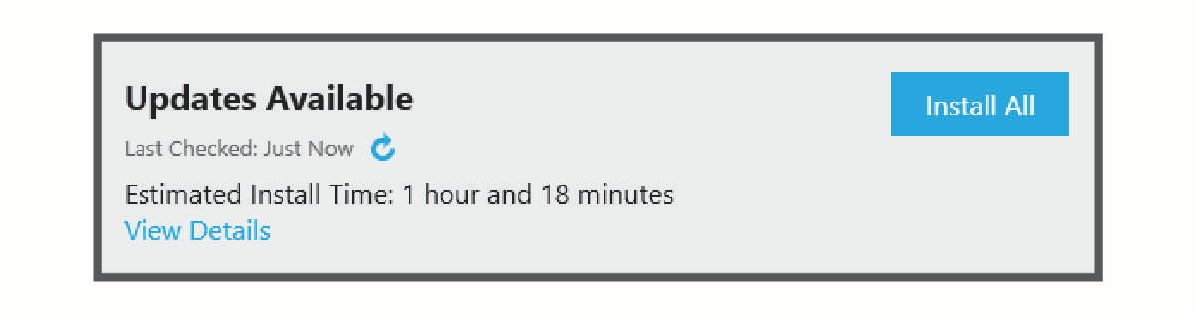
- Select an option:
- To install all available updates, click Install All.
- To install a specific update, click View Details, and click Install next to the update you want.
The Garmin Express application downloads and installs the updates onto your device.
- Follow the on-screen instructions during the update process to finish installing updates.
For example, during the update process, the Garmin Express application may instruct you to disconnect and reconnect your device.
The Garmin Express application is available for Windows® and Mac® computers.
- On your computer, go to Garmin.com/express.
- Select an option:
- To view the system requirements and verify the Garmin Express application is compatible with your computer, select System Requirements.
- To install on a Windows computer, select Download for Windows.
- To install on a Mac computer, select Download for Mac.
- Open the downloaded file, and follow the on-screen instructions to complete the installation.