Cycling
Before you can use a wireless sensor for your ride, you must pair the sensor with your watch (Pairing Your Wireless Sensors).
- Pair your wireless sensors, such as a heart rate monitor or bike lights (optional).
- From the watch face, swipe left.
- Select Activities > Cycling > Bike.
- When using optional wireless sensors, wait while the watch connects to the sensors.
- Go outside, and wait while the watch locates satellites.
- Press
 to start the activity timer.
The watch records activity data only while the activity timer is running.
- Start your activity.
- Swipe up and down to scroll through the data screens.
- After you complete your activity, press , and select Save.
Before you can use a compatible indoor trainer, you must pair the trainer with your watch using Bluetooth or ANT+ technology (Pairing Your Wireless Sensors).
You can use your watch with an indoor trainer to simulate resistance while following a course, ride, or workout.
While using an indoor trainer, GPS is turned off automatically.
- From the watch face, swipe left.
- Select Activities > Cycling > Bike Indoor.
- Swipe right.
- Select Smart Trainer Options.
- Select an option:
- Select Free Ride to go for a ride.
- Select Follow Workout to follow a saved workout (Workouts).
- Select Follow Course to follow a saved course (Courses).
- Select Set Power to set the target power value.
- Select Set Grade to set the simulated grade value.
- Select Set Resistance to set the resistance force applied by the trainer.
- Press to start the activity timer.
The trainer increases or decreases resistance based on the elevation information in the course or ride.
You can create and use a power strategy to plan your effort on a course. Your Venu X1 device uses your FTP, the course elevation, and the projected time it will take you to complete the course to create a customized power guide.
One of the most important steps in planning a successful power guide strategy is choosing your effort level. Putting a harder effort into the course will increase the power recommendations, while choosing an easier effort will reduce them (Creating and Using a Power Guide). The primary goal of a power guide is to help you complete the course based on what is known about your ability, not to achieve a specific target time. You can adjust the effort level during your ride.
Power guides are always associated with a course and cannot be used with workouts or segments. You can view and edit your strategy in Garmin Connect and sync it with compatible Garmin devices. This feature requires a power meter, which must be paired with your device (Pairing Your Wireless Sensors). After the devices are paired, you can customize the optional data fields (Data Fields ).
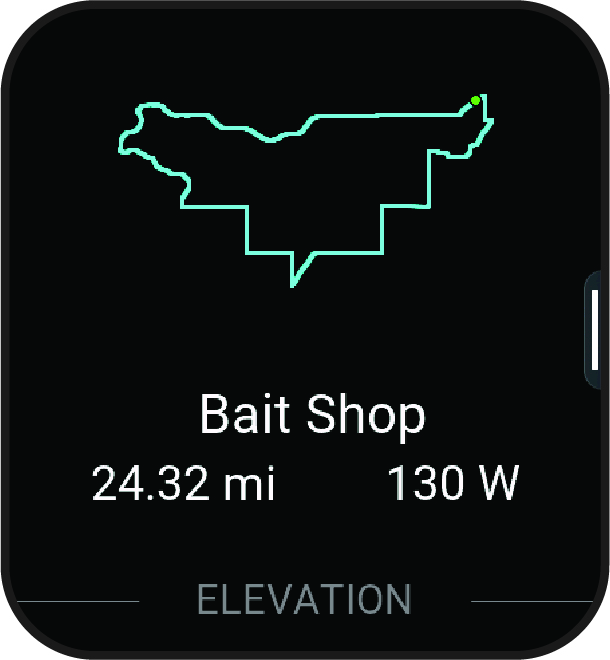
Creating and Using a Power Guide
Before you can create a power guide, you must pair a power meter with your watch (Pairing Your Wireless Sensors). You must also have a course loaded to your Garmin Connect account (Creating a Course on Garmin Connect).
- From the Garmin Connect app, select
 .
. - Select Training & Planning > Power Guide > Create Power Guide Strategy.
- Follow the on-screen instructions to create the power guide.
- Select
 .
. - Select your watch.
- From the watch face, swipe left.
- On your watch, select an outdoor biking activity.
- Scroll down to select Training > Power Guide.
- Select a power guide.
- Press , and select Use Plan.
TIP: You can preview the map, elevation plot, effort, settings, and splits. You can also adjust the effort, terrain, riding position, and gear weight before you start riding.