Flying
 WARNING
Do not use this watch as a primary means of navigation. See the Important Safety and Product Information document in the product box for product warnings and other important information prior to use.
This watch is not intended to provide primary flight information and is to be used for supplemental purposes only.
Aviation Settings
From the watch face, hold  , and select Watch Settings > Aviation.
Aviation Units: Sets the units of measure used for aviation data.
In-flight Alerts: Sets aviation alerts for the flying activity (Setting Aviation Alerts).
Weather Settings: Customizes how the weather information appears in the glances and manages weather data downloads (Aviation Weather Settings).
Favorite Airports: Sets your favorite airports (Selecting Favorite Airports).
Airport Filter: Sets the airport options that appear when searching for airports. For example, you can set the minimum runway length and surface material, and indicate whether private airports and heliports are displayed in search results.
Altimeter Settings: Displays the altitude based on the nearest METAR location or manual entry (Setting the Barometric Pressure Manually).
Map Settings: Customizes the information to display on the map for the flying activity, such as the aircraft icon and METAR information.
- From the watch face, hold .
- Select Watch Settings > Aviation > In-flight Alerts.
- Select an option:
- To receive an alert at a specified altitude, select Altitude Alert.
- To receive an alert at a specified oxygen level, select O2 Alert.
- To receive a reminder to check the fuel tank after a specified time, select Fuel Tank Reminder.
- To receive an alert when you deviate from your course by a specified distance, select Cross Track Alert.
- To receive an alert when you reach a waypoint, select Appr. Waypoint.
NOTE: You can prevent all aviation alerts from appearing during a flight by selecting Inhibit All.
- If necessary, select Active to turn on the alert.
- Enter a value for the alert.
- Select Vibe to enable vibration for the alert.
From the watch face, hold , and select Watch Settings > Aviation > Weather Settings.
WX Download: Sets the download limit for aviation weather data. The Minimal option limits downloads to your favorite airports to improve battery life. The Medium option limits downloads to your favorite and nearest airports. The Maximum option downloads full METAR data, and may reduce battery life.
Raw METAR: Sets the METAR information to display in undecoded text.
Flt. Conditions: Sets the flight condition colors to a standard or classic color scheme.
Clear WX Cache: Deletes all downloaded aviation weather data and initiates a new download to refresh the data.
When you select a favorite airport, you can view the METAR information for it on the aviation glances.
- From the watch face, hold .
- Select Watch Settings > Aviation > Favorite Airports.
- Select an option:
- To search for an airport near you, select Nearest List, and wait while the watch locates satellites.
- To search for an airport by its identifier, select Search by Ident., and enter all or part of the alphanumeric identifier.
A list of airports appears.
- Select an airport.
- Select Add Location to add another favorite airport (optional).
Setting the Barometric Pressure Manually
You can set the current barometric pressure manually to help improve the accuracy of the pressure altitude reading.
- From the watch face, hold .
- Select Watch Settings > Aviation > Altimeter Settings > Barometer > Manual.
- Select an option:
- To set the barometric pressure manually, select Set Baro, and enter a value.
- To use the standard barometric pressure at sea level, select Set to STD.
- To use the barometric pressure at your current elevation, select Sync to Elevation.
- To use the current local barometric pressure from your watch, select Sync to Device.
You can use the Direct-To controls menu option to quickly navigate to an airport. When you search for an airport, you can view the distance, bearing and pointer, and flight conditions for each airport.
- Hold
 .
. - Select
 .
. - Select an option:
- Select the airport identifier of a favorite airport.
- Select Nearest List, and select an airport identifier from the list.
- Select Search by Ident., enter all or part of the alphanumeric identifier, and select an airport identifier from the list.
Starting a Flight
- From the watch face, press
 .
. - Select Activities > Aviation > Flying.
- Wait while the watch locates satellites.
- Press to start the flight timer.
TIP: You can edit the activity settings to start the flight timer automatically at a specified threshold (Activity Settings).
- After you complete your activity, press , and select Save.
Horizontal Situation Indicator
WARNING
This watch is not intended to provide primary flight information and is to be used for supplemental purposes only.
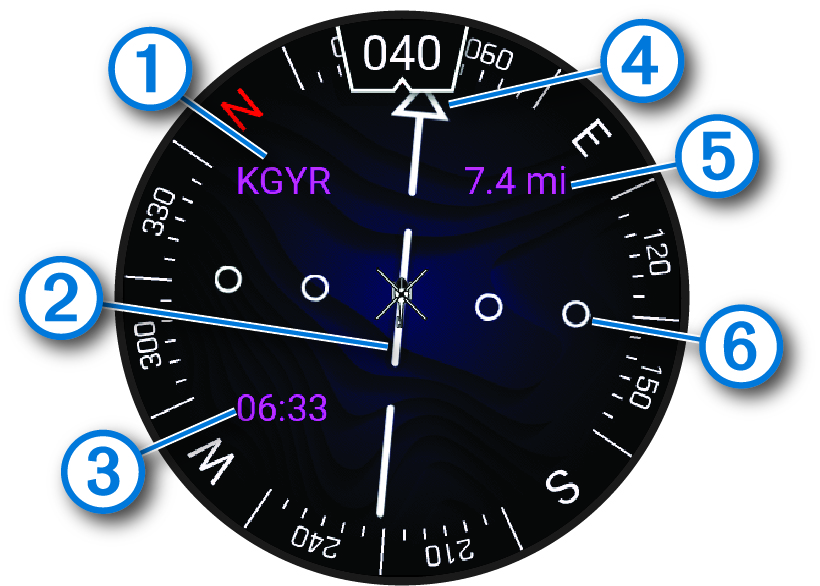
|
|
Airport identifier. |
|
|
Course deviation indicator (CDI). Indicates the location of the desired course line in relation to your location. |
|
|
Estimated time en route (ETE). |
|
|
To-and-from indicator. Indicates whether you are headed toward or away from the waypoint. |
|
|
The distance to the selected airport. |
|
|
Course deviation distance. The dots indicate your distance off course. The maximum of two dots equals 2.5 nautical miles. |


