Entering Text with Instant Keyboard
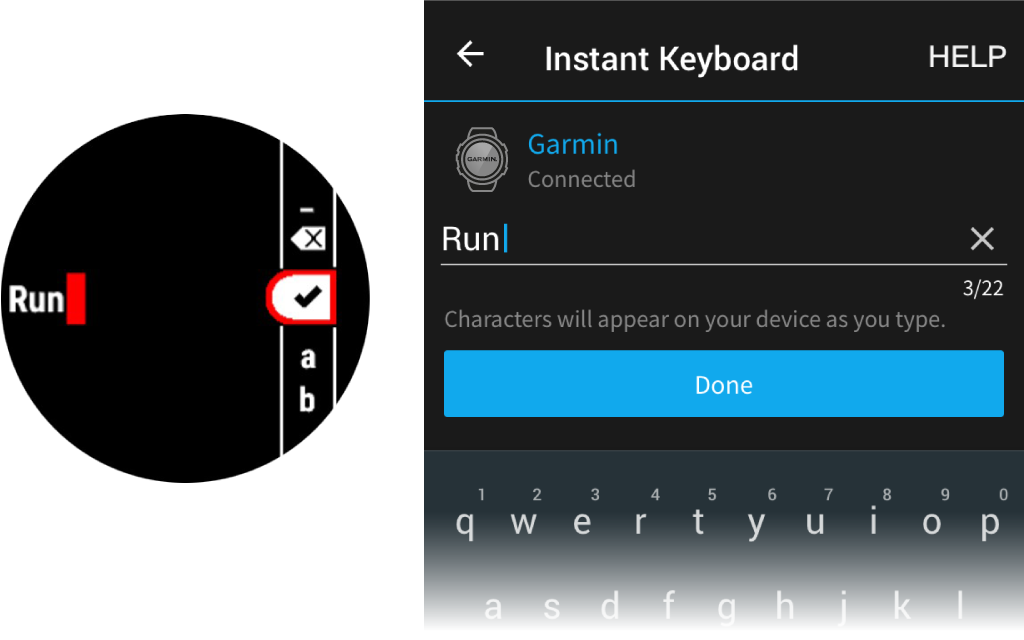
Instant Keyboard allows you to quickly enter text to your device using Garmin Connect app.
A keyboard will appear in Garmin Connect app whenever a text field appears on your device. As you type on the keyboard, the characters will be entered simultaneously to the text field on your device.
Instant Keyboard is enabled by default. To disable Instant Keyboard, go to Settings > Instant Keyboard in Garmin Connect app.
NOTE: Garmin Connect app must be open and paired with your device when the text field appears.
After you pair your watch with your phone (), you can use the Garmin Connect app to upload all of your activity data to your Garmin Connect account.
- Verify the Garmin Connect app is running on your phone.
- Bring your watch within 10 m (30 ft.) of your phone.
Your watch automatically syncs your data with the Garmin Connect app and your Garmin Connect account.
Updating the Software Using the Garmin Connect App
Before you can update your watch software using the Garmin Connect app, you must have a Garmin Connect account, and you must pair the watch with a compatible phone ().
Sync your watch with the Garmin Connect app ().
When new software is available, the Garmin Connect app automatically sends the update to your watch.
Using Garmin Connect on Your Computer
The Garmin Express application connects your watch to your Garmin Connect account using a computer. You can use the Garmin Express application to upload your activity data to your Garmin Connect account and to send data, such as workouts or training plans, from the Garmin Connect website to your watch. You can also add music to your watch (). You can also install software updates and manage your Connect IQ apps.
- Connect the watch to your computer using the USB cable.
- Go to Garmin.com.sg/express.
- Download and install the Garmin Express application.
- Open the Garmin Express application, and select Add Device.
- Follow the on-screen instructions.
Updating the Software Using Garmin Express
Before you can update your device software, you must have a Garmin Connect account, and you must download the Garmin Express application.
- Connect the device to your computer using the USB cable.
When new software is available, Garmin Express sends it to your device.
- Follow the on-screen instructions.
- Do not disconnect your device from the computer during the update process.
NOTE: If you have already set up your device with Wi-Fi connectivity, Garmin Connect can automatically download available software updates to your device when it connects using Wi-Fi.
Manually Syncing Data with Garmin Connect
NOTE: You can add options to the controls menu ().
- Hold LIGHT to view the controls menu.
- Select Sync.