Golfing
The Garmin Golf app allows you to upload scorecards from your Lily 2 Active device to view detailed statistics and shot analyses. Golfers can compete with each other at different courses using the Garmin Golf app. More than 43,000 courses have leaderboards that anyone can join. You can set up a tournament event and invite players to compete.
The Garmin Golf app syncs your data with your Garmin Connect account. You can download the Garmin Golf app from the app store on your phone (Garmin.com/golfapp).
Playing Golf
NOTE: If you found a golf course with data that's inaccurate or outdated, please send us a report at Report a Golf Course Issue.
Before you play a course for the first time, you must download it using the Garmin Connect app. Downloaded courses are updated automatically.
Before you play golf, you should charge the watch (Charging the Watch).
- From the Garmin Connect app, select
 or
or  .
. - Select Download Golf Courses >
 .
. - Select a golf course.
- Select Download.
After the course finishes downloading, it appears in the list of courses on your Lily 2 Active watch.
- Press
 .
. - Select
 to keep score.
 - Select a tee box.
The hole information screen appears.
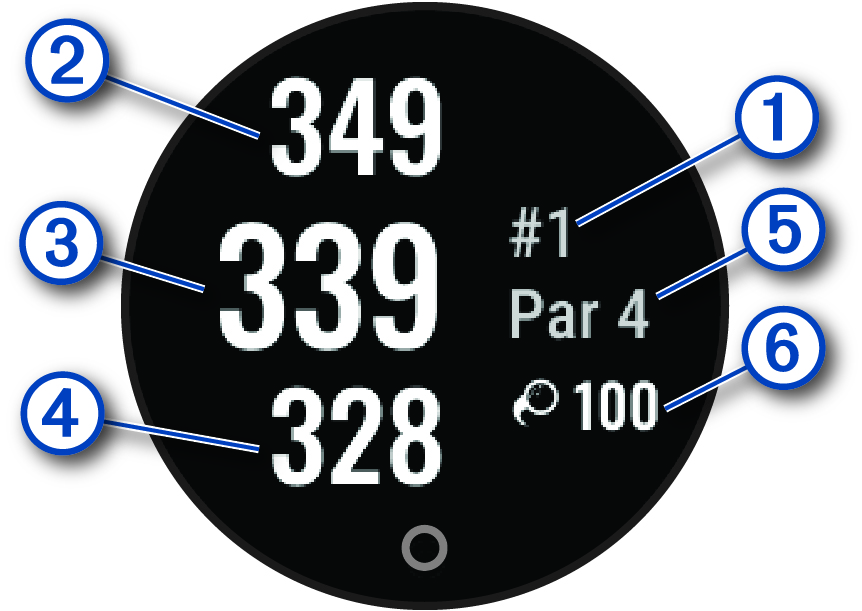
|
|
Current hole number |
|
|
Distance to the back of the green |
|
|
Distance to the middle of the green |
|
|
Distance to the front of the green |
|
|
Par for the hole |
|
|
Garmin AutoShot distance |

When you move to the next hole, the watch automatically transitions to display the new hole information.
Golf Menu
During a round, you can press to view additional features in the golf menu.
Hazards: Shows the bunkers and water hazards for the current hole.
Layups: Shows the layup and distance options for the current hole (par 4 and par 5 holes only).
Scorecard: Opens the scorecard for the round (Keeping Score).
Round Summary: During a round, view your score, statistics, and step information.
Last Shot: View information for your last shot.
NOTE: You can view distances for all shots detected during the current round. If needed, you can manually add a shot (Adding a Shot Manually).
End Round: Ends the current round.
Viewing Layup and Dogleg Distances
You can view a list of layup and dogleg distances for par 4 and 5 holes.
- Press .
- Select Layups.
NOTE: Distances and locations are removed from the list as you pass them.
Viewing Hazards
You can view distances to hazards along the fairway for par 4 and 5 holes. Hazards that affect shot selection are displayed individually or in groups to help you determine the distance to layup or carry.
- Press .
- Select Hazards.
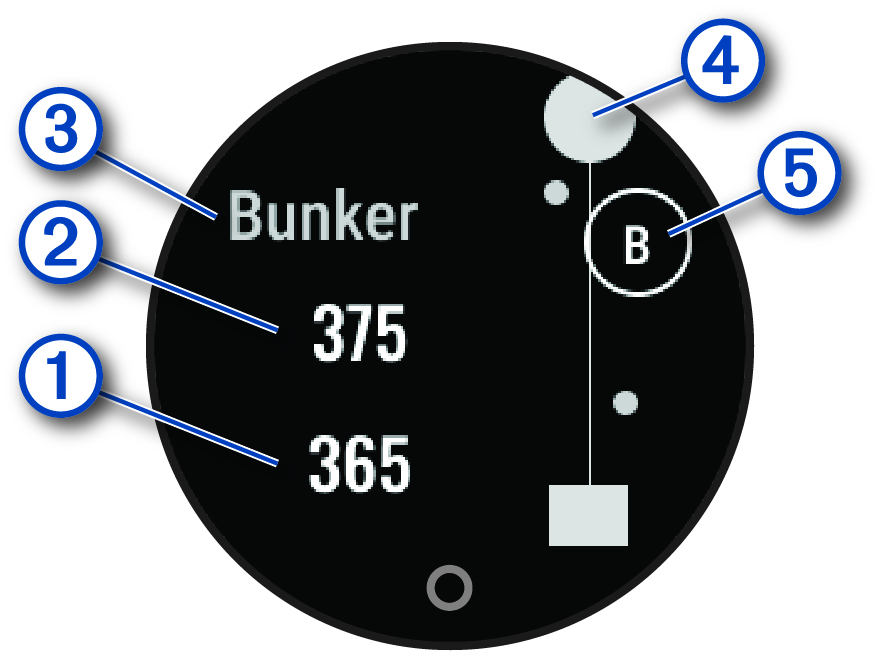
- The distances to the front
 and
and  back of the nearest hazard appear on the screen.
 - The hazard type
 is listed at the top of the screen.
 - The green is represented as a half circle
 at the top of the screen. The line below the green represents the center of the fairway.
 - Hazards
 are indicated by a letter signifying the order of the hazards on the hole, and are shown below the green in approximate locations relative to the fairway.
Measuring a Shot with Garmin AutoShot
Each time you take a shot along the fairway, the watch records your shot distance so you can view it later (Viewing Your Shot History). Putts are not detected.
- While playing golf, wear the watch on your leading wrist for better shot detection.
When the watch detects a shot, your distance from the shot location appears below the par.
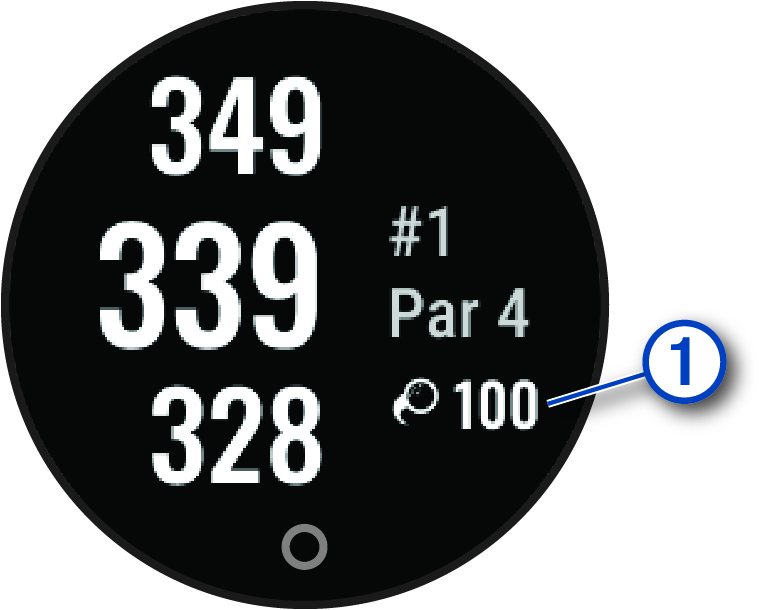
- Hit your next shot.
The watch records the distance of your last shot.
You can manually add a shot if the device doesn’t detect it. You must add the shot from the location of the missed shot.
- Press .
- Select Last Shot > > Add Shot.
- Select to start a new shot from your current location.
- While playing golf, press .
- Select Scorecard.
- Select a hole.
- Select
 or
or  to set the score.
 - Select .
- After playing a hole, press .
- Select Last Shot to view information for your last shot.
Viewing Your Round Summary
During a round, you can view your score, statistics, and step information.
- Press .
- Select Round Summary.
- Swipe left or right to view more information.
Ending a Round
- Press .
- Select End Round.
- Select an option:
- To save the round and return to watch mode, select .
- To discard the round and return to watch mode, select
 .
. - To resume the round, select
 .
.
- To save the round and return to watch mode, select