Activity Tracking
The activity tracking feature records your daily step count, distance traveled, intensity minutes, floors climbed, calories burned, and sleep statistics for each recorded day. Your calories burned includes your base metabolism plus activity calories.
The number of steps taken during the day appears on the steps glance. The step count is updated periodically.
For more information about activity tracking and fitness metric accuracy, go to Unified Training Status.
Auto Goal
Your watch creates a daily step goal automatically, based on your previous activity levels. As you move during the day, the watch shows your progress toward your daily goal  .
.
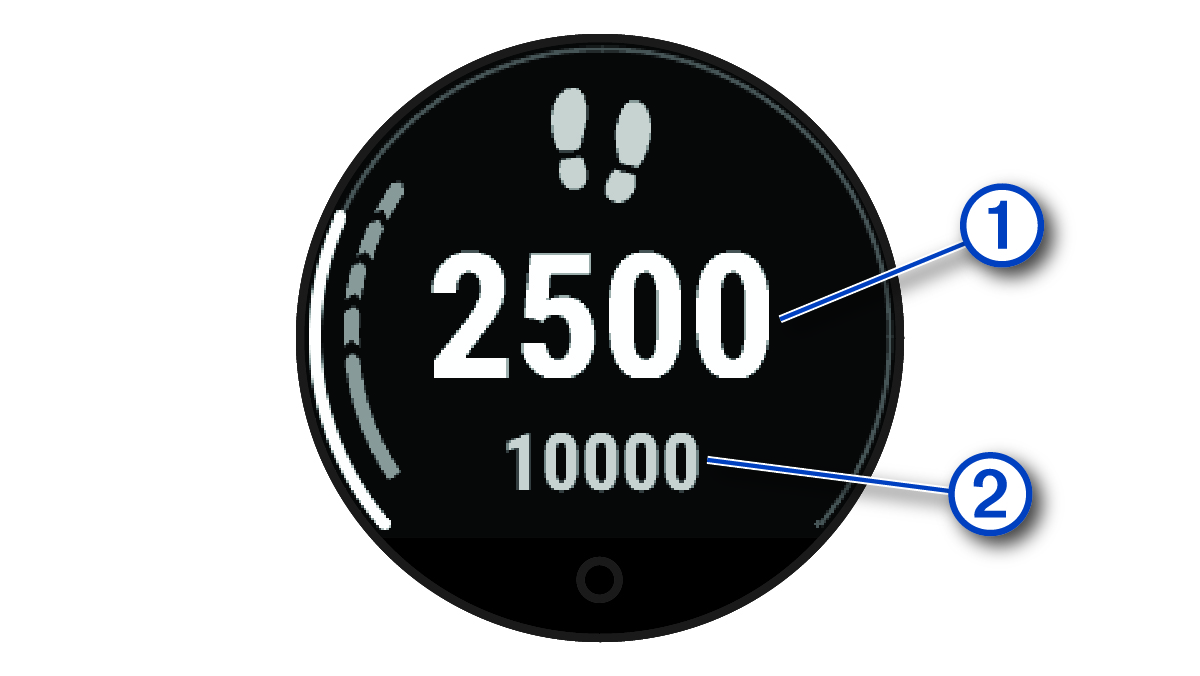
If you choose not to use the auto goal feature, you can set personalized goals on your Garmin Connect account.
Sitting for prolonged periods of time can trigger undesirable metabolic state changes. The move alert reminds you to keep moving. After one hour of inactivity, a message appears. The watch also vibrates, if vibration is turned on (System Settings).
Go for a short walk (at least a couple of minutes) to reset the move alert.
Turning on the Move Alert
- Hold
 .
. - Select Notifications & Alerts > Health & Wellness > Move Alert > On.
While you are sleeping, the watch automatically detects your sleep and monitors your movement during your normal sleep hours. You can set your normal sleep hours in the Garmin Connect app. Sleep statistics include total hours of sleep, sleep stages, sleep movement, and sleep score. Naps are added to your sleep statistics, and can also impact your recovery. You can view detailed sleep statistics in your Garmin Connect account.
NOTE: You can use do not disturb mode to turn off notifications and alerts, with the exception of alarms (Using Do Not Disturb Mode).
Using Automated Sleep Tracking
- Wear your watch while sleeping.
- Upload your sleep tracking data to your Garmin Connect account.
You can view your sleep statistics on your Garmin Connect account.
You can view sleep information from the previous night on your Lily 2 Active watch (Widgets).
Intensity Minutes
To improve your health, organizations such as the World Health Organization recommend at least 150 minutes per week of moderate intensity activity, such as brisk walking, or 75 minutes per week of vigorous intensity activity, such as running.
The watch monitors your activity intensity and tracks your time spent participating in moderate to vigorous intensity activities (heart rate data is required to quantify vigorous intensity). The watch adds the amount of moderate activity minutes with the amount of vigorous activity minutes. Your total vigorous intensity minutes are doubled when added.
Earning Intensity Minutes
Your Lily 2 Active watch calculates intensity minutes by comparing your heart rate data to your average resting heart rate. If heart rate is turned off, the watch calculates moderate intensity minutes by analyzing your steps per minute.
Start a timed activity for the most accurate calculation of intensity minutes.
Wear your watch all day and night for the most accurate resting heart rate.
Move IQ
When your movements match familiar exercise patterns, the Move IQ feature automatically detects the event and displays it in your timeline. The Move IQ events show activity type and duration, but they do not appear in your activities list or newsfeed.
The Move IQ feature can automatically start a timed activity for walking and running using time thresholds you set in the Garmin Connect app or the watch activity settings. These activities are added to your activities list.
Enabling Self Evaluation
When you save an activity, you can evaluate your perceived effort and how you felt during the activity. Your self evaluation information can be viewed in your Garmin Connect account.
- From your Garmin Connect device menu, select Activity Options.
- Select an activity.
NOTE: This feature is not available for all activities.
- Select Self Evaluation.
- Select an option:
- To complete self evaluation only after workouts, select Workouts Only.
- To complete self evaluation after every activity, select Always.
You can update some activity tracking settings on the watch. You must update your weekly intensity minutes and step goal in the Garmin Connect app.
Hold , and select Settings > Activity Tracking.
Status: Turns off the activity tracking features.
Move IQ: Allows you to turn on and off Move IQ events.
Auto Activity Start: Allows your watch to create and save timed activities automatically when the Move IQ feature detects you are walking or running. You can set the minimum time threshold for running and walking.
Turning Off Activity Tracking
When you turn off activity tracking, your steps, intensity minutes, sleep tracking, and Move IQ events are not recorded.
- Hold .
- Select Settings > Activity Tracking > Status > Off.