Menu Settings
Press MENU twice to open the main menu. Select Setup > Menus.
Menu Style: Changes the appearance of the main menu.
Main Menu: Allows you to move, add, and delete items in the main menu (Customizing the Main Menu).
Page Sequence: Allows you to move, add, and delete items in the page sequence (Changing the Page Sequence).
Setup: Changes the order of items in the setup menu.
Find: Changes the order of items in the find menu.
You can move, add, and delete items in the main menu.
- Press MENU twice to open the main menu.
- Press MENU.
- Select Change Item Order.
- Select a menu item.
- Select an option:
- Select Move to change the placement of the item in the list.
- Select Insert to add a new item to the list.
- Select Remove to delete an item from the list.
- Press MENU twice to open the main menu.
- Select Setup > Menus > Page Sequence > Edit Page Sequence.
- Select a page.
- Select an option:
- To move the page up or down in the list, select Move.
- To add a new page to the page sequence, select Insert, and select a category.
- To remove a page from the page sequence, select Remove.
TIP: You can press PAGE to view the page sequence.
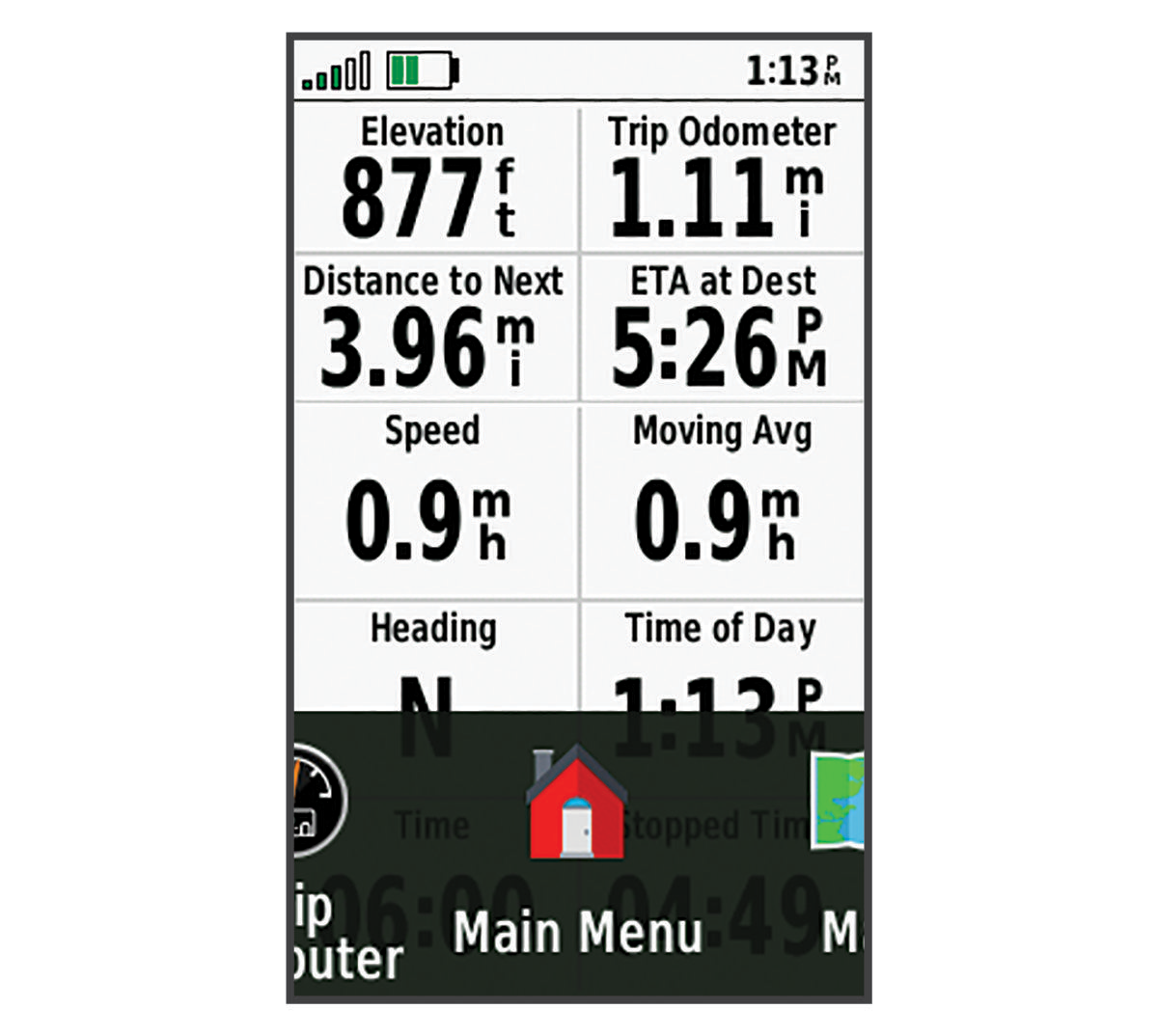
Configuring the Page Ribbon Display
- Press MENU twice to open the main menu.
- Select Setup > Menus > Page Sequence > Page Ribbon Display.
- Select an option:
- To disable the page ribbon display, select Off.
- To set the speed at which a page opens after being selected in the page ribbon display, select Slow or Fast.