Golfing
Playing Golf
Before you play golf, you should charge the device (Charging the Device).
NOTE: If you found a golf course with data that’s inaccurate or outdated, please send us a report at Golf Course Issue Repor.
- From the watch face, select START > Golf.
- Go outside, and wait while the device locates satellites.
- Select a course from the list of available courses.
- If necessary, set your driver distance.
- Select Yes to keep score.
- Select UP or DOWN to scroll through the holes.
The device automatically transitions when you move to the next hole.
- After you complete your activity, select START > End Round > Yes.
Hole Information
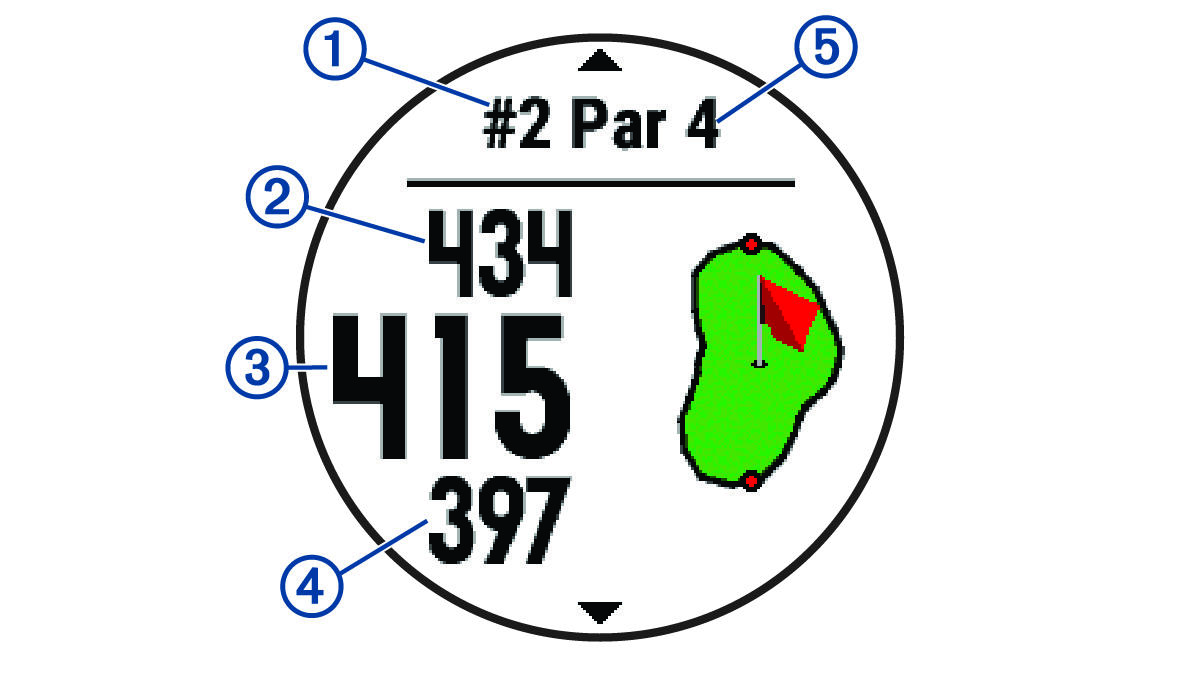
The device calculates the distance to the front and back of the green, and to the selected pin location (Moving the Flag).
|
|
Current hole number |
|
|
Distance to the back of the green |
|
|
Distance to the selected pin location |
|
|
Distance to the front of the green |
|
|
Par for the hole |
|
|
Map of the green |


You can take a closer look at the green and move the pin location.
- From the hole information screen, select START > Move Flag.
- Select UP or DOWN to move the pin position.
- Select START.
The distances on the hole information screen are updated to show the new pin location. The pin location is saved for only the current round.
Viewing Measured Shots
Before the device can automatically detect and measure shots, you must enable scoring.
Your device features automatic shot detection and recording. Each time you take a shot along the fairway, the device records your shot distance so you can view it later.
TIP: Automatic shot detection works best when you wear the device on your leading wrist and make good contact with the ball. Putts are not detected.
- While playing golf, select START > Measure Shot. Your last shot distance appears.
NOTE: The distance automatically resets when you hit the ball again, putt on the green, or move to the next hole.
- Select DOWN to view all recorded shot distances.
Viewing Layup and Dogleg Distances
You can view a list of layup and dogleg distances for par 4 and 5 holes.
Select START > Layups.
Each layup and the distance until you reach each layup appear on the screen.
NOTE: Distances are removed from the list as you pass them.
Keeping Score
- From the hole information screen, select START > Scorecard.
The scorecard appears when you are on the green.
- Select UP or DOWN to scroll through the holes.
- Select START to select a hole.
- Select UP or DOWN to set the score.
Your total score is updated.
Updating a Score
- From the hole information screen, select START > Scorecard.
- Select UP or DOWN to scroll through the holes.
- Select START to select a hole.
- Select UP or DOWN to change the score for that hole.
Your total score is updated.
TruSwing
The TruSwing feature allows you to view swing metrics recorded from your TruSwing device. Go to Garmin.com.sg/minisite/approach to purchase a TruSwing device.
Using the Golf Odometer
You can use the odometer to record the time, distance, and steps traveled. The odometer automatically starts and stops when you start or end a round.
- Select START > Odometer.
- If necessary, select Reset to reset the odometer to zero.
Tracking Statistics
The Stat Tracking feature enables detailed statistics tracking while playing golf.
- From the hole information screen, hold
 .
. - Select the activity settings.
- Select Stat Tracking to enable tracking statistics.