Recording a Bouldering Activity
You can record routes during a bouldering activity. A route is a climbing path along a boulder or small rock formation.
- From the watch face, press
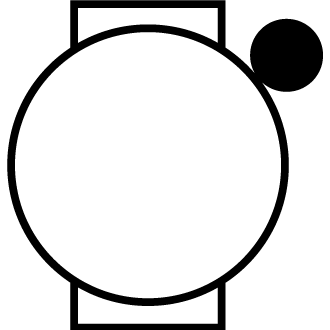 .
. - Select Activities > Outdoor > Bouldering.
- Select a grading system.
NOTE: The next time you start a bouldering activity, the watch uses this grading system. You can hold  , select the activity settings, and select Grading System to change the system.
- Select the difficulty level for the route.
- Press to start the route timer.
- Start your first route.
- Press
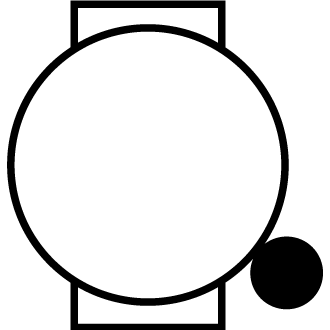 to finish the route.
 - Select an option:
- To save a successful route, select Completed.
- To save an unsuccessful route, select Attempted.
- To delete the route, select Discard.
- When you are done resting, press to start your next route.
- Repeat this process for each route until your activity is complete.
- After your last route, press to stop the route timer.
- Select Save.
Starting an Expedition
You can use the Expedition activity to prolong the battery life while recording a multi-day activity.
- From the watch face, press .
- Select Activities > Outdoor > Expedition.
- Press to start the activity timer.
The device enters low power mode and collects GPS track points once an hour. To maximize battery life, the device turns off all sensors and accessories, including the connection to your smartphone.
Recording a Track Point Manually
During an expedition, track points are recorded automatically based on the selected recording interval. You canmanually record a track point at any time.
- During an expedition, press .
- Select Add Point.
Viewing Track Points
- During an expedition, press .
- Select View Points.
- Select a track point from the list.
- Select an option:
- To start navigating to the track point, select Go To.
- To view detailed information about the track point, select Details.
Going Fishing
- From the watch face, press .
- Select Activities > Outdoor > Fish.
- Press .
- Press , and select an option:
- To add the catch to your fish count and save the location, select Log Catch.
- To save your current location, select Save Location.
- To set an interval timer, end time, or end time reminder for the activity, select Fish Timers.
- To navigate back to the starting point of your activity, select Back to Start, and select an option.
- To view your saved locations, select Saved Locations.
- To navigate to a destination, select Navigation, and select an option.
- To edit the activity settings, select Settings, and select an option (Activity Settings).
- After you complete your activity, press , and select End Fish.
Going Hunting
You can save locations relevant to your hunt and view a map of saved locations. During a hunting activity, the device uses a GNSS mode that conserves battery life.
- From the watch face, press .
- Select Activities > Outdoor > Hunt.
- Press , and select Start Hunt.
- Press , and select an option:
- To navigate back to the starting point of your activity, select Back to Start, and select an option.
- To save your current location, select Save Location.
- To view locations saved during this hunt activity, select Hunt Locations.
- To view all previously saved locations, select Saved Locations.
- To navigate to a destination, select Navigation, and select an option.
- After you complete your hunt, press , and select End Hunt.