Wireless Sensors
Your watch can be paired and used with wireless sensors using ANT+ or Bluetooth technology (Pairing Your Wireless Sensors). After the devices are paired, you can customize the optional data fields (Customizing the Data Screens). If your watch was packaged with a sensor, they are already paired.
For information about specific Garmin sensor compatibility, purchasing, or to view the owner’s manual, go to Garmin.com.sg/buy for that sensor.
|
Sensor Type |
Description |
|
Club Sensors |
You can use Approach golf club sensors to automatically track your golf shots, including location, distance, and club type. |
|
eBike |
You can use your watch with your eBike and view bike data, such as battery and range information, during your rides. |
|
Extended Display |
You can use the Extended Display mode to display data screens from your fēnix watch on a compatible Edge® bike computer during a ride or triathlon. |
|
External HR |
You can use an external sensor, such as the HRM 200, HRM 600, HRM-Fit, or HRM-Pro series heart rate monitor, to view heart rate data during your activities. Some heart rate monitors can also store data or provide advanced running data (Running Dynamics) (Running Power). |
|
Foot Pod |
You can use a foot pod to record pace and distance instead of using GPS when you are training indoors or when your GPS signal is weak. |
|
Headphones |
You can use Bluetooth headphones to listen to music loaded onto your fēnix watch (Connecting Bluetooth Headphones). |
|
inReach |
The inReach remote function allows you to control your inReach satellite communicator using your fēnix watch (Using the inReach Remote). |
|
Lights |
You can use Varia™ smart bike lights to improve situational awareness. |
|
Power |
You can use the Rally™ or Vector™ power meter bike pedals to view your power data on your watch. You can adjust your power zones to match your goals and abilities (Setting Your Power Zones), or use range alerts to be notified when you reach a specified power zone (Setting an Alert). |
|
Radar |
You can use a Varia rearview bike radar to improve situational awareness and send alerts about approaching vehicles. With a Varia radar camera tail light, you can also take photos and record video during a ride (Using the Varia Camera Controls). |
|
Rangefinder |
You can use a compatible laser rangefinder to view your distance to the flag while golfing. |
|
RD Pod |
You can use a Running Dynamics Pod to record running dynamics data and view it on your watch (Running Dynamics). |
|
Shifting |
You can use electronic shifters to display shifting information during a ride. The fēnix watch displays current adjustment values when the sensor is in adjustment mode. |
|
Shimano Di2 |
You can use Shimano® Di2™ electronic shifters to display shifting information during a ride. |
|
Smart Trainer |
You can use your watch with an indoor bike smart trainer to simulate resistance while following a course, ride, or workout (Using an Indoor Trainer). |
|
Spd./Cad. |
You can attach speed or cadence sensors to your bike and view the data during your ride. If necessary, you can manually enter your wheel circumference (Wheel Size and Circumference). |
|
Tempe |
You can attach the tempe™ temperature sensor to a secure strap or loop where it is exposed to ambient air, so it provides a consistent source of accurate temperature data. |
|
Trolling Motor |
You can use your device as a remote control for your Garmin trolling motor (Pairing Your Watch and Trolling Motor). |
The first time you connect a wireless sensor to your watch using ANT+ or Bluetooth technology, you must pair the watch and sensor. After they are paired, the watch connects to the sensor automatically when you start an activity and the sensor is active and within range. For more information about connection types, go to Garmin.com/hrm_connection_types.
- Put on the heart rate monitor, install the sensor, or press the button to wake up the sensor.
NOTE: See your wireless sensor owner’s manual for pairing information.
- Bring the watch within 3 m (10 ft.) of the sensor.
NOTE: Stay 10 m (33 ft.) away from other wireless sensors while pairing.
- From the watch face, hold
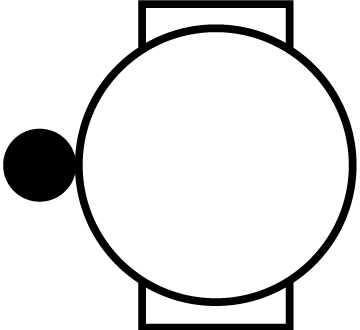 .
. - Select Watch Settings > Connectivity > Sensors & Accessories > Add New.
- Select an option:
- Select Search All.
- Select your sensor type.
After the sensor is paired with your watch, the sensor status changes from Searching to Connected. Sensor data appears in the data screen loop or a custom data field. You can customize the optional data fields (Customizing the Data Screens).
Heart Rate Accessory Running Pace and Distance
The HRM 600, HRM-Fit, and HRM-Pro series accessories calculate your running pace and distance based on your user profile and the motion measured by the sensor on every stride. The heart rate monitor provides running pace and distance when GPS is not available, such as during treadmill running. You can view your running pace and distance on your compatible fēnix watch when connected using ANT+ technology or secure Bluetooth technology. You can also view it on compatible third-party training apps.
The pace and distance accuracy improves with calibration.
Automatic calibration: The default setting for your watch is Auto Calibrate. The heart rate accessory calibrates each time you run outside with it connected to your compatible fēnix watch.
NOTE: Automatic calibration does not work for indoor, trail, or ultra run activity profiles (Tips for Recording Running Pace and Distance).
Manual calibration: You can select Calibrate & Save after a treadmill run with your connected heart rate accessory (Calibrating the Treadmill Distance).
Tips for Recording Running Pace and Distance
- Update your fēnix watch software (Product Updates).
- Complete several outdoor runs with GPS and your connected HRM-Fit or HRM-Pro series accessory. It’s important that your outdoor range of paces matches your range of paces on the treadmill.
- If your run includes sand or deep snow, go to the sensor settings, and turn off Auto Calibrate.
- If you previously connected a compatible foot pod using ANT+ technology, set the foot pod status to Off, or remove it from the list of connected sensors.
- Complete a treadmill run with manual calibration (Calibrating the Treadmill Distance).
- If automatic and manual calibrations don’t seem accurate, go to the sensor settings, and select HRM Pace & Distance > Reset Calibration Data.
NOTE: You can try turning off Auto Calibrate, and then manually calibrate again (Calibrating the Treadmill Distance).
Running dynamics is real-time feedback about your running form. Your fēnix watch has an accelerometer to calculate five running form metrics. To view all of the running form metrics, you must pair your fēnix watch with the HRM 600, HRM-Fit, HRM-Pro series accessory, or other running dynamics accessory that measures torso movement. For more information, go to Garmin.com/performance-data/running.
|
Metric |
Sensor Type |
Description |
|
Cadence |
Watch or compatible accessory |
Cadence is the number of steps per minute. It displays the total steps (right and left combined). |
|
Stride length |
Watch or compatible accessory |
Stride length is the length of your stride from one footfall to the next. It is measured in meters. |
|
Vertical oscillation |
Watch or compatible accessory |
Vertical oscillation is your bounce while running. It displays the vertical motion of your torso, measured in centimeters. |
|
Vertical ratio |
Watch or compatible accessory |
Vertical ratio is the ratio of vertical oscillation to stride length. It displays a percentage. A lower number typically indicates better running form. |
|
Ground contact time |
Watch or compatible accessory |
Ground contact time is the amount of time in each step that you spend on the ground while running. It is measured in milliseconds. |
|
Ground contact time balance |
Compatible accessory only |
Ground contact time balance displays the left/right balance of your ground contact time while running. It displays a percentage. For example, 53.2 with an arrow pointing left or right. |
|
Step speed loss |
HRM 600 only |
Step speed loss is how much you slow down when your foot hits the ground while running. It is measured in centimeters per second. A lower number is typically better, as it indicates you have to do less propulsive work to speed back up. |
|
Step speed loss percentage |
HRM 600 only |
Step speed loss percent is how much you slow down when your foot hits the ground as a percentage of your running speed. This accounts for step speed loss typically increasing with faster running speed. |
Tips for Missing Running Dynamics Data
This topic provides tips for using a compatible running dynamics accessory. If the accessory is not connected to your watch, the watch automatically switches to wrist-based running dynamics.
- Make sure you have a running dynamics accessory, such as the HRM 600, HRM-Fit, or HRM-Pro series accessory.
- Pair the running dynamics accessory with your watch again, according to the instructions.
- If you are using an HRM 600 accessory, pair it with your watch using the secure Bluetooth connection, rather than the open connection.
For more information about connection types, go to Garmin.com/hrm_connection_types.
- If you are using an HRM-Fit or HRM-Pro series accessory, pair it with your watch using ANT+ technology, rather than Bluetooth technology.
- If the running dynamics data display shows only zeros, make sure the accessory is worn right-side up.
NOTE: Some metrics do not appear while walking (Running Dynamics).
Garmin running power is calculated using measured running dynamics information, user mass, environmental data, and other sensor data. The power measurement estimates the amount of power a runner applies to the road surface, and it is displayed in watts. Using running power as a gauge of effort may suit some runners better than using either pace or heart rate. Running power can be more responsive than heart rate for indicating the level of effort, and it can account for the uphills, downhills, and wind, which a pace measurement does not do. For more information, go to Garmin.com.sg/minisite/runningscience.
Running power can be measured using a compatible running dynamics accessory or the watch sensors. You can customize the running power data fields to view your power output and make adjustments to your training (Data Fields). You can set up power alerts to be notified when you reach a specified power zone (Activity Alerts).
Running power zones are similar to cycling power zones. The values for the zones are default values based on gender, weight, and average ability, and may not match your personal abilities. You can manually adjust your zones on the watch or using your Garmin Connect account (Setting Your Power Zones).
From the watch face, press  , select Activities, select a running activity, press
 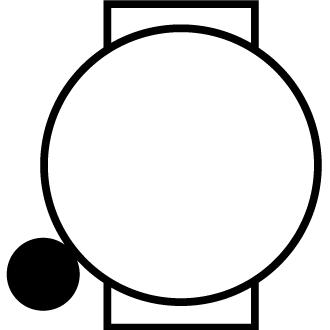 , select the activity settings, and select Running Power.
Status: Enables or disables recording Garmin running power data. You can use this setting if you prefer to use third-party running power data.
Source: Allows you to select which device to use to record running power data. The Smart Mode option automatically detects and uses the running dynamics accessory, when available. The watch uses wrist-based running power data when an accessory is not connected.
Account for Wind: Enables or disables using wind data when calculating your running power. Wind data is a combination of the speed, heading, and barometer data from your watch and the available wind data from your phone.
Chest Heart Rate While Swimming
The HRM 600, HRM-Pro series, HRM-Swim, and HRM-Tri heart rate accessories record and store your heart rate data while you are swimming. To view your heart rate data, you can add heart rate data fields (Customizing the Data Screens).
NOTE: Chest heart rate data is not visible on compatible watches while the heart rate monitor is underwater.
You must start a timed activity on your paired watch to view stored heart rate data later. During rest intervals when out of the water, the heart rate accessory sends your heart rate data to your watch. Your watch automatically downloads stored heart rate data when you save your timed swim activity. Your heart rate accessory must be out of the water, active, and within range of the watch (3 m) while data downloads. Your heart rate data can be reviewed in the watch history and on your Garmin Connect account.
If both wrist-based heart rate and chest heart rate data are available, your watch uses the chest heart rate data.
Using the Varia Camera Controls
NOTICE
Some jurisdictions may prohibit or regulate the recording of video, audio, or photographs, or may require that all parties have knowledge of the recording and provide consent. It is your responsibility to know and follow all laws, regulations, and any other restrictions in jurisdictions where you plan to use this device.
Before you can use the Varia camera controls, you must pair the accessory with your watch (Pairing Your Wireless Sensors).
- Select an option:
- Add the Camera Controls control to your watch (Customizing the Controls Menu.
- Add the Camera Controls glance to your watch (Customizing the Glances List).
- From the Camera Controls control or glance, select an option:
- Select
 >
>  to view the camera settings.
 - Select >
 to record the ride.
 - Select
 to take a photo.
 - Select
 to save a clip.
- Select
inReach Remote
The inReach remote function allows you to control your inReach satellite communicator using your fēnix watch.
Go to Garmin.com.sg/buy for more information about compatible devices.
Before you can use the inReach remote function, you must add the inReach glance to the glances list (Customizing the Glances List).
- Turn on the inReach satellite communicator.
- On your fēnix watch, press from the watch face to view the inReach glance.
- Press to search for your inReach satellite communicator.
- Press to pair your inReach satellite communicator.
- Press , and select an option:
- To send an SOS message, select Initiate SOS.
NOTE: You should only use the SOS function in a real emergency situation.
- To send a text message, select Messages > New Message, select the message contacts, and enter themessage text or select a quick text option.
- To send a preset message, select Send Preset, and select a message from the list.
- To view the timer and distance traveled during an activity, select Tracking.