Performing a Guided Test to Determine Your Lactate Threshold
This feature requires a Garmin chest heart rate monitor. Before you can perform the guided test, you must put on a heart rate monitor and pair it with your device (Pairing Your Wireless Sensors).
The device uses your user profile information from the initial setup and your VO2 max. estimate to estimate your lactate threshold. The device will automatically detect your lactate threshold during runs at a steady, high intensity with heart rate.
TIP: The device requires a few runs with a chest heart rate monitor to get an accurate maximum heart rate value and VO2 max. estimate. If you are having trouble getting a lactate threshold estimate, try manually lowering your maximum heart rate value.
- From the watch face, select START.
- Select an outdoor running activity.
GPS is required to complete the test.
- Hold MENU.
- Select Training > Lactate Threshold Guided Test.
- Start the timer, and follow the on-screen instructions.
After you begin your run, the device displays each step duration, the target, and current heart rate data. A message appears when the test is complete.
- After you complete the guided test, stop the timer and save the activity.
If this is your first lactate threshold estimate, the device prompts you to update your heart rate zones based on your lactate threshold heart rate. For each additional lactate threshold estimate, the device prompts you to accept or decline the estimate.
Viewing Your Real-Time Stamina
Your watch can provide real-time stamina estimates based on your heart rate data and VO2 max. estimate (About VO2 Max. Estimates).
- Hold MENU.
- Select Activities & Apps.
- Select a run or bike activity.
- Select the activity settings.
- Select Data Screens > Add New > Stamina.
- Press UP or DOWN to change the location of the data screen (optional).
- Press START to edit the primary stamina data field (optional).
- Start your activity (Starting an Activity).
- Press UP or DOWN to scroll to the data screen.
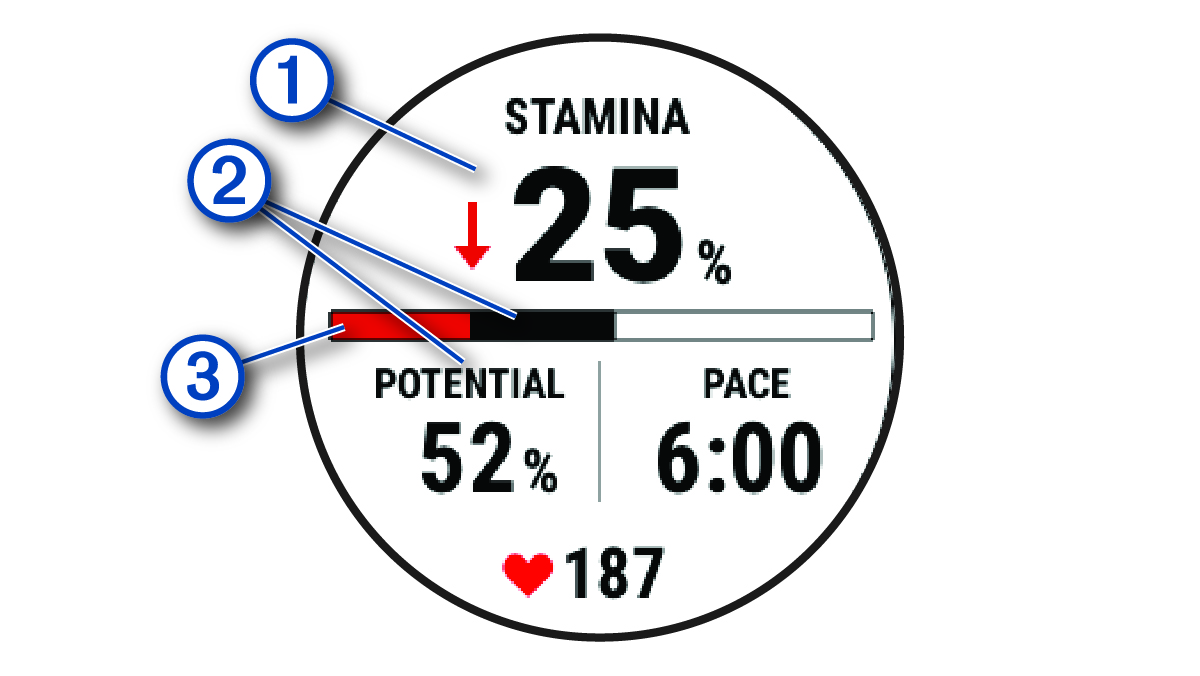
|
|
Primary stamina data field. Shows your current stamina percentage, distance remaining, or time remaining. |
|
|
Potential stamina. |
|
|
Current stamina.
|


 Red: Stamina is depleting.
 Orange: Stamina is steady.
 Green: Stamina is recharging.