Getting Your VO2 Max. Estimate for Cycling
This feature requires a power meter and wrist-based heart rate or a compatible chest heart rate monitor. The power meter must be paired with your Enduro device (Pairing Your Wireless Sensors). If you are using a chest heart rate monitor, you must put it on and pair it with your device.
For the most accurate estimate, complete the user profile setup (Setting Up Your User Profile) and set your maximum heart rate (Setting Your Heart Rate Zones). The estimate may seem inaccurate at first. The device requires a few rides to learn about your cycling performance.
- Ride at a steady, high intensity for at least 20 minutes.
- After your ride, select Save.
- Select UP or DOWN to scroll through the performance measurements.
TIP: You can select START to view additional information.
Viewing Your Fitness Age
Your fitness age gives you an idea of how your fitness compares with a person of the same gender. Your watch uses information, such as your age, body mass index (BMI), resting heart rate data, and vigorous activity history to provide a fitness age. If you have a Garmin Index scale, your watch uses the body fat percentage metric instead of BMI to determine your fitness age. Exercise and lifestyle changes can impact your fitness age.
NOTE: For the most accurate fitness age, complete the user profile setup (Setting Up Your User Profile).
- Hold MENU.
- Select User Profile > Fitness Age.
Viewing Your Predicted Race Times
For the most accurate estimate, complete the user profile setup (Setting Up Your User Profile), and set your maximum heart rate (Setting Your Heart Rate Zones).
Your watch uses the VO2 max. estimate (About VO2 Max. Estimates) and your training history to provide a target race time. The watch analyzes several weeks of your training data to refine the race time estimates.
TIP: If you have more than one Garmin device, you can enable the Physio TrueUp feature, which allows your watch to sync activities, history, and data from other devices (Syncing Activities and Performance Measurements).
- From the watch face, press UP or DOWN to view the performance glance.
- Press START to view glance details.
- Press UP or DOWN to view a predicted race time.
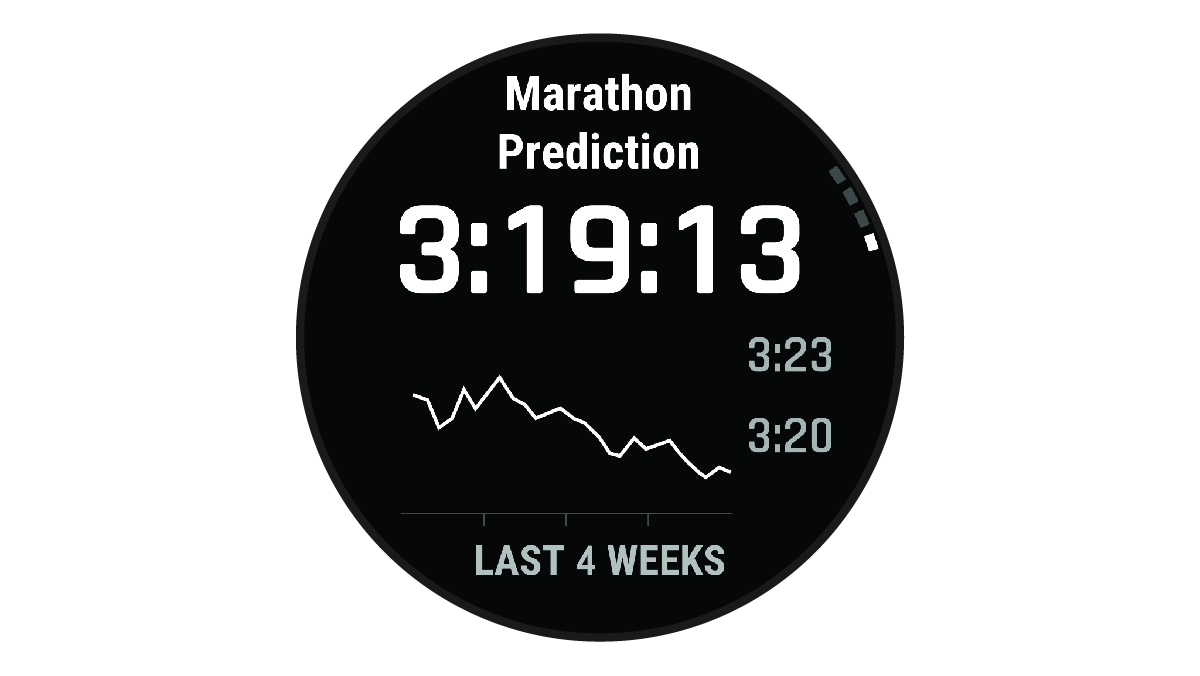
- Press START to view predictions for other distances.
NOTE: The predictions may seem inaccurate at first. The watch requires a few runs to learn about your running performance.
Heart Rate Variability and Stress Level
Stress level is the result of a three-minute test performed while standing still, where the Enduro device analyzes heart rate variability to determine your overall stress. Training, sleep, nutrition, and general life stress all impact how a runner performs. The stress level range is from 1 to 100, where 1 is a very low stress state and 100 is a very high stress state. Knowing your stress level can help you decide if your body is ready for a tough training run or yoga.
Viewing Your Heart Rate Variability and Stress Level
This feature requires a Garmin chest heart rate monitor. Before you can view your heart rate variability (HRV) stress level, you must put on a heart rate monitor and pair it with your device (Pairing Your Wireless Sensors).
TIP: Garmin recommends that you measure your stress level at approximately the same time and under the same conditions every day.
- If necessary, press START, and select Add > HRV Stress to add the stress app to the apps list.
- Select Yes to add the app to your list of favorites.
- From the watch face, press START, select HRV Stress, and press START.
- Stand still, and rest for 3 minutes.
As you complete your activity, such as running or cycling, the performance condition feature analyzes your pace, heart rate, and heart rate variability to make a real-time assessment of your ability to perform compared to your average fitness level. It is approximately your real-time percentage deviation from your baseline VO2 max. estimate.
Performance condition values range from -20 to +20. After the first 6 to 20 minutes of your activity, the device displays your performance condition score. For example, a score of +5 means that you are rested, fresh, and capable of a good run or ride. You can add performance condition as a data field to one of your training screens to monitor your ability throughout the activity. Performance condition can also be an indicator of fatigue level, especially at the end of a long training run or ride.
NOTE: The device requires a few runs or rides with a heart rate monitor to get an accurate VO2 max. estimate and learn about your running or riding ability (About VO2 Max. Estimates).
Viewing Your Performance Condition
This feature requires wrist-based heart rate or a compatible chest heart rate monitor.
- Add Performance Condition to a data screen (Customizing the Data Screens).
- Go for a run or ride.
After 6 to 20 minutes, your performance condition appears.
- Scroll to the data screen to view your performance condition throughout the run or ride.
Before you can get your functional threshold power (FTP) estimate, you must pair a chest heart rate monitor and power meter with your watch (Pairing Your Wireless Sensors), and you must get your VO2 max. estimate (Getting Your VO2 Max. Estimate for Cycling).
The watch uses your user profile information from the initial setup and your VO2 max. estimate to estimate your FTP. The watch will automatically detect your FTP during rides at a steady, high intensity with heart rate and power.
- Press UP or DOWN to view the performance glance.
- Press START to view glance details.
- Press UP or DOWN to view your FTP estimate.
Your FTP estimate appears as a value measured in watts per kilogram, your power output in watts, and a position on the color gauge.
|
|
Superior |
|
|
Excellent |
|
|
Good |
|
|
Fair |
|
|
Untrained |
 Purple
 Blue
Blue Green
Green Orange
 Red
RedFor more information, see the appendix (FTP Ratings).
NOTE: When a performance notification alerts you to a new FTP, you can select Accept to save the new FTP, or Decline to keep your current FTP.