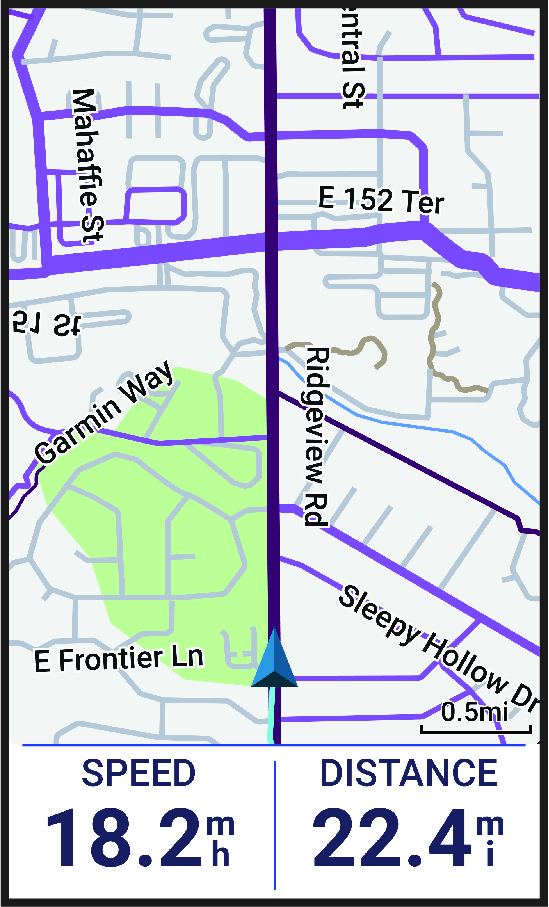
Navigating to a Location
TIP: You can use the Location Search glance to perform a quick search from the home screen. If necessary, you can add the glance to the glance loop ().
- Select Navigation.
- Select an option:
- Select
 to enter specific search information.
 - Select Browse Map to navigate to a location on the map.
- Select Courses to navigate using a saved course ().
- Select Recent Finds to navigate to one of the last 50 locations you have found.
- Select Categories to navigate to a point of interest, city, address, intersection, or known coordinates.
- Select Saved Locations to navigate to a saved location.
- Select MTB Trail Navigation to navigate to a mountain bike trail network.
- Select
 > Searching near: to narrow your search area.
- Select
- Select a location.
- Select Ride.
- Follow the on-screen instructions to proceed to your destination.