Viewing the Map
- Start an outdoor activity.
- Press UP or DOWN to scroll to the map screen.
- Hold MENU, and select an option:
Saving or Navigating to a Location on the Map
You can select any location on the map. You can save the location or start navigating to it.
- From the map, hold MENU.
- Select Pan/Zoom.
Controls and crosshairs appear on the map.
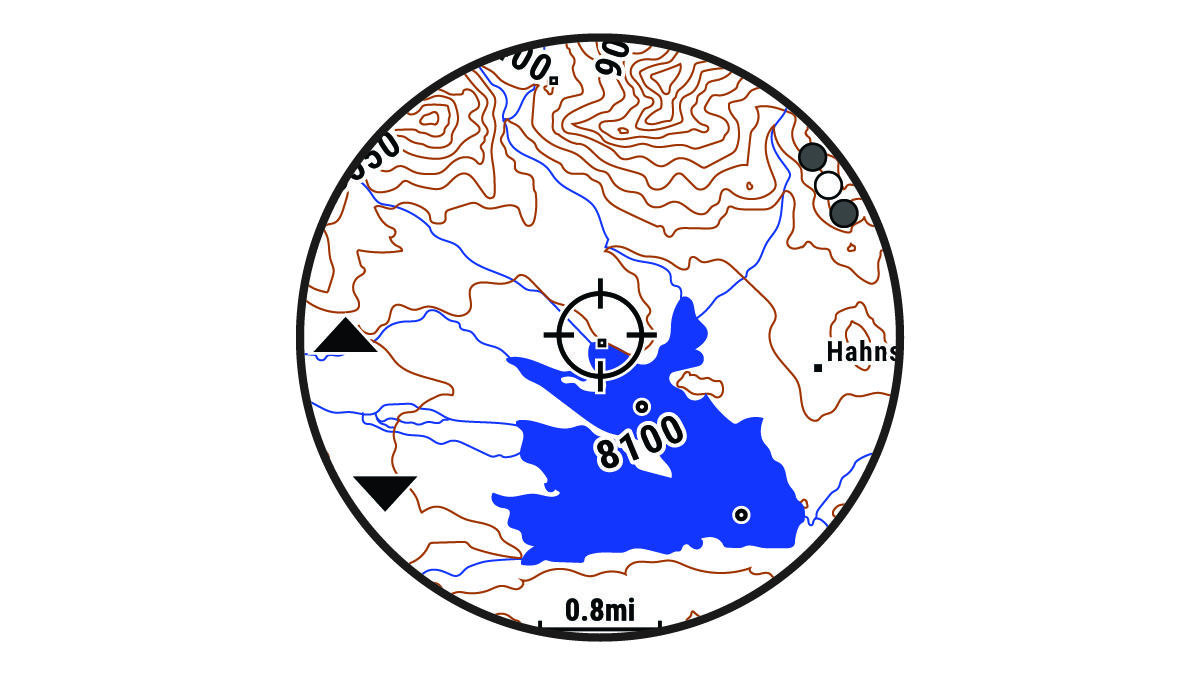
- Pan and zoom the map to center the location in the crosshairs.
- Hold START to select the point indicated by the crosshairs.
- If necessary, select a nearby point of interest.
- Select an option:
- To start navigating to the location, select Go.
- To save the location, select Save Location.
- To view information about the location, select Review.