Phone Apps and Computer Applications
You can connect your watch to multiple Garmin phone apps and computer applications using the same Garmin account.
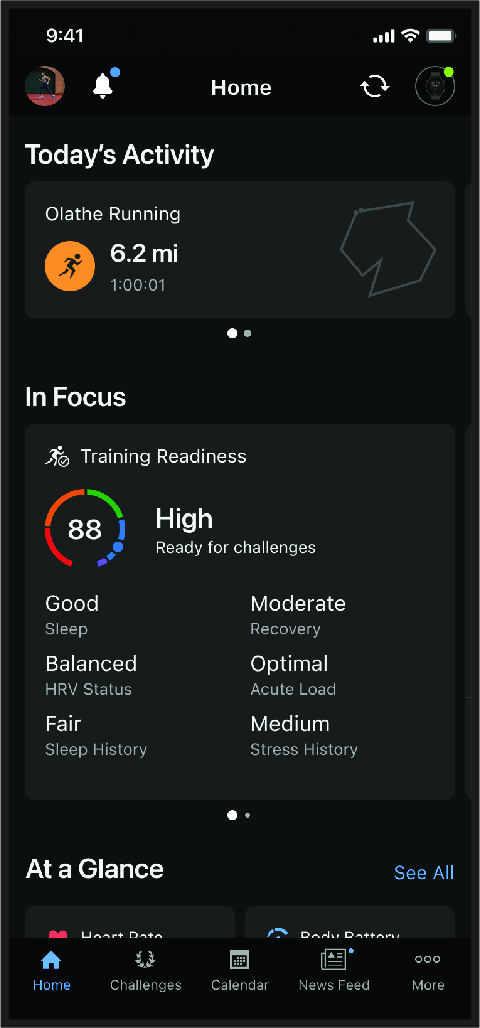
You can connect with your friends on Garmin Connect. Garmin Connect gives you the tools to track, analyze, share, and encourage each other. Record the events of your active lifestyle including runs, walks, rides, swims, hikes, triathlons, and more. To sign up for a free account, you can download the app from the app store on your phone (Garmin.com/connectapp), or go to connect.garmin.com.
Store your activities: After you complete and save an activity with your watch, you can upload that activity to your Garmin Connect account and keep it as long as you want.
Analyze your data: You can view more detailed information about your activity, including time, distance, elevation, heart rate, calories burned, cadence, running dynamics, an overhead map view, pace and speed charts, and customizable reports.
NOTE: Some data requires an optional accessory such as a heart rate monitor.
Plan your training: You can choose a fitness goal and load one of the day-by-day training plans.
Track your progress: You can track your daily steps, join a friendly competition with your connections, and meet your goals.
Share your activities: You can connect with friends to follow each other’s activities or share links to your activities.
Manage your settings: You can customize your watch and user settings on your Garmin Connect account.
After you pair your watch with your phone (), you can use the Garmin Connect app to upload all of your activity data to your Garmin Connect account.
- Verify the Garmin Connect app is running on your phone.
- Bring your watch within 10 m (30 ft.) of phone.
Your watch automatically syncs your data with the Garmin Connect app and your Garmin Connect account.
Updating the Software Using the Garmin Connect App
Before you can update your watch software using the Garmin Connect app, you must have a Garmin Connect account, and you must pair the watch with a compatible phone ().
Sync your watch with the Garmin Connect app ().
When new software is available, the Garmin Connect app automatically sends the update to your watch.
Using Garmin Connect on Your Computer
The Garmin Express™ application connects your watch to your Garmin Connect account using a computer. You can use the Garmin Express application to upload your activity data to your Garmin Connect account and to send data, such as workouts or training plans, from the Garmin Connect website to your watch. You can also install software updates and manage your Connect IQ apps.
- Connect the watch to your computer using the USB cable.
- Go to Garmin.com/express.
- Download and install the Garmin Express application.
- Open the Garmin Express application, and select Add Device.
- Follow the on-screen instructions.
Updating the Software Using Garmin Express
Before you can update your device software, you must have a Garmin Connect account, and you must download the Garmin Express application.
- Connect the device to your computer using the USB cable.
When new software is available, Garmin Express sends it to your device.
- Follow the on-screen instructions.
- Do not disconnect your device from the computer during the update process.
Manually Syncing Data with Garmin Connect
NOTE: You can add options to the controls menu ().
- Hold LIGHT to view the controls menu.
- Select Sync.
You can add Connect IQ apps, data fields, glances, and watch faces to your watch using the Connect IQ store on your watch or phone (Garmin.com/connectiqapp).
NOTE: For your safety, Connect IQ features are not available while diving. This ensures that all dive capabilities function as designed.
Watch Faces: Customize the appearance of the clock.
Device Apps: Add interactive features to your watch, such as glances and new outdoor and fitness activity types.
Data Fields: Download new data fields that present sensor, activity, and history data in new ways. You can add Connect IQ data fields to built-in features and pages.
Downloading Connect IQ Features
Before you can download features from the Connect IQ app, you must pair your Descent G2 watch with your phone ().
- From the app store on your phone, install and open the Connect IQ app.
- If necessary, select your watch.
- Select a Connect IQ feature.
- Follow the on-screen instructions.
Downloading Connect IQ Features Using Your Computer
- Connect the watch to your computer using a USB cable.
- Go to apps.garmin.com, and sign in.
- Select a Connect IQ feature, and download it.
- Follow the on-screen instructions.
The Garmin Dive app allows you to upload your dive logs from your compatible Garmin device. You can add more detailed information about your dives, including environmental conditions, photos, notes, and dive buddies. You can use the map to browse for new dive locations, and view the location details and photos shared by other users.
The Garmin Dive app syncs your data with your Garmin Connect account. You can download the Garmin Dive app from the app store on your phone (Garmin.com/diveapp).
The Garmin Explore website and app allow you to create courses, waypoints, and collections, plan trips, and use cloud storage. They offer advanced planning both online and offline, allowing you to share and sync data with your compatible Garmin device. You can use the app to download maps for offline access, and then navigate anywhere without using your cellular service.
You can download the Garmin Explore app from the app store on your phone (Garmin.com/exploreapp), or you can go to explore.garmin.com.
 WARNING
The inReach features of the Garmin Messenger app, including SOS, tracking, and inReach Weather, are not available without a connected inReach satellite communicator and an active satellite subscription. Always test the app outdoors before using it on a trip.
CAUTION
The non-satellite messaging features of the Garmin Messenger app alone should not be relied on as a primary method to obtain emergency assistance.
NOTICE
The app works over both the internet (using a wireless connection or cellular data on your phone) and the Iridium® satellite network. If you are using cellular data, your paired phone must be equipped with a data plan and be in an area of network coverage where data is available. If you are in an area without network coverage, you must have an active satellite subscription for your inReach satellite communicator to use the Iridium satellite network.
You can use the app to message other Garmin Messenger app users, including friends and family without Garmin devices. Anyone can download the app and connect their phone, allowing them to communicate with other app users over the internet (no login is required). App users can also create group messaging threads with other SMS phone numbers. New members added to the group message can download the app to see what others are saying.
Messages sent using a wireless connection or cellular data on your phone do not incur data charges or additional charges on your satellite subscription. Messages received may incur charges if message delivery is attempted over both the Iridium satellite network and the internet. Standard text messaging rates for your cellular data plan apply.
You can download the Garmin Messenger app from the app store on your phone (Garmin.com/messengerapp).
CAUTION
The non-satellite messaging features of the Garmin Messenger app alone should not be relied on as a primary method to obtain emergency assistance.
NOTICE
To use the Messenger feature, your Descent G2 watch must be connected to the Garmin Messenger app on your compatible phone using Bluetooth technology.
The Messenger feature on your watch allows you to view, compose, and reply to messages from the Garmin Messenger phone app.
- From the watch face, press UP or DOWN to view the Messenger glance.
TIP: The Messenger feature is available as a glance, app, or controls menu option on your watch.
- Press START to open the glance.
- If this is your first time using the Messenger feature, scan the QR code with your phone, and follow the on-screen instructions to complete the pairing and setup process.
- On your watch, select an option:
- To compose a new message, select New Message, select a recipient, and either select a pre-definedmessage or compose your own.
- To view a conversation, press UP or DOWN, and select a conversation.
- To reply to a message, select a conversation, select Reply, and either select a pre-defined message or compose your own.
The Garmin Golf app allows you to upload scorecards from your Descent G2 device to view detailed statistics and shot analyses. Golfers can compete with each other at different courses using the Garmin Golf app. More than 43,000 courses have leaderboards that anyone can join. You can set up a tournament event and invite players to compete. With a Garmin Golf membership, you can view green contour data on your phone.
The Garmin Golf app syncs your data with your Garmin Connect account. You can download the Garmin Golf app from the app store on your phone (garmin.com/golfapp).